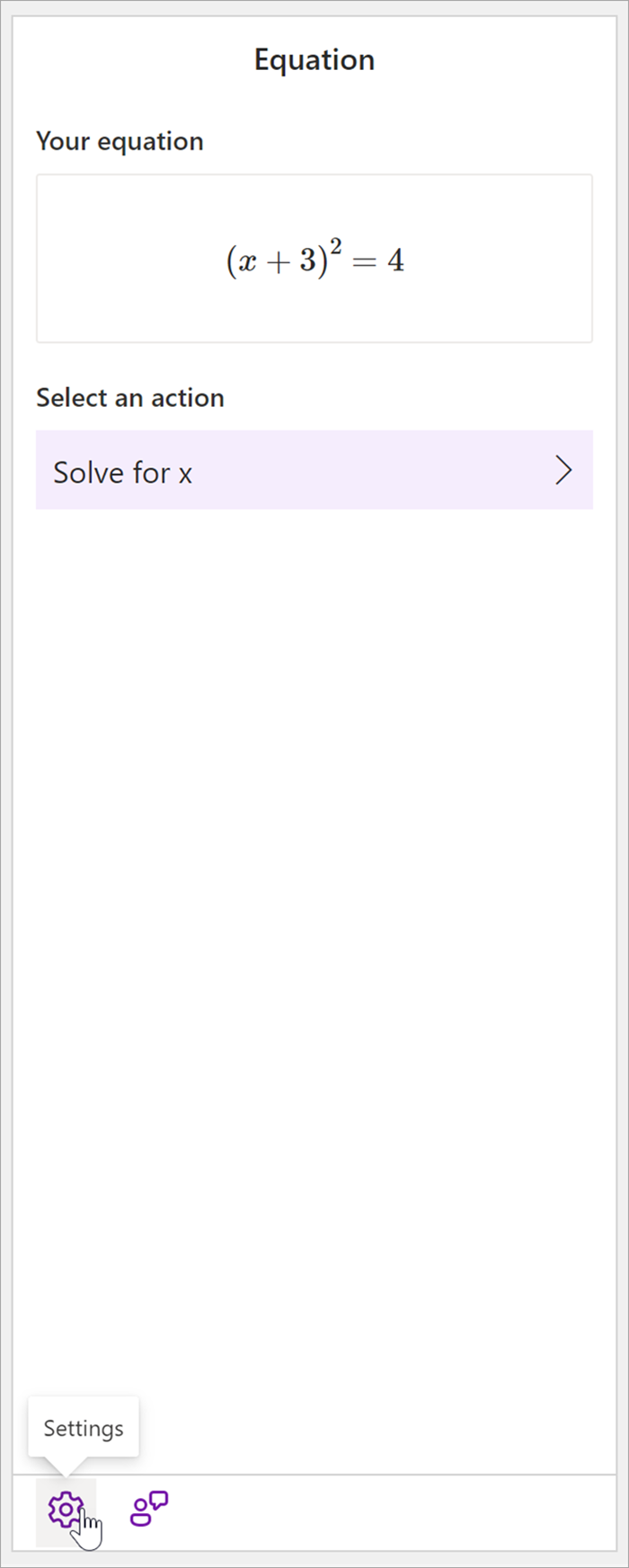
Write or type any math problem and Math Assistant in OneNote can solve it for you—helping you reach the solution quickly, or displaying step-by-step instructions that help you learn how to reach the solution on your own. After solving your equation, there are many options to continue exploring math learning with Math Assistant.
Note
This feature is only available if you have a Microsoft 365 subscription for Enterprise or Education.
Step 1: Enter your equation
In the Draw tab, write or type your equation. Use the Lasso Select tool to draw a circle around the equation.
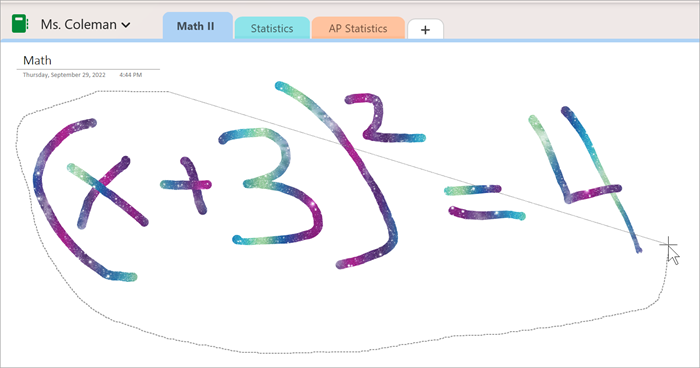
Next, from the Draw tab, select Math. This will open the Math Assistant pane.
Learn more:
Step 2: Solve your equation
Based on your equation, options for actions will be provided. Select your desired action.
Your equation and the solution will be displayed in the Math pane.
Tip
Select Insert math on page to transfer your results to the OneNote page you are working on.
Learn more: Check the Supported Equations tab of this page.
Step 3: Learn from Math Assistant
To learn how OneNote solved the problem, select the method you'd like to learn about from the provided options.
- Steps for various methods are provided based on your equation.
:::column-end:::
:::row-end:::
Step 1: Enter your equation
In the Draw tab, write or type your equation. Use the Lasso Select tool to draw a circle around the equation. Then select Math. This will open the Math Assistant pane.
Learn more:Create your equation using ink or text.

Step 2: Solve your equation
To solve the current equation, do any of the following:
Click or tap the Select an action box and then choose the action you want Math Assistant to take. The available choices in this drop-down menu depend on the selected equation.
Learn more: check the Supported Equations tab of this page.
Review the solution that OneNote displays underneath the action you selected. In the example below, the selected option Solve for x displays the solution.
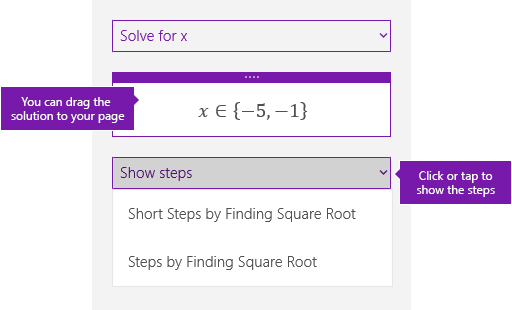
- To learn how OneNote solved the problem, you can click or tap Show steps, and then select the detail of what you want to view. The available choices in this drop-down menu depend on the selected equation.
- To hear the solution steps read out loud, select Immersive Reader
 to launch it from OneNote.
- Generate a practice quiz to keep practicing this type of equation.
Warning
Generate practice quiz is not currently available as we are working to optimize the experience. The ability to generate practice quizzes will return later this year.

Tip
You can drag the solution steps to any place on your page.
Step 1: Enter your equation
In the Draw tab, write or type your equation. Use the Lasso Select tool to draw a circle around the equation. Then select Math. This will open the Math Assistant pane.
Learn more:Create your equation using ink or text.
Step 2: Solve your equation
To solve the current equation, do any of the following:
Click or tap the Select an action box and then choose the action you want Math Assistant to take. The available choices in this drop-down menu depend on the selected equation.
Learn more: check the Supported Equations tab of this page.
Review the solution that OneNote displays underneath the action you selected. In the example below, the selected option Solve for x displays the solution.
- To learn how OneNote solved the problem, you can click or tap Show steps, and then select the detail of what you want to view. The available choices in this drop-down menu depend on the selected equation.
- To hear the solution steps read out loud, select Immersive Reader
to launch it from OneNote.
- Generate a practice quiz to keep practicing this type of equation.
Warning
Generate practice quiz is not currently available as we are working to optimize the experience. The ability to generate practice quizzes will return later this year.
Tip
You can drag the solution steps to any place on your page.
Step 1: Enter your equation
In the Draw tab, write or type your equation. Use the Lasso Select tool to draw a circle around the equation.
Next, from the Draw tab, select Math. This will open the Math Assistant pane.
Learn more:
Step 2: Solve your equation
Based on your equation, options for actions will be provided. Select your desired action.
Your equation and the solution will be displayed in the Math pane.
Tip
Select Insert math on page to transfer your results to the OneNote page you are working on.
Learn more: Check the Supported Equations tab of this page.
Step 3: Learn from Math Assistant
To learn how OneNote solved the problem, select the method you'd like to learn about from the provided options.
- Steps for various methods are provided based on your equation.
:::column-end:::
:::row-end:::
Problem Types Supported by Math Assistant
When you use Math Assistant in OneNote, you'll notice that the Select an action dropdown beneath the equation changes depending on your selected equation. Here are some of the problem types supported depending on the equation you're trying to solve.
| Arrays |
For a list of real numbers, all of the below are supported.
- Evaluate
- Sort
- Mean
- Median
- Mode
- Sum
- Product
- Greatest Common Factor
- Least Common Multiple
- Variance
- Standard Deviation
- Minima
- Maxima
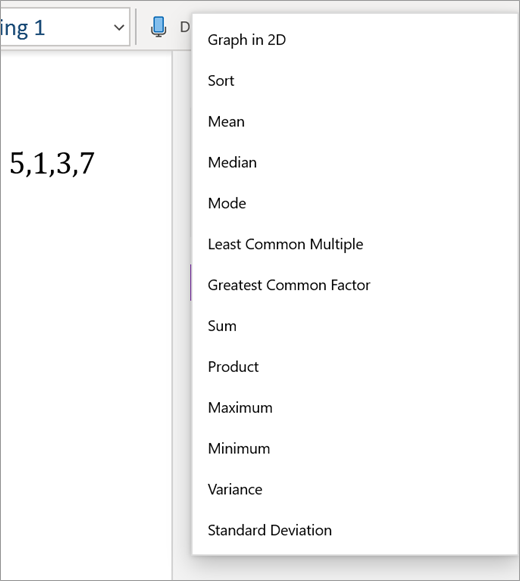
For polynomials, the supported actions are Greatest Common Factor and Least Common Multiple. You can also choose to Graph in 2D to view the graphs of all your functions.

|
| Expressions |
For any expression, the available actions are:
- Evaluate
- Verify
- Expand (if applicable)
- Factor (if applicable)
- Graph in 2D (only available if there is a variable)
- Differentiate (only available if there is a variable)
- Integrate (only available if there is a variable)

|
| Equations and inequalities |
For equations and inequalities, the following actions are available:
- Solve for {your variable}
- Graph Both Sides in 2D — Each of the sides of the equality or inequality is graphed as a separate function.
- Graph in 2D — A graph of the equation or inequality solutions
- Graph Inequality — Marks the solution area on the graph

|
| Systems |
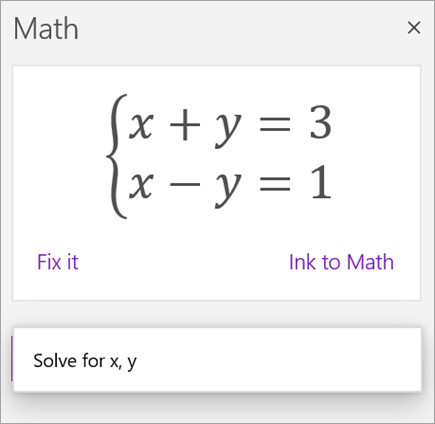
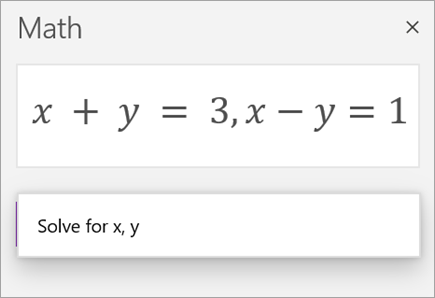
It is important to have an equal number of equations and variables to ensure the correct functions are available. Systems can be written in two different ways:
- One below another, with or without a big brace before them
- In one line divided by a comma
|
| Derivatives and integrals |
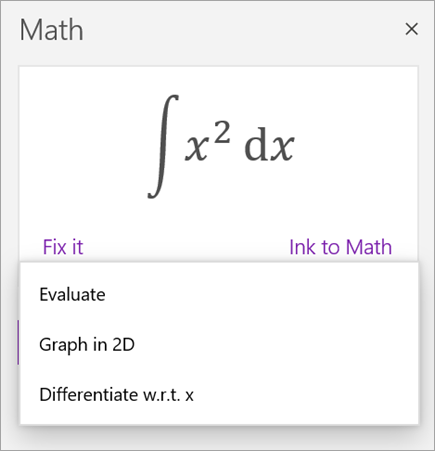
Derivatives can be written either with d/dx before the function, or with a prime mark.

The actions available for derivatives and integrals are:
- Evaluate
- Graph in 2D
- Differentiate
- Integrate (for derivatives only)
|
| Matrices |
Matrices can be written with square or round brackets. The following actions are supported for matrices:
- Evaluate
- Calculate Determinant
- Invert Matrix
- Calculate Trace
- Transpose Matrix
- Matrix Size
- Reduce Matrix

Matrix equations are not currently supported. |
| Graphing in polar coordinates |
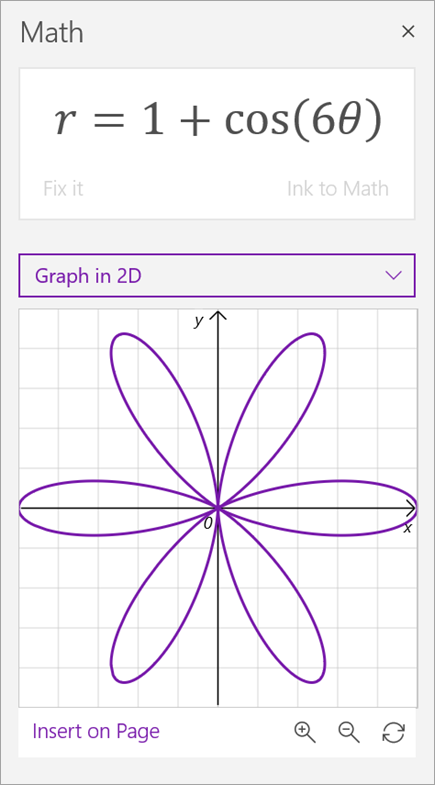
To graph a function in polar coordinates, r needs to be expressed as a function of theta.
|
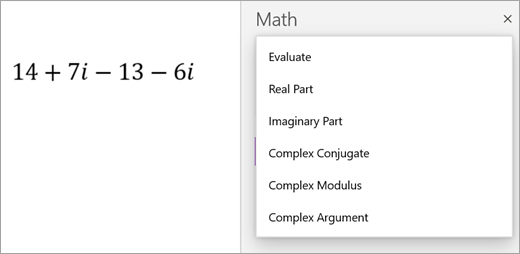
| Complex mode |
Note: Select Settings to switch between real numbers and complex numbers.
For complex expressions and numbers containing imaginary unit i, the following actions are available.
- Evaluate
- Real Part
- Imaginary Part
- Conjugate
- Modulus
- Argument
- Differentiate (only if there is a variable)
- Integrate (only if there is a variable)
|
Learn More
Create a Math quiz in Microsoft Forms
Generate a practice math quiz with Math Assistant in OneNote
Solve math equations with Math Assistant in OneNote