
Whenever you sign in to your Microsoft account, you may also get sign-in approval notifications in the Outlook mobile app.
You will see sign-in requests appear either on the lock screen or in the Outlook mobile app. You'll also be able to get one-time passcodes, which you can copy/paste into other sign-in screens.
You can use the Outlook mobile app to authenticate in two ways:
- Get a notification when signing in.
- Use a one-time passcode.
How to use Outlook mobile notifications to sign in
Note
- Personal accounts can currently only use the Outlook for Android app.
- You'll need Microsoft Outlook for Android version 4.2405.0 or newer. If you already have the latest app, jump to step 3.
Download and install Microsoft Outlook for Android.

Sign in with your Microsoft account.
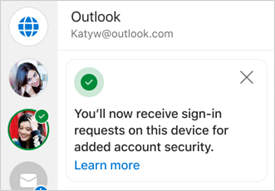
Once setup completes, you'll see a confirmation message that says you'll receive sign-in requests on your device.
Note
If you don't see a sign-in request or notification, check the notification criteria below.
After that, whenever you sign in to your Microsoft account, you'll see a prompt asking you to check your phone.
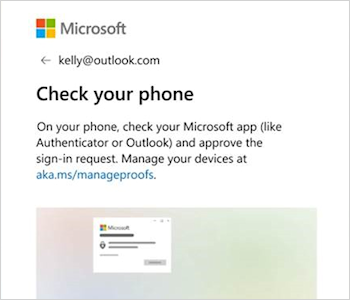
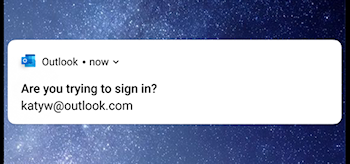
When the notification appears on your device, select Deny or Approve to continue.
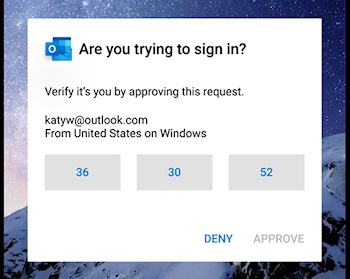
To confirm sign in, tap the number which matches the sign-in screen, then Approve.
Note
Not all sign-in prompts will ask you to match a number.
How to use Outlook mobile to get a sign-in code
To use a one-time password code to sign in, select Use a code when signing in.
Open the Outlook app and tap the top left Home icon

Tap the settings gear
 in the bottom left.
Under the General heading, tap Accounts, then select the account you want to sign in with.
Tap Sign-in requests.
Note
If you already have Authenticator installed, you may see an error that says you need to use Authenticator to sign in.
Tap
 to copy the code to your clipboard.
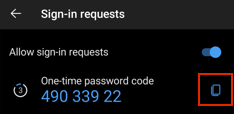
Note
Codes refresh every 30 seconds, so if the countdown timer is very low, wait until it refreshes.
Go back to the sign-in page and paste the code to complete sign-in.
Frequently asked questions
How can I add Outlook mobile as a way to sign in?
If you have removed Outlook as a way to sign, you can add it back by following these steps:
- Select Settings then Accounts and then the account name.
- Select Account then Sign-in requests.
- Turn on the toggle for Allow sign-in requests.
Can I use other Microsoft mobile apps to sign in?
Yes, you can also use Microsoft Authenticator.
Can I use Microsoft Outlook for iOS for my personal account?
No, sorry. Currently, the only mobile app for personal account users is Microsoft Authenticator.
Can I sign in using Microsoft Outlook for Windows or Mac?
No, sorry, this feature is for mobile apps only.
How do I to stop using Outlook to sign in?
You can disable sign-in requests from within the Outlook mobile settings.
Tip
You can always re-enable sign in notifications if needed.
- Select Settings then Accounts and then the account name.
- Select Account then Sign-in requests.
- Turn off the toggle for Allow sign-in requests.
Why did I get a "You can now use notifications to sign in" email?
When you set up Outlook, you will receive an email from the Microsoft account team confirming the Microsoft account name, the app name and your device.
If you don't recognize the device, it's possible that someone has mistakenly added your email address, or has tried to access your account.
To ensure your account is kept secure:
- Do not respond to any sign-in prompts or notifications you did not request.
- Check your account's recent activity.
- If there are any events you do not recognize, select Secure your account.
Why am I seeing unrequested sign-in prompts?
If you received an "Are you trying to sign in?" prompt that you did not request, it could be because:
- Someone is trying to access your account.
- Someone accidentally entered the wrong phone/email when trying to sign in.
- Delivery of the prompt you requested some time ago was delayed.
Important
Select Deny to any requests that you did not initiate. If someone is trying to access your account, without the right response and your approval, your account is safe.
See also
Troubleshooting verification code issues
How to use the Microsoft Authenticator app
Need more help?
Can't sign in?
If you can't sign into your Microsoft account, most issues can be identified by our sign-in helper tool.
Contact Support
For technical support, go to Contact Microsoft Support, enter your problem and select Get Help. If you still need help, select Contact Support to be routed to the best support option.
Important
To protect your account and its contents, our support agents are not allowed to send password reset links, or access and change account details.