Find and add a contact
- Type a name in Search for Contacts, and select your contact's listing when it appears.
- Select the contact and select Groups to add them to a group or to Favorites.
When you add a person to your contact list, they receive a notification. External contacts must accept your invitation before you can see their availability.
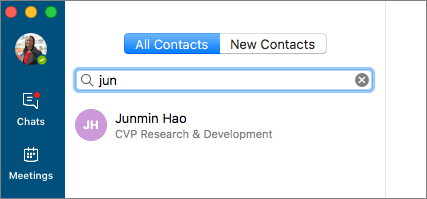
Start an Instant Message (IM)
- Select a contact, and then select Send an Instant Message
 .
. - Type your message in the Type a message here... box, and press Return or select
 .
.
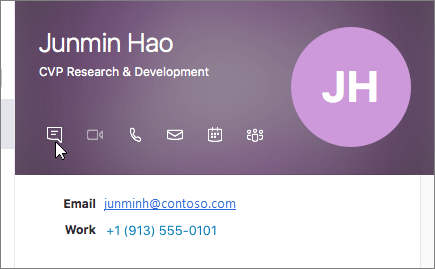
Start a voice or video call
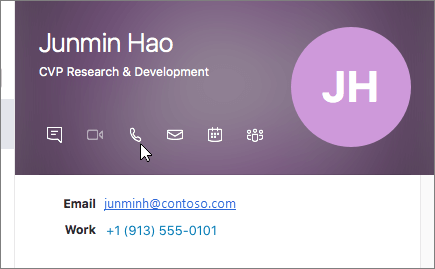
Select a contact, then on their contact card select or Start a Call
 or Start a Video Call
 .
.
Note
If you don't have a camera, the video call options are not available.
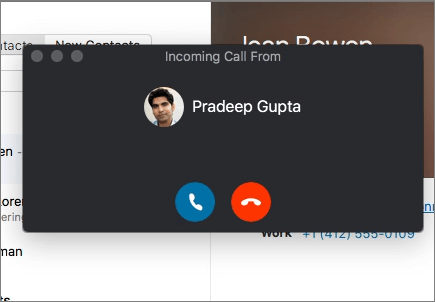
Receive a call
Select Answer
 to accept the call, or Ignore
 to dismiss the call and send it to voice mail, if available.
End a call
Select Hang Up
or press Ctrl+Enter.
Note
To end an instant message, close the conversation window.