
When you're handling incoming calls for your organization, it can be helpful to view and manage auto attendant voicemail messages directly in the Queues app in Microsoft Teams. The Queues app enables organizations to manage shared auto attendant voicemails in a central place, making it easier for teams to track, triage, and respond to customer messages.
Voicemails left when callers are routed to an auto attendant's shared voicemail appear in a centralized history, making it easier for your team to track customer messages, prioritize follow-up, and help ensure that no voicemail goes unanswered.
Depending on the permissions assigned by your Teams administrator, you can review voicemail details, read available transcripts, update triage status, mark messages as urgent, and call customers back from a single location.
Note
Shared call history for auto attendant is available only if it has been enabled by a Teams admin Plan. See Shared Call History for Call Queue and auto attendant.
View voicemail history
Depending on permissions assigned by your administrator, you can view voicemail history for auto attendants you have access to.
- Open the Queues app. If Queues isn't pinned to your app bar, select View more apps
 on the left side of the Teams window and find the Queues app.
 - If you are responsible for voicemail management for different auto-attendants, select the auto-attendant tab to view the voicemail history.
Tip
Pin Queues to the app to the bar for quick access in Teams.
View voicemail details
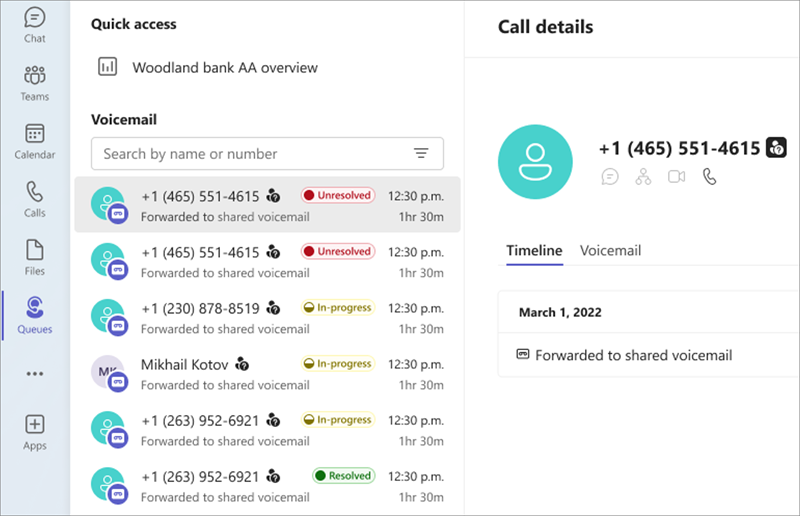
Select any voicemail entry to open detailed information:
- Caller number
- Time and date of the call
- Call status (unresolved, in-progress, resolved)
- Associated voicemail message and transcript (if available)
Manage voicemail history
- Update voicemail triage status to track follow-up progress:
- Voicemails are initially marked as Unresolved
- Update the status to In-progress when a follow-up is underway
- Mark the call as Resolved once the issue has been addressed
- Filter voicemails by triage status
- Mark voicemails as Urgent to help prioritize follow-up and improve response times
Call back from call history
Return a call:
- Select a call from the Call history list.
- Select Choose call and the call is placed from your phone number.
Related articles
Use the Queues app for Microsoft Teams View call history in the Queues app in Microsoft Teams