
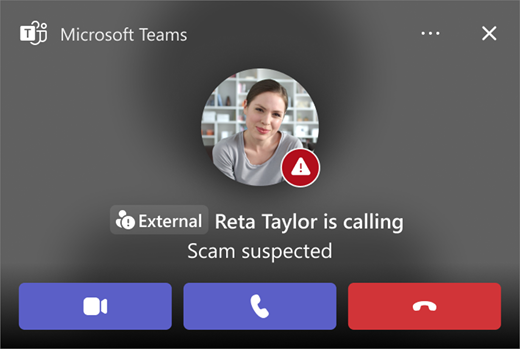
When Teams detects a potential impersonation attempt during an incoming call from outside your organization, you'll see a warning notification that says Scam suspected to help you make an informed decision before answering or continuing the conversation.
Impersonation is a common type of cyberattack where a caller pretends to be a trusted person, company, or organization in an attempt to gain your trust or obtain sensitive information.
When Teams identifies that a caller may not be who they claim to be, the app displays a warning to help you stay protected.
If you see a potential scam caller warning
When you receive a call that has been flagged as potentially suspicious, review the information carefully before answering or continuing the call.
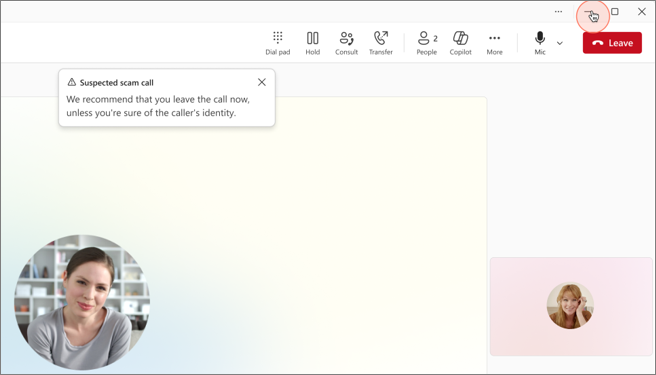
In this scenario, if you've already answered the call, Teams will display a message, We recommend that you leave the call now, unless you're sure of the caller's identity.
Verify the caller's identity
Before sharing any information:
- Double-check the caller's name and organization.
- Consider whether you were expecting the call.
- Verify the caller's identity using a trusted communication channel if necessary.
- Be cautious if the caller creates urgency or requests sensitive information.
Look for suspicious behavior
Be alert if the caller:
- Requests passwords or verification codes.
- Asks for personal, financial, or confidential information.
- Pressures you to take immediate action.
- Claims to represent a company or person you do not recognize.
Decide how to respond
If you trust the caller and believe the warning is incorrect, you can continue with the call.
If you're unsure about the caller's identity:
- End the call.
- Contact the authentic person or organization directly using a trusted phone number, website, or previous conversation.
- Do not share sensitive information until the caller's identity is confirmed.
Report a suspicious caller
If you believe the caller is attempting to impersonate someone or engage in fraudulent activity:
- Select
 Calls in Teams.
 - In History, select the call, and then select
 More.
More. - Select Report call (if available in your organization).
- Follow the prompts to submit your report.
Reporting suspicious calls helps your organization and Microsoft improve detection and protection capabilities.
If a legitimate caller is flagged
Detection systems continuously improve, but occasionally a legitimate caller may be identified as suspicious. If you know the caller is legitimate:
- Continue using your organization's normal verification processes.
- Proceed only after you have confirmed the caller's identity.
- Provide feedback if your organization offers a mechanism to indicate that the warning was incorrect.
Best practices for staying safe
- Verify unexpected requests through another communication channel.
- Never share passwords or authentication codes during a call.
- Be cautious of urgent requests involving money, credentials, or sensitive data.
- Report suspicious activity when available.
- Follow your organization's security guidance.
Related topics
End user reporting for Teams Calling
Block a caller in Microsoft Teams
Prevent spam or phishing attempts from external chats in Microsoft Teams
Protect yourself from online scams or attacks
Accept, block, or delete chat or meeting requests from people outside your organization