

You can share what's on your screen while in a chat without sharing your video or audio.
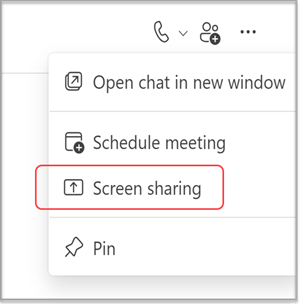
Select More chat options
 in the upper-right corner, then select Screen sharing
 .
.
Note
Linux users can't share screens in a Teams chat at this time.
Choose the screen you'd like to share or select Window to select from open programs.
Other chat participants will receive a notification to accept your screen share. Once they do, they'll be able to see your screen and continue the chat.
Tip
Screen sharing opens a muted call. Unmute the call or turn on your camera while screen sharing to start an instant meeting.
End your screen share
- Go to your meeting controls and select Stop sharing.
- Go to the meeting call window and select Leave.
Note
If you've shared your screen in a group chat and you're not the last person to leave, it won't end. You can rejoin by opening the group chat and selecting Join. When the last person leaves the call, the meeting has ended.
Related links
Start a chat with others in Teams
Share content in a meeting in Teams