

Use Teams on the desktop or web to delete files. Use SharePoint or OneDrive to recover them.
Delete a file from OneDrive
- Select OneDrive
 in Teams.
 - Select My files
 .
. - Hover over the file you want to delete and select More actions
 > Delete
 .
.
Your file will be moved to Recycle bin
.
Recover a file from OneDrive
- Select OneDrive
in Teams.
- Select Recycle bin
.
- Find the file you want to recover.
- Right-click the file and select Restore
 .
.
The file will be restored to the last location it was stored.
Delete a file from a channel
Under Chat
 , go to Channels.
Select the channel you want to delete a file from.
Select the Shared tab.
Find the file you want to delete.
Hover over the file and select More options
 > Delete
 .
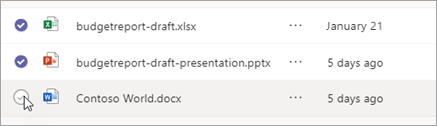
.To delete several files at once, hover over each file and select the circled check mark in the left column. Then hover over one of the files and select More options
> Delete
.
Delete a file from a chat
You can remove a file from a chat message you've already sent by editing the message (see Edit or delete a sent message for instructions).
Recover a deleted channel file
Under Chat
, go to Channels.Select the channel you want to delete a file from.
Select the Sharedtab.
Select More options
 > Open in SharePoint.
In SharePoint, select Recycle bin
.Hover over the file(s) you want to recover and select the circled check mark in the left column of the file's row.
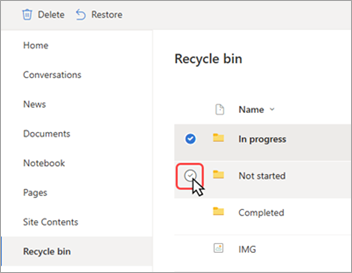
Select Restore
.
The file will be restored to the last location it was stored.