

Use Teams on the desktop or web to quickly move or copy personal or team files.
Move or copy files
To move or copy a file in Teams:
In Teams, select OneDrive
 > My files
 .
.Find the file you want to move or copy. To locate a file from a specific channel:
- Find the channel under Quick access or More places....
- Navigate to the channel in the Chat
 tab and select the Shared tab.
Hover over the file and select More options
 > Move to
 or Copy to
 .
. Note
To move or copy multiple files to the same location, hover over each file and select the circled check mark in the left column.
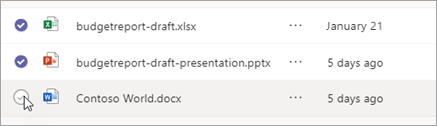
Then, select More options
next to one of the files and choose Move to
or Copy to
.
Select the folder you want to move or copy the file(s) to.
Select Move here.
Note
You don't need to copy a file to share it in multiple channels and chats. Instead, share a link to it. For instructions, see Get a link to a file in Teams.