
When you sign in to Dragon Copilot, Chat appears by default. You can use Chat anytime you're signed into Dragon Copilot, with or without an exam open in PowerScribe One.
Type a question about the current open patient or a general healthcare-related question in the chat window. You can also select a structured prompt to start a query.
Note
Patient context might not yet be available within your organization. Consult with your administrator to confirm.
You can explore trusted radiology knowledge and relevant clinical information within your workflow. During Public Preview, Chat uses trusted radiology references and available PowerScribe One prior reports to help answer healthcare-related questions and current-longitudinal patient context. You can enter free-text questions or select from structured prompts.
How to use the Chat feature
- Accessing Chat
Use Chat to ask healthcare-related questions and quickly find credible information for general clinical knowledge topics, such as staging or pathology classification guidelines, without interrupting your primary image interpretation tasks. When you open an exam, Chat can also use available prior report context to support current-patient-specific questions.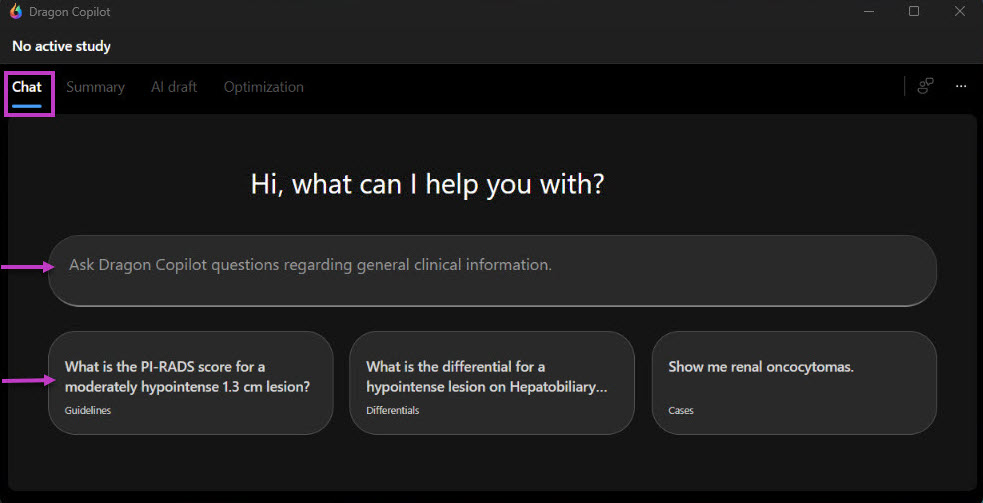
- Each response includes provenances
Chat helps you investigate the information provided. Select a source to explore additional details in a separate browser window. - Maintaining study context
Chat stays synchronized with the open study, so you can keep patient-specific questions in the active reporting workflow. Each Chat session is tied to the active study and resets when the study is closed. - Managing Chat history
You can clear your Chat history at any time to start a fresh session. This helps keep your workspace organized and focused, especially when switching between topics.
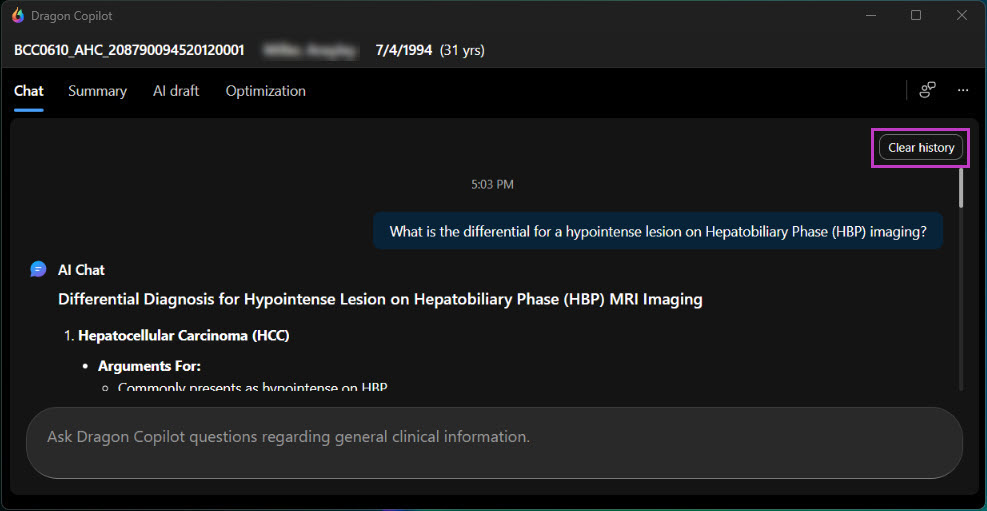
- Efficient information retrieval
Use Chat to ask for definitions, workflow steps, or best practices related to Dragon Copilot or general healthcare topics. The chat is designed to provide quick, context-aware responses. - Staying focused
Use Chat to get answers without leaving your current workflow, which minimizes disruptions and saves time.
Note
When patient context is not configured, your Chat session maintains your conversation history until you sign out or select Clear history. Consult with your administrator to confirm if patient context has been configured in your organization.
Key benefits of using chat
Patient-context awareness: When configured for your organization, Chat can use the current open and available prior report context to help answer patient-specific questions. This reduces the need to read through multiple prior reports. This supports faster, more contextual clinical decision support at the point of reading.
Responsible AI: Chat is built in alignment with Microsoft Responsible AI principles, with guardrails and ongoing evaluation to promote safe, reliable use.
Faster time to insight: Reduce lookup time during reads by surfacing relevant criteria and clinical guidance in seconds.
Consistent, explainable answers: Responses include referenced sources, so you can quickly review and verify the information provided.
Supports complex clinical questions: Chat can address nuanced queries that include more than intent.
Next up
Learn how to use Dragon Copilot's Summary in your reporting workflow.