
Save time when you create assignments for students in a class by choosing default assignment settings.
Navigate to your desired classroom and select Assignments.
Select Settings
 .
.
Assignment Settings

Assignment timeline: Select a default due time for future assignments.
Calendar: Choose whether future assignments should be added to Teams and Outlook calendars.
- Students and me: add assignments to Teams and Outlook calendars of you and your students.
- Students and team owners: add assignments to Teams and Outlook calendars of students and team owners only
- Students only: add assignments to Teams and Outlook calendars of students only.
Notifications
- Choose a default channel in your class team for assignment notifications to post.
- Turn on notifications when a student turns in an assignment late.
New students: Determine whether new students will receive assignments created before they joined the class.
Fun stuff: Enable turn-in celebrations. These are animations that play when a student turns in their assignment.
Tip
To check on your full class team roster, navigate to your class team and select More options
 > Manage teams.

Your settings will be applied to future assignments after you save your changes. You can still modify settings for individual assignments.
Grades Settings
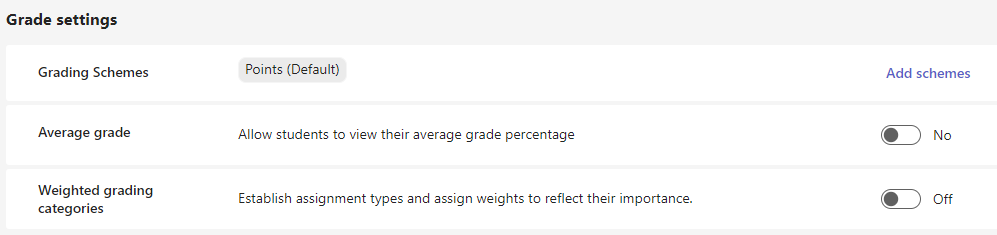
- Grading Schemes: This is set to a point-based system by default, but new schemes can also be added by choosing the Add schemes button.
- Average grade: Toggle on whether students should be allowed to check their grade percentage.
- Weighted grading categories: Set assignment types and assign weights to reflect importance.