
Delete a page you previously distributed to students in your Class Notebook. This removes the page from every student notebook where it was distributed.
If you are deleting or restoring a OneNote Class Notebook page that has been linked to a Microsoft Teams assignment, learn how it will affect your class.
Important
If you delete a page you distributed to student notebooks, any work a student added to that page is also deleted. Before deleting, consider reviewing student pages or asking students to save their work to a different section.
Delete a distributed page
Open the Class Notebook in OneNote for the web.
Open the page you want to delete from student notebooks.
Select the Class Notebook tab.
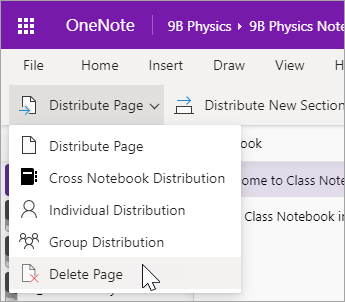
Select Distribute Page > Delete Page.
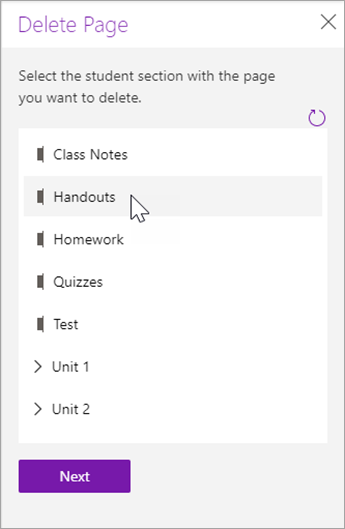
Choose the student notebook section that contains the page, then select Next. For example, choose Handouts.
Select the page you want to delete from student notebooks, then select Next.
Select Delete to confirm.
Note
Any work students have added to this page in their student sections will be permanently deleted after you confirm.
Learn more
Distribute pages and sections to Class Notebooks