
Record a task in your workbook to create a reusable custom skill with Copilot in Excel. Copilot records your workbook changes, asks questions about anything that isn't clear, and creates a skill you can use with similar workbooks.
Recording a skill is similar to using the macro recorder in Excel. Instead of code, Copilot creates instructions that capture the purpose and method behind your steps. The skill can adapt to new data rather than repeat changes to the exact cells in your recording.
Note
Recording a skill is rolling out to production. If you don't see Record a skill, the feature may not be available to you yet.
Important
Copilot in Excel and available models are evolving rapidly. Recorded skills may behave differently across models and over time. Review the skill before you save it, and verify the results each time you use it.
Record a skill
- Open the workbook where you want to demonstrate the task, and then select the Copilot icon in the lower-right corner of Excel.
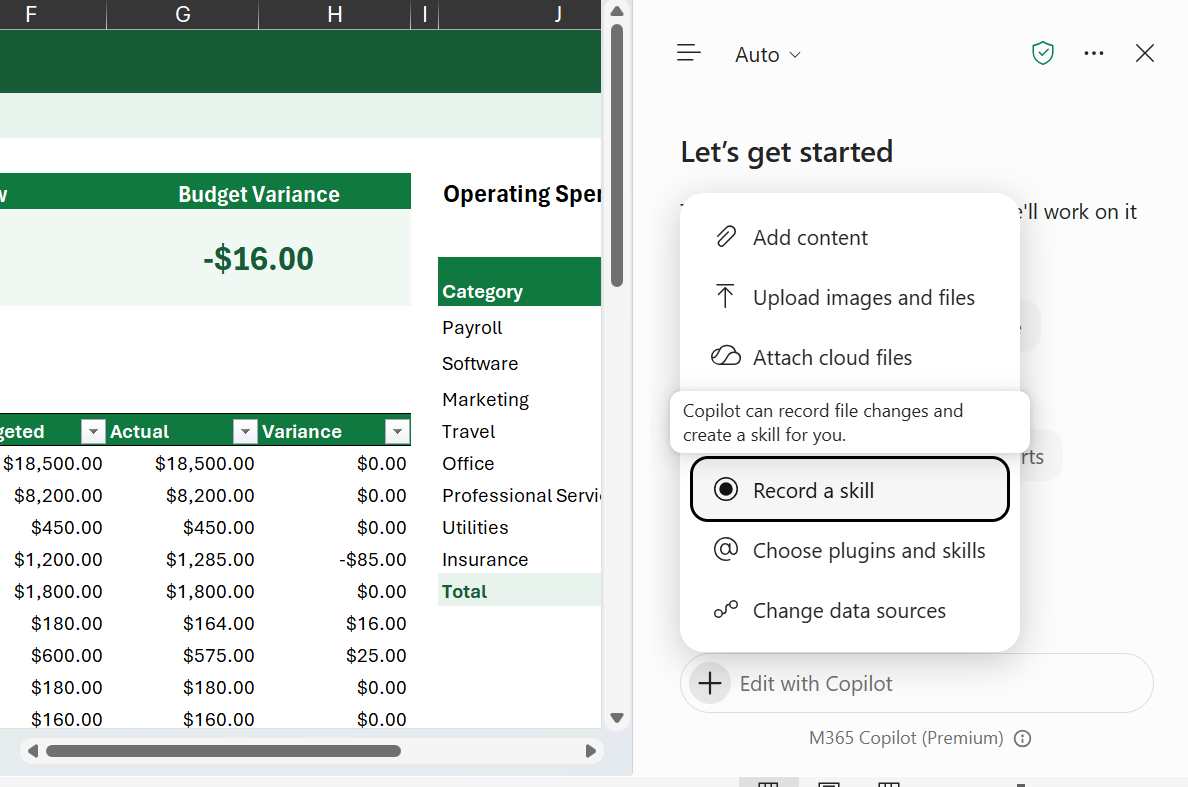
- In the Copilot pane, select the Add menu in the prompt field, and then select Record a skill.
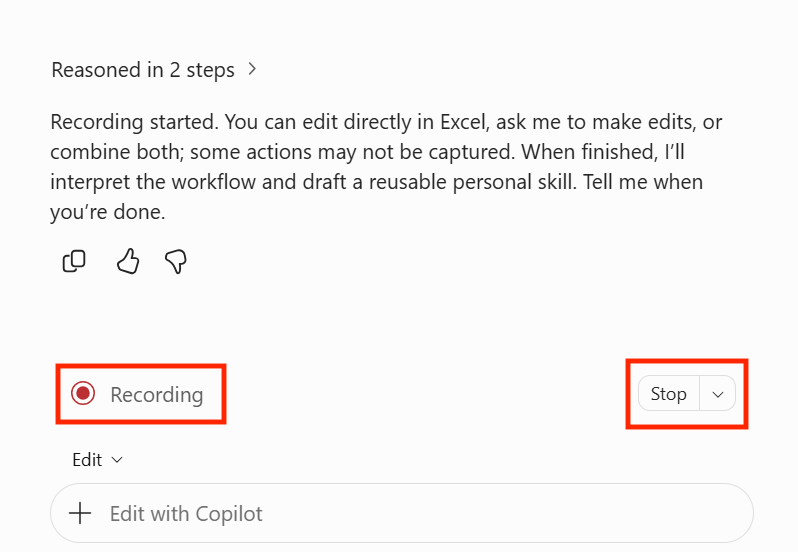
- Wait for Copilot to confirm that it's ready. The Recording bar appears above the prompt field while recording is active.
- Complete your task in the workbook. For example, add a worksheet, enter formulas, build a table, or create a chart.
- When you're finished, select Stop in the lower-right corner. You can also type stop recording in the prompt field.
Review and save your skill
After you stop recording, Copilot reviews the changes and identifies what should stay the same each time and what should change. Values, cell addresses, and worksheet names from your recording are treated as examples, not fixed requirements, unless you tell Copilot otherwise.
- If Copilot asks a question about your recording, choose an option, and then select Next. For example, Copilot might ask how the skill should choose data on future runs or how you check that the result is correct. To let Copilot choose answers for any remaining questions, select Start creating.
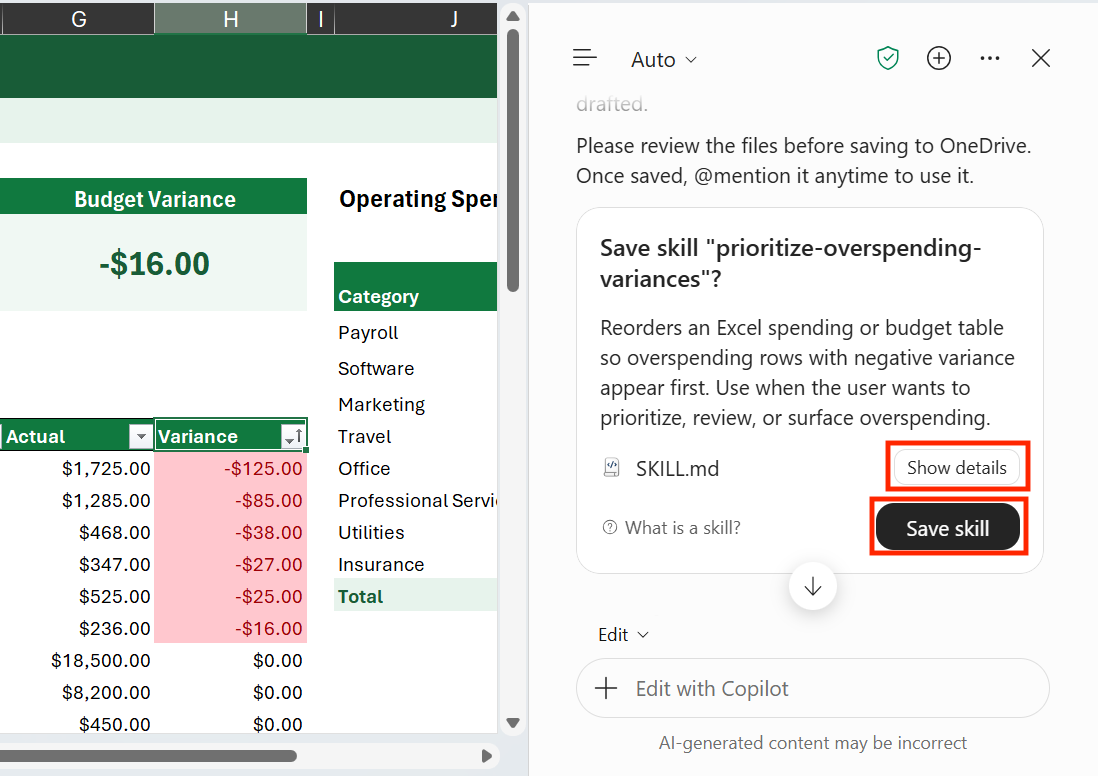
- When the skill is ready, Copilot shows a Save skill card with the skill's name and description. Select Show details to review the files in the skill.
- To change the skill before you save it, tell Copilot what to change. Copilot prepares a new Save skill card with your updates.
- When you're ready, select Save skill. Copilot saves the skill to the skills folder in your OneDrive.
Important
Your skill isn't saved until you select Save skill.
Use your recorded skill
Recorded skills work like other custom skills. To use one, type @ followed by the skill name in your prompt, or select the Add menu in the prompt field, select Choose plugins and skills, and then choose your skill. Then describe the workbook or data to use.
To turn a recorded skill on or off, rename it, or remove it, see Manage skills and Edit or remove custom skills. You can also ask Copilot to update a skill.
 Update my monthly-budget-check skill to also highlight overspending in red.
Cancel a recording
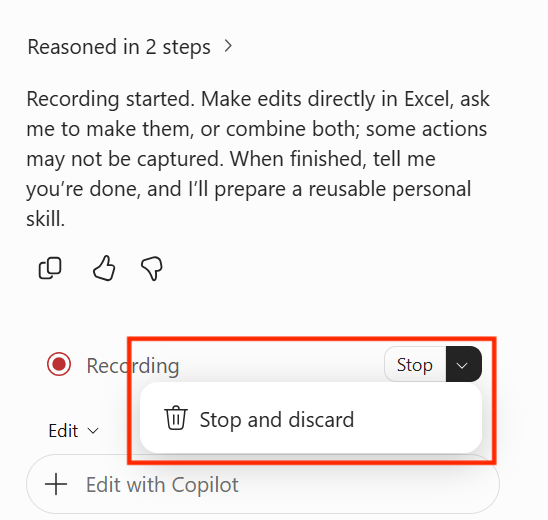
To stop recording without creating a skill, select the arrow next to Stop in the lower-right corner, and then select Stop and discard. Copilot discards the recording. Changes you made to your workbook while recording aren't undone.
Save your recording as workbook rules
If you want your recorded task to apply only to the current workbook, ask Copilot to save it as rules instead of a skill. Before you stop recording, or when Copilot asks about your recording, ask Copilot to create a .Rules worksheet.
Copilot adds the guidance to the workbook's .Rules worksheet or creates one if it doesn't exist. Rules stay with the workbook, so anyone you share it with gets the same guidance. For more information, see Create guidelines for a workbook with Copilot in Excel rules.
| Save as | Where it's saved | Best for |
|---|---|---|
| Skill (default) | The skills folder in your OneDrive | Tasks you repeat across multiple workbooks. |
| Rules | A .Rules worksheet in the current workbook | Guidance for one workbook that you want to share with others. |
Tips for recording a skill
- Demonstrate one task at a time. A focused recording, such as preparing a monthly summary, produces a clearer skill than a recording of several unrelated tasks.
- Work in a representative workbook. Use a workbook that's similar to the ones you'll use the skill with later.
- Use meaningful names and headers. Clear table names, headers, and worksheet names help Copilot understand your intent.
- Tell Copilot what changes each time. If a value, date, or source file is different on each run, say so when Copilot asks.
- Describe how you check your work. Explain how you know the result is correct, such as checking that totals match, to help Copilot verify future runs.
Limitations
- One recording at a time. If a recording is already in progress, Copilot asks whether you want to continue with that recording.
- Some actions aren't recorded. Copilot records supported changes to your workbook, such as cell values, formulas, and formatting. Some Excel actions aren't captured. If a step is missing, describe it to Copilot when it asks about your recording.
- Recording doesn't undo workbook changes. Stopping or canceling a recording doesn't reverse your workbook changes. To revert changes, use Undo or view previous versions.