
Custom fields let you track the information that matters to your team, directly on your tasks. If you want to go beyond the default Planner fields, you can add your own fields to a plan and fill them in as you work.
With custom fields, you can:
- Add fields that fit the way your team works.
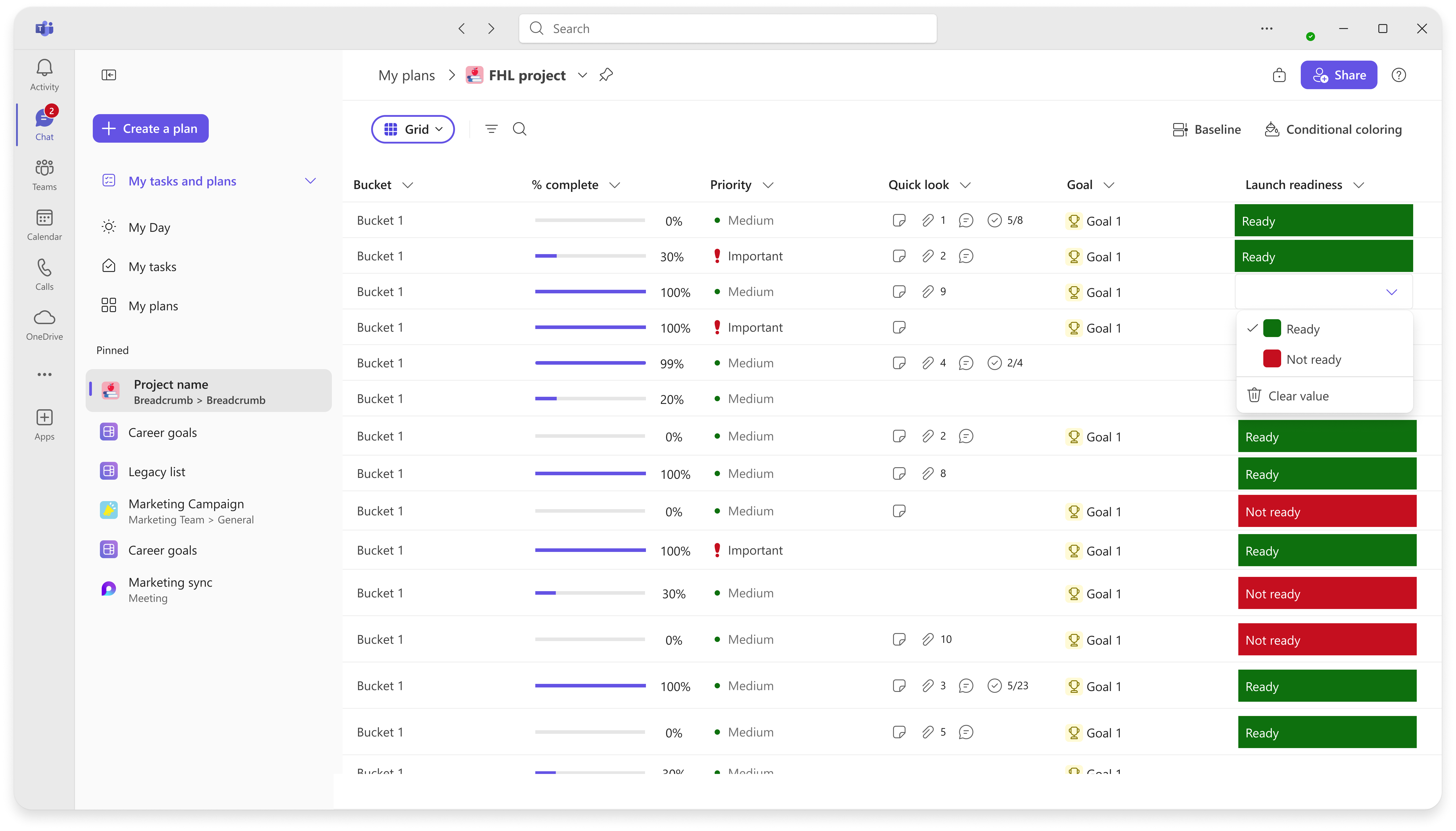
- Choose from several field types, including dropdown choices with colors.
- Sort, filter, and group your tasks by the fields you create.
- Export your plan, including custom field data, to Excel.
Licensing and availability
- Creating and editing custom fields requires a Planner Plan 1, Planner Plan 3, Planner Plan 5, or Copilot license.
- Users with a Microsoft 365 license and no Planner premium plan can view custom fields and export them to Excel, but can't create or edit them.
Add a custom field
Custom fields are added in Grid view.
To add a custom field:
- Open your plan, and then select Grid.
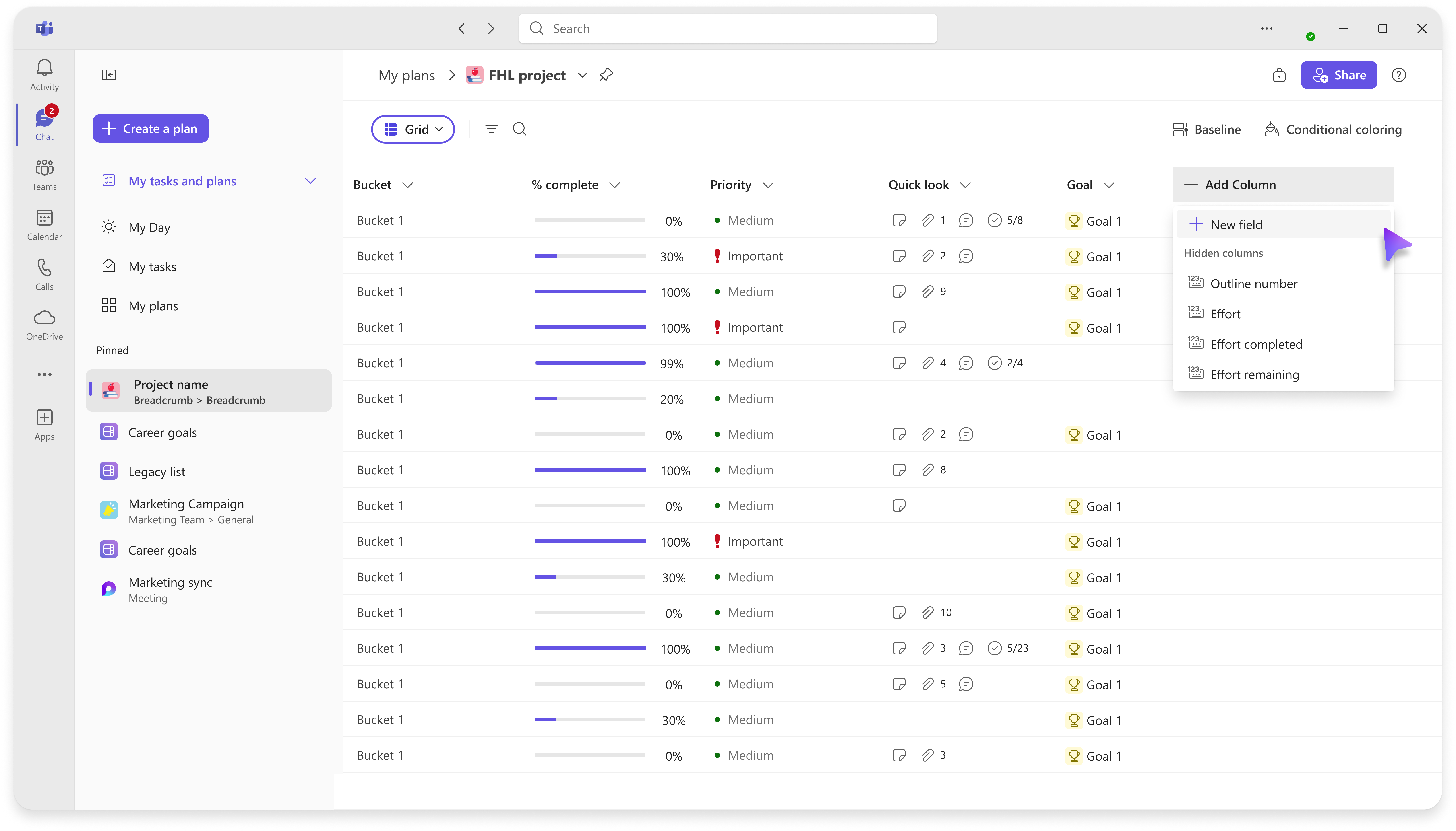
- Select + Add column at the end of the columns.
- Select + New custom field.
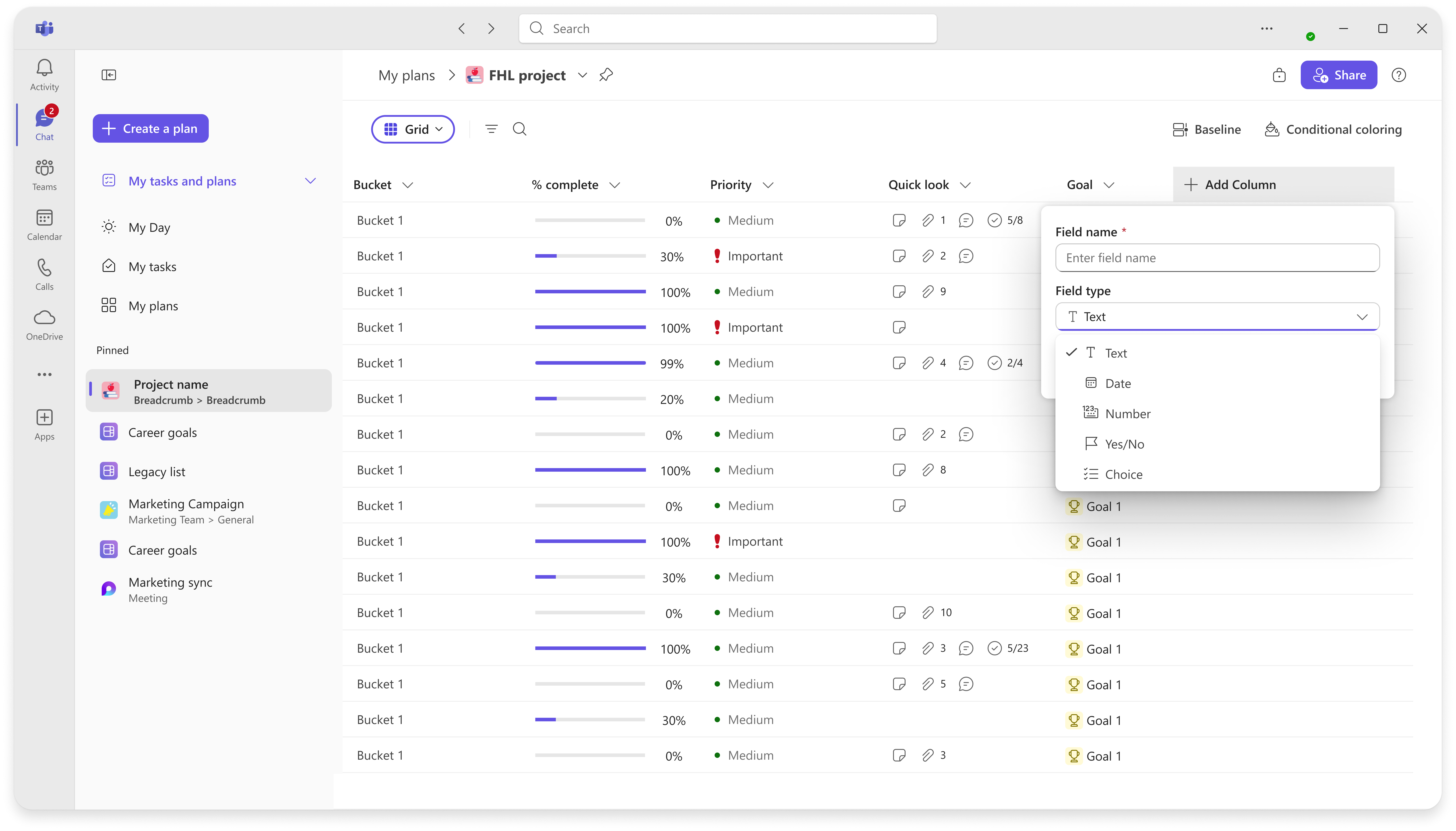
- Enter a name, choose a field type, and set any options.
- Select Save.
The new column appears in your plan.
Fill in and edit a custom field
After a field is created, you can fill it in and edit it from:
- Grid view: Type directly in the cell.
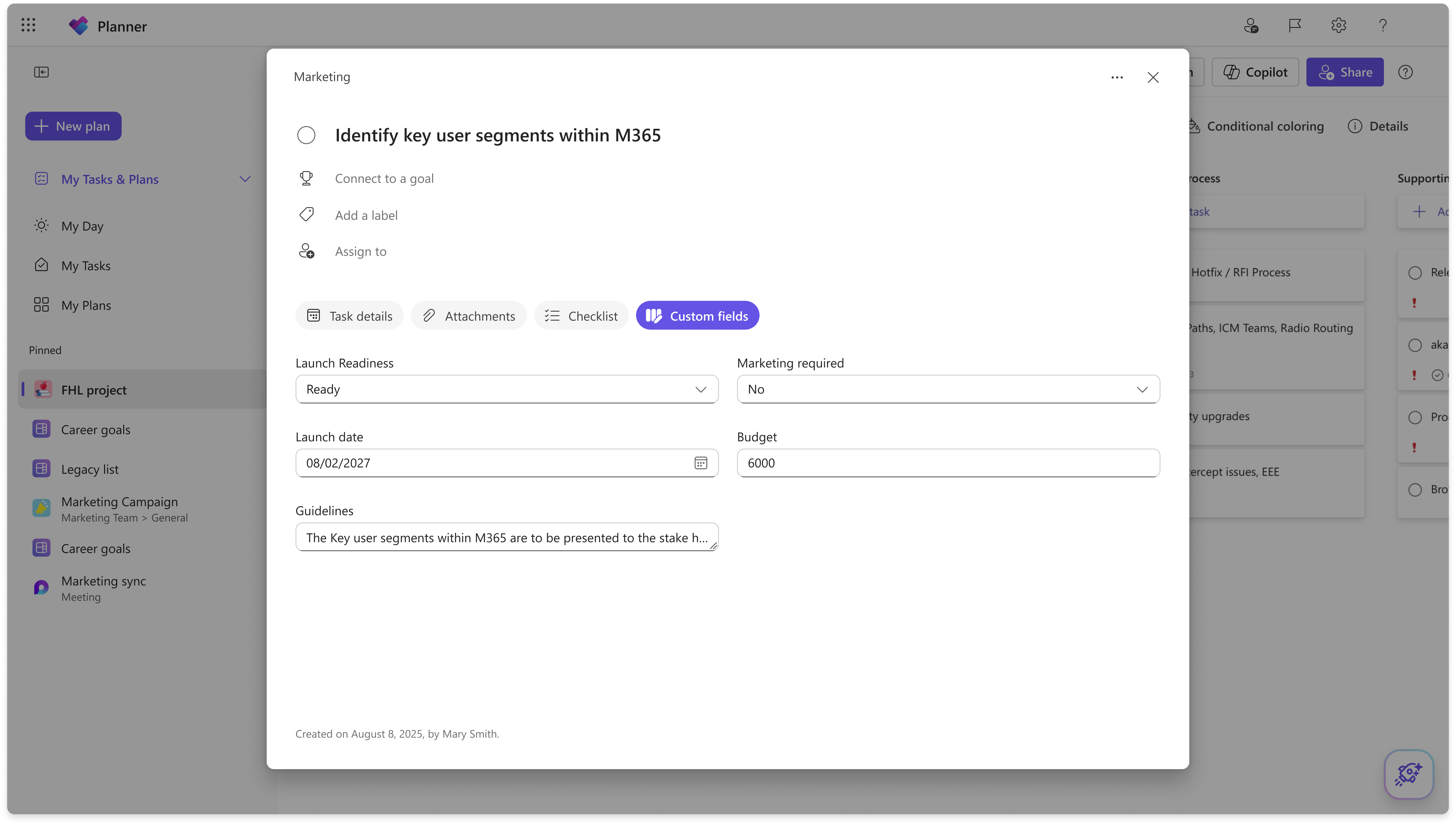
- Task details: Open a task to view and edit its fields, including from My Tasks.
Supported field types
| Type | What it's for |
|---|---|
| Text | Short free text. |
| Number | Numeric values that can be rolled up. |
| Date | A date picked from a calendar. |
| Yes/No | A simple flag. |
| Choice | A single-select dropdown with colored options. |
Custom field limits
- You can create up to 10 custom fields per plan.
- Field names can contain up to 255 characters.
- Choice fields support between 2 and 25 options.
- Choice fields are single-select, so each task can have only one selected option.
- Custom fields are specific to the plan where they're created. They can't be copied or moved to a different plan.
Note
Custom fields can be deleted by anyone who can edit the plan. Deleting a field is permanent and removes its values from all tasks. Deleting a single Choice option clears that option from any tasks using it.