
The Task Details Side Pane in Microsoft Planner lets you view and edit task details in a panel that opens alongside your plan view. Instead of a centered dialog that covers your plan, the side pane keeps your Board, Grid, or My Tasks view visible so you can work on tasks without losing context.
This feature is ideal for multitasking scenarios such as triaging tasks across a board, updating multiple items during a standup, or reviewing task details while reorganizing your plan. Planner remembers your preferred view mode across sessions, so your choice persists between uses.
Open a task in the side pane
When you open a task in the side pane, your plan view remains visible alongside the task details panel, allowing you to maintain context while working on multiple tasks.
Open your plan in Planner (Board, Grid, or My Tasks view).
Click on a task to open its details.
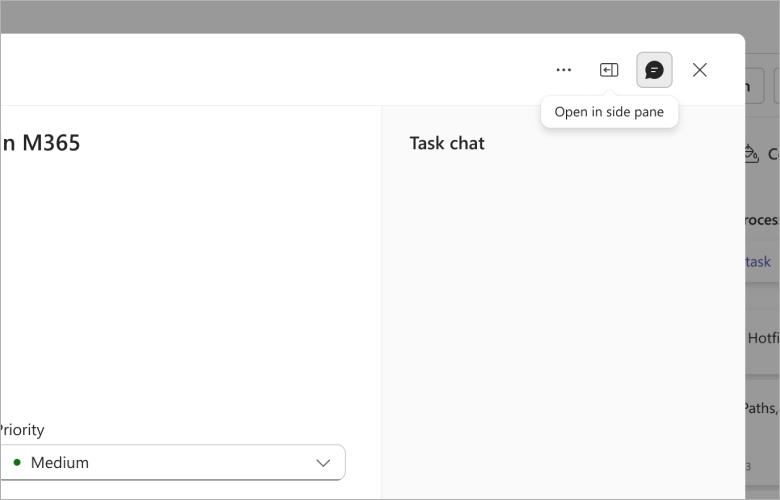
In the top corner of the task details panel, select the Side Pane icon to switch from the centered dialog to the side pane view.
The task details panel slides to the right side of your screen, and your plan view remains visible alongside it.
Switch back to dialog view
If you prefer the centered dialog experience, you can easily switch back to the previous view mode.
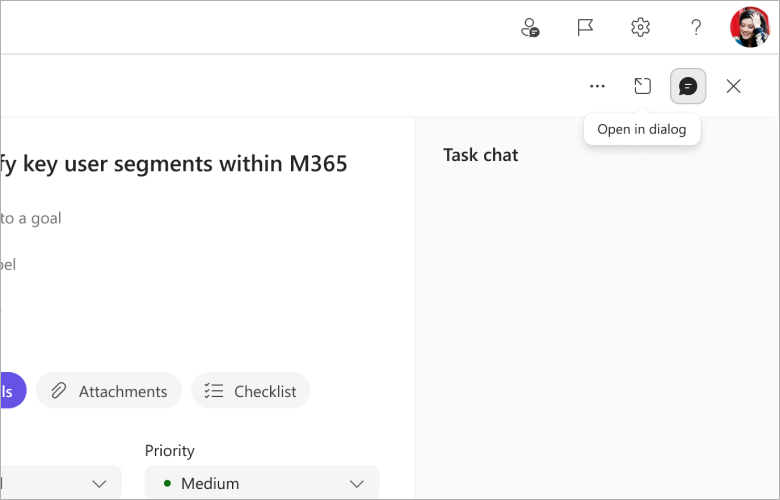
With the side pane open, select the Dialog icon in the top corner of the panel.
The task details panel returns to the centered modal view.
Planner remembers your last selected mode. The next time you open any task, it will open in whichever mode you used last—side pane or dialog.