
Task notes are the field where you capture the details of a task—instructions for a teammate, points you don't want to forget, or links to files and pages you return to often. Formatting is a set of visual styles, such as bold text, headings, lists, and links, that you can apply to that text so it is easy to read at a glance instead of appearing as one long block of plain text.
You can apply formatting in whichever way feels most natural: select an option from the toolbar, use a keyboard shortcut, or type plain markdown-style characters as you write. There's nothing to save or configure—your formatting is kept automatically and looks the same every time you reopen the task.
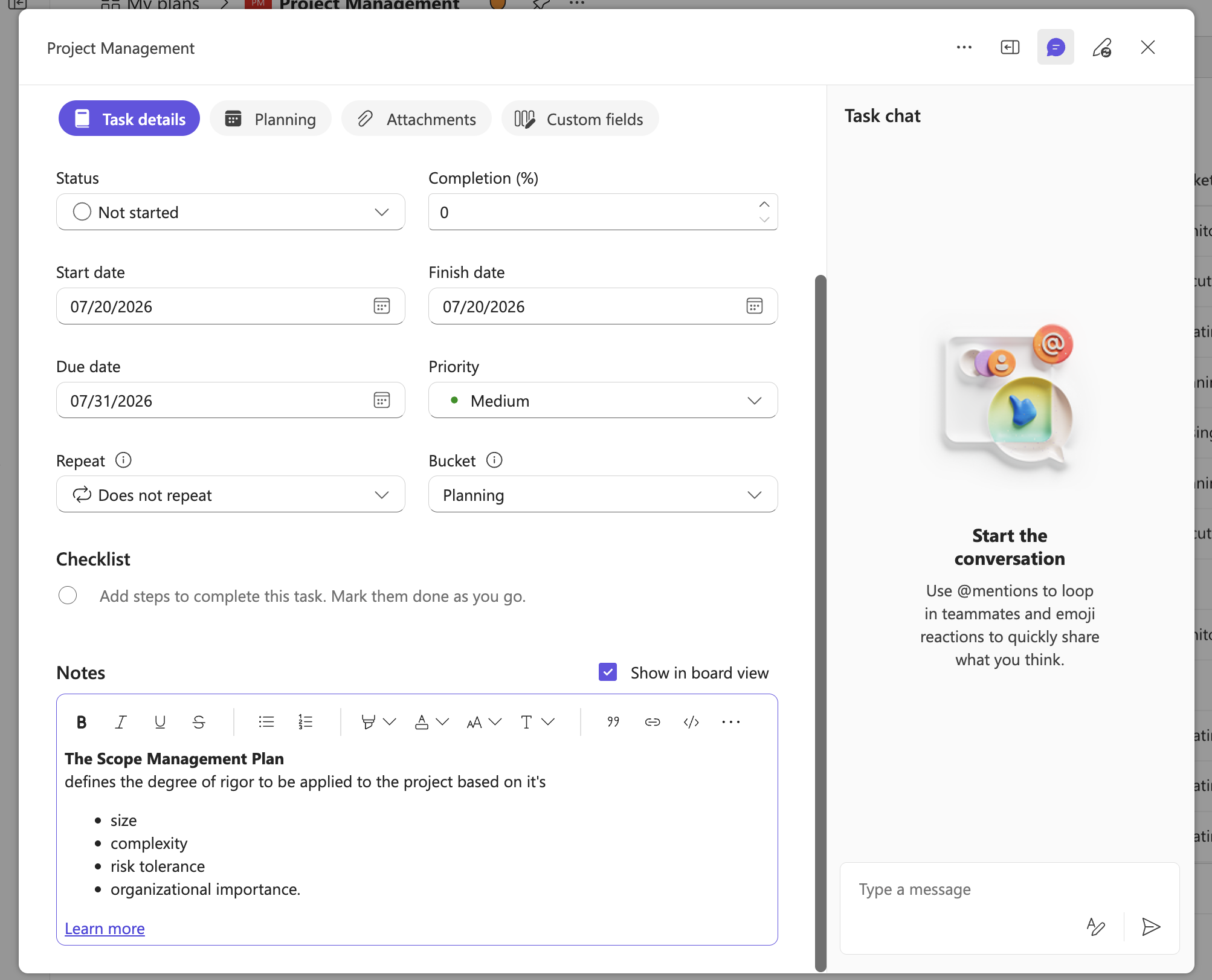
Formatting toolbar
The Notes field includes a formatting toolbar that you can use to apply styles to selected text or to text you are about to type. The toolbar remains visible at the top of the field as you scroll through long notes, so you can always reach the controls. Select the More menu on the toolbar to see more formatting options.
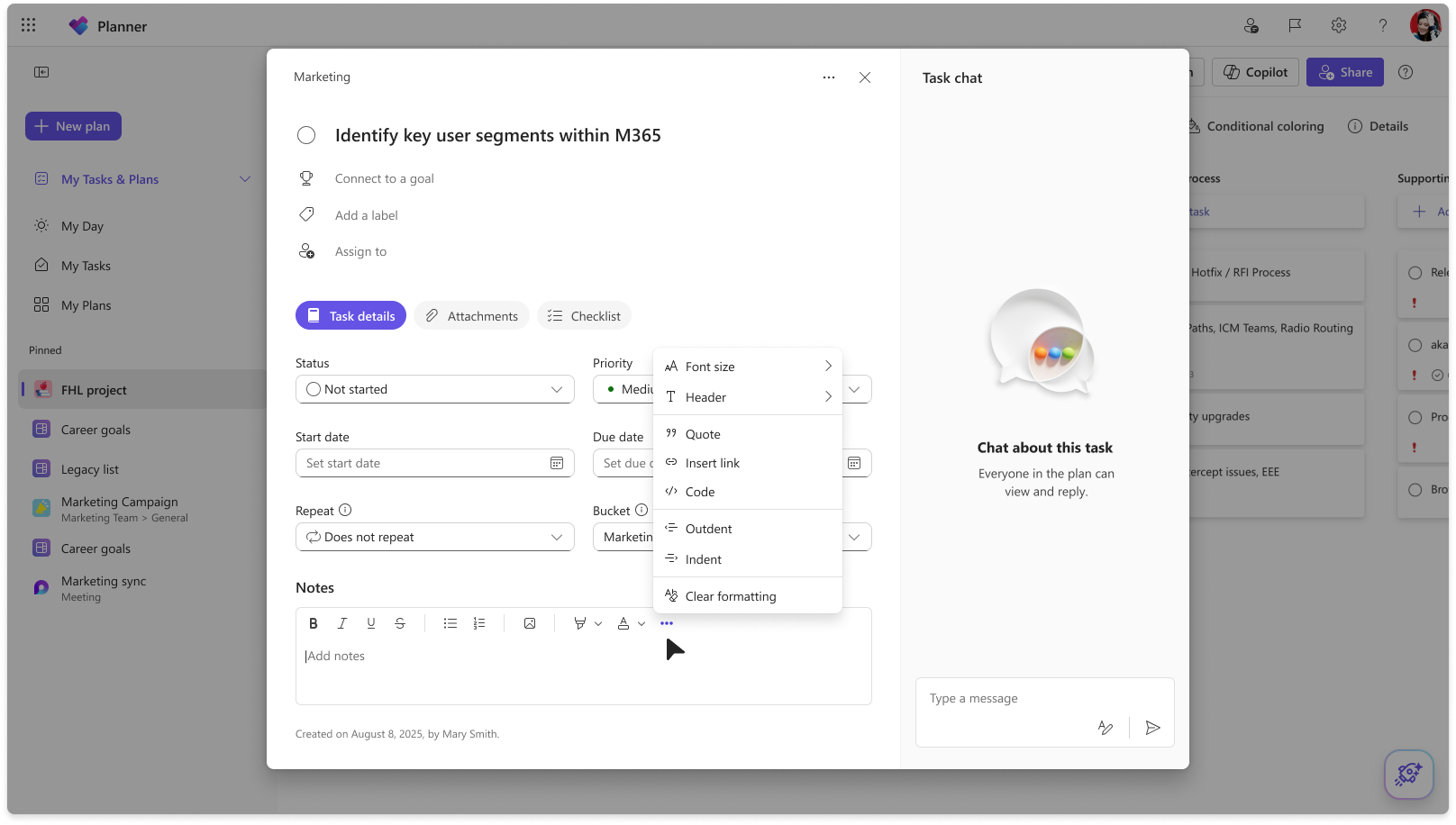
Formatting options, shortcuts, and markdown
You can apply formatting in three ways: choose an option from the toolbar, use a keyboard shortcut, or type markdown-style syntax as you write. The following table lists each formatting option along with its behavior and how to apply it.
| Formatting | What it does | Windows | Mac | Markdown syntax |
|---|---|---|---|---|
| Bold | Make your text bold | Ctrl+B | cmd+B | text |
| Italics | Italicize your text | Ctrl+I | cmd+I | |
| Underline | Underline your text | Ctrl+U | cmd+U | text |
| Strikethrough | Cross out your text | Ctrl+Shift+X | cmd+Shift+X | ~text~ |
| Monospace / code | Format text as code | Ctrl+Shift+M | cmd+Shift+M | text |
| Bulleted list | Create a bulleted list | Ctrl+Shift+8 or Ctrl+. | cmd+Shift+8 or cmd+. | * text or - text |
| Numbered list | Create a numbered list | Ctrl+Shift+7 or Ctrl+/ | cmd+Shift+7 or cmd+/ | 1. text |
| Indent list | Nest a list item | Ctrl+] or Alt+Shift+Right | cmd+] | |
| Outdent list | Un-nest a list item | Ctrl+[ or Alt+Shift+Left | cmd+[ | |
| Increase font size | Make text larger | Ctrl+Shift+, | cmd+Shift+, | |
| Decrease font size | Make text smaller | Ctrl+Shift+. | cmd+Shift+. | |
| Insert link | Add a hyperlink | Ctrl+K | cmd+K | |
| Clear formatting | Remove all formatting | Ctrl+Space | cmd+Space | |
| Undo | Undo your last change | Ctrl+ZAlt+Backspace | cmd+Z | |
| Redo | Redo your last change | Ctrl+YCtrl+Shift+Z | cmd+Shift+Z |
Pasting formatted text
You can paste content copied from apps like Word or OneNote directly into task notes. The paste operation preserves supported formatting, such as bold text, lists, and links, so you don't need to rebuild it by hand.
Persistence and behavior
Formatting applied to a task's notes persists even after you reload or reopen the task, since there's no separate save step. Use the Indent list option to create nested (sub) bullets within a list. Use the Clear formatting option to remove all formatting from selected text, returning it to plain text.