The Surface Mouse features an ambidextrous design, advanced haptics, and a customizable action button.
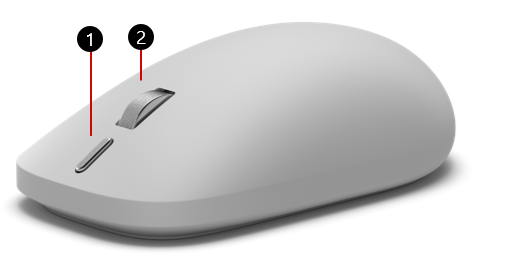
Action button
Middle click button/scroll wheel
Available to purchase from the Microsoft Store.
Set up
To get set up, you’ll need a PC that’s running Windows 11 or Windows 10 with support for Bluetooth 4.0 or higher.
Advanced features, including the action button and AI experiences, require Windows 11.
This mouse supports Swift Pair in Windows for faster pairing.
Note
If you're not sure what version of Bluetooth your PC supports, see What Bluetooth version is on my PC?
Connect your mouse
Pair with the first device:
If the mouse has never been paired, turning on the mouse will place it in pairing mode. The first pairing light will blink slowly. If the first device slot has been paired before, press and hold the pairing button on the bottom of the mouse for 3 seconds or more to enter pairing mode. The pairing light will blink slowly.
On your Windows PC, select Connect if a notification appears for your mouse, then wait for setup to finish. Don’t see the notification? Follow the steps below to connect your mouse through Settings.
- Windows 11: Go to Start
 > Settings
 > Bluetooth & devices
 > Add device
 > Bluetooth
> Surface Mouse 2nd Edition > Done.
> Bluetooth
> Surface Mouse 2nd Edition > Done. - Windows 10: Go to Start
> Settings
 > Devices
 > Bluetooth & other devices
> Add Bluetooth or other device
> Bluetooth
> Surface Mouse 2nd Edition > Done.
> Bluetooth & other devices
> Add Bluetooth or other device
> Bluetooth
> Surface Mouse 2nd Edition > Done.
Pair with more devices:
Press the pairing button on the bottom of the mouse to select a second or third device slot and then release it.
- If the selected slot has never been paired, the mouse automatically enters pairing mode, and the pairing light blinks slowly.
- If the selected slot has been paired before, the pairing light blinks quickly as the mouse tries to reconnect. To pair the slot with a new device, press and hold the pairing button for 3 seconds or more. The mouse enters pairing mode and the pairing light blinks slowly.
When a notification for your mouse appears, select Connect, then wait for setup to finish. If you don't see a notification, open Settings and follow the pairing steps in the section above.
Use the action button
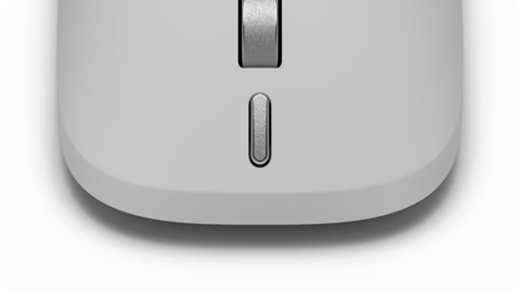
When you first take the Surface Mouse out of the box, the action button supports the following features.
| Gesture | Action |
|---|---|
| Single press | Snipping Tool |
| Double press | Click to Do (or Start menu, if not available) |
| Long press | Copilot voice (or Task view, if not available) |
Customize your mouse in the Surface app
Use the Surface app to customize your Surface Mouse (2nd Edition), including the behavior of the action button.
To open the app, select Start
, enter surface, and select it to open the app. If the app doesn't open, get it from the Microsoft Store.
Once open, select your mouse in the list of available devices and select Customize mouse.
Turn Reverse scrolling on to have content move in the opposite direction of your scroll wheel.
Use the Mouse sensitivity slider to determine how fast your cursor moves.
Use the Action button settings to change what the action button does when you press it.
Additional settings
Customize more options in Windows Mouse Settings.
- Windows 11: Select Start
> Settings
> Bluetooth & devices
> Mouse
 .
. - Windows 10: Select Start
> Settings
> Devices
> Mouse
.
What is advanced haptics?
Advanced haptics in Surface devices use precision-controlled vibrations to create tactile feedback you can feel. Whether you’re resizing windows, editing a video, or aligning objects and images, you’ll be guided by the haptic feedback on Surface Mouse. As soon as you complete an action, you’ll feel a vibration in your hand that gives you added confirmation.
What you’ll notice
- Instant confirmation — a light vibration the moment an action completes.
- Precision — feedback is tied to on-screen actions such as snapping windows or aligning objects.
- Personalization — tune the strength of the vibration to match your preference (see below).
Learn more about haptics design and implementation.
Configuring haptics
You can adjust the intensity of the haptic vibrations to your liking:
- Open Settings and select Bluetooth & devices.
- Select Mouse.
- Select Haptic signals to open the Signal intensity slider, and then choose your desired intensity.
Note
If you do not see options for haptic signals in Settings, you may need to update Windows to the latest version.
Where to experience advanced haptics
You can feel haptics on your Surface Mouse in several places. The following experiences are grouped by where they appear.
Your Windows PC
- Windows Snap & Snap Layout
- Snap to side: Drag a window to the left or right edge of the screen to snap it to that side
- Snap to corner: Drag a window to a corner to snap it to that quarter of the screen
- Maximize vertically: Drag a window to the top of the screen to expand it vertically, filling the entire height while keeping its current width
- Snap the first window: Select and drag a window to the edge of the screen until a translucent overlay appears, then release it into place
- Snap the second window: Select another open window from the thumbnails shown by Snap Assist to snap it to the other half of the screen
- Snap to a window: Drag a window to the snap bar and across the window options that appear at the top of your screen when activating snap layout
Microsoft 365 apps
- PowerPoint
- Object alignment: Position and align images, shapes, or text boxes on PowerPoint slides. (For best results, move the mouse slowly.)
Other applications
Affinity by Canva
Concepts
Filmora
DaVinci Resolve
Premiere Pro
ProtoPie
See application documentation for full details. Additional applications may be added in the future.
Battery info
The Surface Mouse uses two AAA batteries. To replace them:
Turn the mouse over.
Gently press the cover near the base of the mouse to remove the cover.
Remove the old batteries and insert two new AAA batteries.
To help conserve battery life, press the power button on the bottom of the mouse to turn it off when you’re not using it.
Tip
To check the battery level any time, select Search, type Bluetooth, and then open Bluetooth & other devices settings. The battery level appears next to your mouse.
Where to buy
Surface mice and other accessories are available to purchase from the Microsoft Store and other retailers.
Note
If the Microsoft Store is not available in your region, you’ll also find Surface at these retailers.
Related topics
Need more help?
Technical support

For technical support, open the Surface app or web browser, describe your problem and select Get Help.
Community support

Communities can help you ask questions, and hear from experts with rich knowledge. Ask the Community.
Other support

If you can't use your Surface or have a question about something else, open Get Help to get other support online.