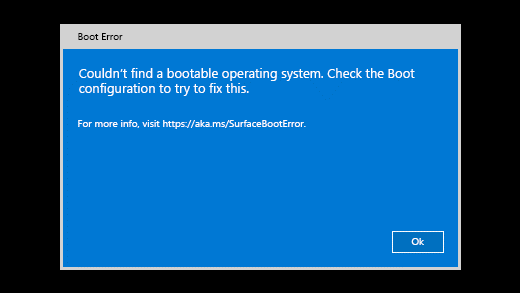
When you turn on your Surface, it displays the following message:
Couldn't find a bootable operating System. Check the Boot Configuration to try to fix this.
On older devices, the Surface turns on and displays a drive icon with an X in the top right corner.
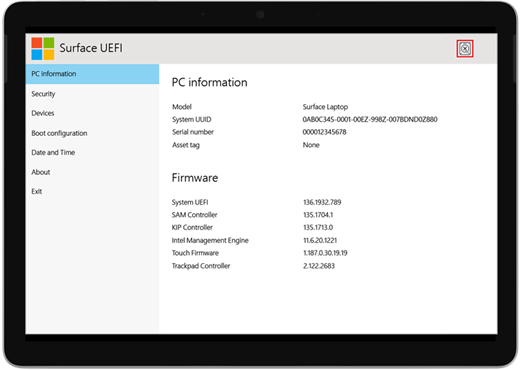
When you turn on your Surface, it boots to UEFI (Unified Extensible Firmware Interface). If you see this, try the following steps for a possible solution.
Check the configuration
Check the configuration of your device:
- If shown, select OK to dismiss the dialog.
- Select Boot configuration from the menu on the left.
- Make sure that you have a valid boot device selected. All the options including Windows Boot Manager, Internal Storage, USB Storage, and PXE Network should be selected by default.
Force a restart
Press and hold down the power button until your Surface restarts and you see the Windows logo screen (this takes about 20 seconds), then release the power button.
For more info, see Force a shutdown and restart your Surface.
Reset your Surface using a USB recovery drive
Here's how to reset your Surface with a USB recovery drive:
- Insert the USB recovery drive into the USB port on your Surface.
- Press and hold the volume-down button while you press and release the power button.
- When the Surface logo appears, release the volume-down button.
For more info, see Creating and using a USB recovery drive for Surface.
Request service
If these solutions didn't help resolve the problem, then self-repair, service order or in-person support may be available to help you. If your Surface is a business device (owned by an organization), see Surface service options for Business and Education.
| Options | |
|---|---|

|
Self-repairTechnically experienced and have the right tools? Microsoft has a range of replaceable components and service guides that enable you to carry out some repairs yourself. |

|
Send to MicrosoftTo send your device in for repair, you'll need to create a service order and print a shipping label. Learn more about how to check your warranty and prepare your device for shipping to Microsoft. |

|
Get in-person supportIn some countries or regions, Microsoft has partnered with Authorized Service Providers offering in-person support and repair. Options may include professional hardware inspection, troubleshooting, and system recovery. |
Need more help?
Technical support

For technical support, open the Surface app or web browser, describe your problem and select Get Help.
Community support

Communities can help you ask questions, and hear from experts with rich knowledge. Ask the Community.
Other support

If you can't use your Surface or have a question about something else, open Get Help to get other support online.