What you see
A screen that says Preparing Automatic Repair and then Diagnosing your PC.
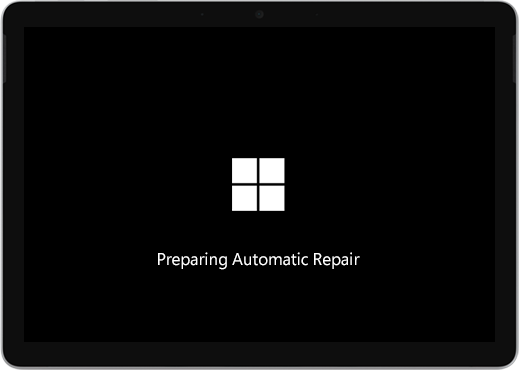
You might see an Automatic Repair or Recovery screen.
If Automatic Repair starts when you turn on your Surface, do one of the following:
- If your Surface freezes: See Creating and using a USB recovery drive for Surface.
Restart your Surface
On the Automatic Repair screen, select Restart.
- If Windows starts: Install the latest Surface and Windows updates to help prevent future problems. For more info, see Download drivers and firmware for Surface.
Continue to Windows
On the Automatic Repair screen, select Advanced options.
On the Choose an option screen, select Continue to exit the options screen and continue to Windows.
- If Windows starts: Install the latest Surface and Windows updates to help prevent future problems. For more info, see Download drivers and firmware for Surface.
Repair your Surface
If the Automatic Repair screen appears again, select Advanced options.
On the Choose an option screen, select Troubleshoot.
Select Advanced options > Startup Repair and follow the on-screen instructions.
Windows will try to find and fix the problem.- If Windows starts: Install the latest Surface and Windows updates to help prevent future problems. For more info, see Download drivers and firmware for Surface.
Perform a System Restore
A system restore will restore your Surface to an earlier point in time when Windows was working correctly.
Note
- Performing a system restore doesn’t change your personal files, but it might remove recently installed apps and drivers.
- Make sure you have access to product keys and installation files for all desktop apps (for example, Microsoft Office) that you may have installed after the point to which you’re restoring your Surface.
Here’s how to do a system restore on your Surface:
On the Choose an option screen, select Troubleshoot > Advanced options.
Select System Restore and follow the on-screen instructions.
- If Windows starts: Install the latest Surface and Windows updates to help prevent future problems. For more info, see Download drivers and firmware for Surface.
Reset your Surface
A reset does the following:
Reinstalls Windows and the apps that came installed on your Surface
Removes all your personal settings
Removes all apps that you installed
Provides options for keeping or removing your personal files or restoring factory settings:
- Keep my files: Removes apps and settings but keeps your personal files.
- Remove everything: Removes all your personal files, apps, and settings.
- Make sure that you have access to the product keys and installation files for any desktop apps (for example, Microsoft Office) that you plan to reinstall after the reset. This includes desktop apps you installed from websites or USB drives.
Here’s how to reset your Surface:
On the Choose an option screen, select Troubleshoot.
Select Reset this PC and follow the on-screen instructions.
- If Windows starts: Install the latest Surface and Windows updates to help prevent future problems. For more info, see Download drivers and firmware for Surface.
- If Windows doesn’t start: If the Automatic Repair screen appears again, your Surface needs service. Please see the service and support options below.
Still having issues?
If these solutions didn't help resolve the problem, then self-repair, service order or in-person support may be available to help you. If your Surface is a business device (owned by an organization), see Surface service options for Business and Education.
| Options | |
|---|---|

|
Self-repairTechnically experienced and have the right tools? Microsoft has a range of replaceable components and service guides that enable you to carry out some repairs yourself. |

|
Send to MicrosoftTo send your device in for repair, you'll need to create a service order and print a shipping label. Learn more about how to check your warranty and prepare your device for shipping to Microsoft. |

|
Get in-person supportIn some countries or regions, Microsoft has partnered with Authorized Service Providers offering in-person support and repair. Options may include professional hardware inspection, troubleshooting, and system recovery. |
Need more help?
Technical support

For technical support, open the Surface app or web browser, describe your problem and select Get Help.
Community support

Communities can help you ask questions, and hear from experts with rich knowledge. Ask the Community.
Other support

If you can't use your Surface or have a question about something else, open Get Help to get other support online.