
As of May 5, 2025, Skype is retired. This change affects both free and paid Skype users.
Skype users have the option to move to Microsoft Teams Free, which offers many of the same core chat and call features as Skype. Teams Free also has enhanced features like hosting meetings, managing calendars, and building and joining communities.
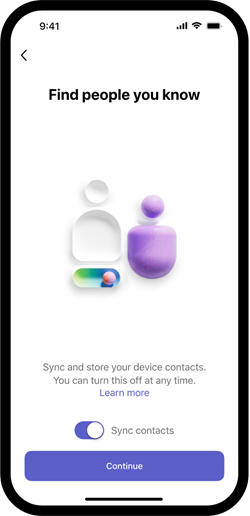
Sign in to Microsoft Teams Free on any supported device using your Skype credentials and your contacts and chats will automatically be transferred. You will also receive a notification in the Skype app prompting you to take action to migrate your data.
Teams Free users can call and chat with Skype users and Skype users can do the same with Teams Free users. This means you can stay connected with everyone, no matter what app they use.
Additionally, we will no longer offer paid Skype features to new customers. The Skype Dial Pad is available to existing paid users from the Skype web portal and within Teams Free, where you can continue to use your subscription or Skype Credits. Download Teams on your device from the official Microsoft Teams website and log in with your Skype credentials to see the Skype Dial Pad.
Get started on Microsoft Teams Free
In Skype, you will receive a notification which will prompt you to sign in to Microsoft Teams. Select Start using Teams to begin downloading or to open Teams if already installed.

If you don’t have the Teams app installed yet, you can download and install it. Alternatively, you can use Teams on the web on desktop.

Open the Teams app or Teams on the web to sign in with your Skype account.

On the Welcome screen, select Get Started to proceed.

If prompted, verify your profile picture and choose Continue.
You can change your profile name or picture at any time after setup by tapping on your profile on the top-right of Teams.
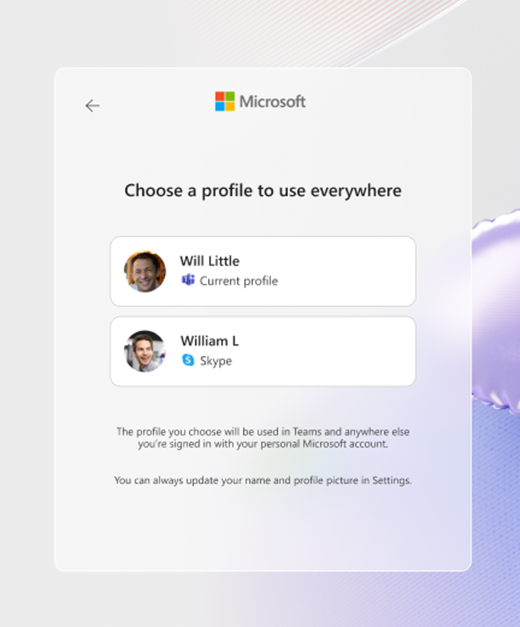
If prompted, verify your first name and last name. Select Confirm to continue.
This will be your profile name in Teams and across your other Microsoft 365 apps.

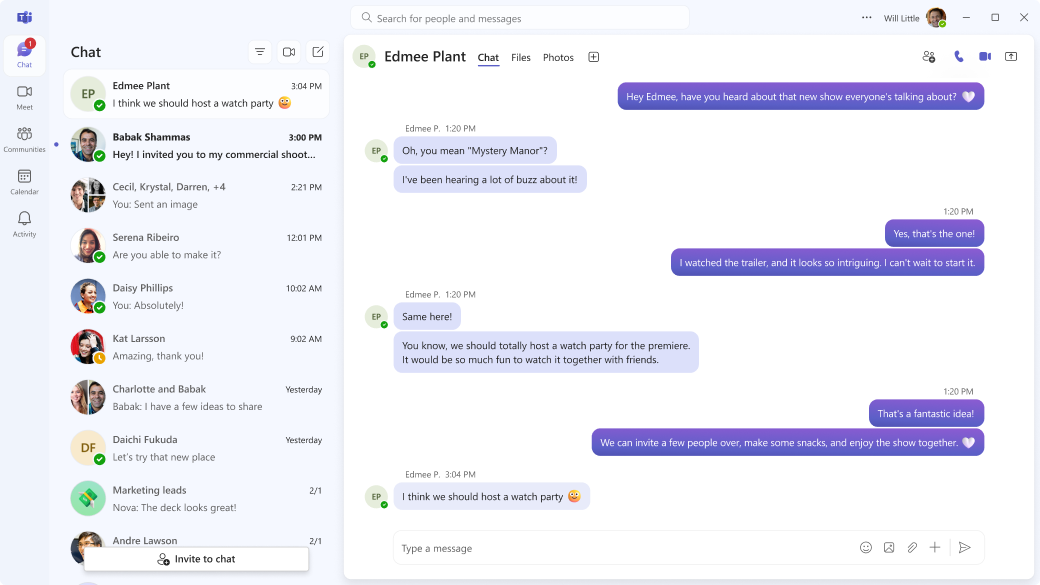
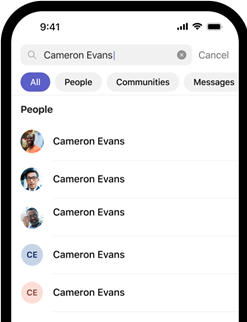
Your Teams Free account is set up. You can now view your contacts and chat. To learn more about how to calls or chat, we suggest viewing the Learn to use section.







Contact us
For more help, contact support or ask a question in the Microsoft Teams Community.