Pakalpojumā Teams varat ierakstīt līdz pat minūtes video vai audio un nosūtīt to personām individuālās tērzēšanā, grupas tērzēšanā un kanāla diskusijās. Viņi var skatīties video vai klausīties audio tieši sarunas laikā.
Videoklipa ierakstīšana, izmantojot kameru
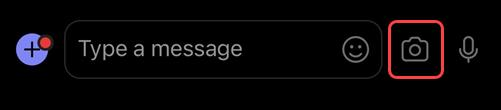
Dodieties uz jebkuru individuālu, grupas tērzēšanu vai kanāla diskusiju.
Atlasiet Darbības un programmas
 zem kuras rakstāt ziņojumu.
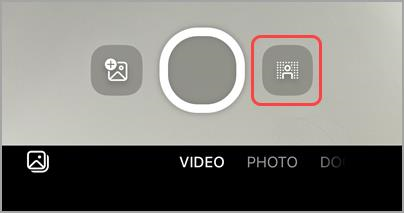
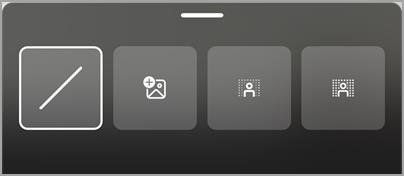
Atlasiet Ierakstīt videoklipuChat
 .
. Atlasiet Sākt ierakstīšanu , lai ierakstītu.

Padoms
Ierakstīšanu var apturēt un turpināt tik reižu, cik nepieciešams.
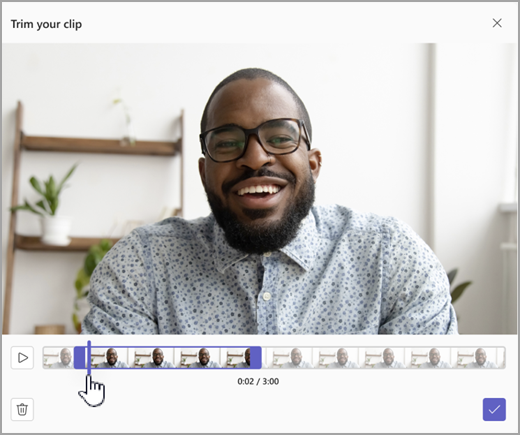
Ja vēlaties, atlasiet Apgriezt , lai apgrieztu videoklipu, pārvietojot slīdņus rediģēšanas rīkā. Lai akceptētu izmaiņas, atlasiet Apstiprināt apgriešanas
 .
.
 6. Kad esat pabeidzis ierakstīšanu, atlasiet Turpināt
 apakšējā labajā stūrī.
Padoms
Ja nepieciešams, varat ierakstīt videoklipu vēlreiz, atlasot kreiso bultiņu apakšējā kreisajā stūrī. Varat izvēlēties dzēst iepriekšējo ierakstu vai ierakstīt vairāk klipu.
- Pēc apstrādes jūs redzēsit savu video, kurā rakstāt ziņojumu. Atlasiet nosūtīšanas
 , lai to pievienotu sarunai.
Ierakstīt videoklipu no ekrāna
Varat ierakstīt ekrānā notiekošo, piemēram, detalizētos aprakstus un prezentācijas, un nosūtīt to uz tērzēšanu vai kanālu kā videoklipu.
- Dodieties uz jebkuru individuālu, grupas tērzēšanu vai kanāla diskusiju.
-
Atlasiet Darbības un programmas zem kuras rakstāt ziņojumu.
- Atlasiet Ierakstīt videoklipuChat .
- Atlasiet Ekrāns un pēc tam atlasiet Sākt ekrāna ierakstīšanu.
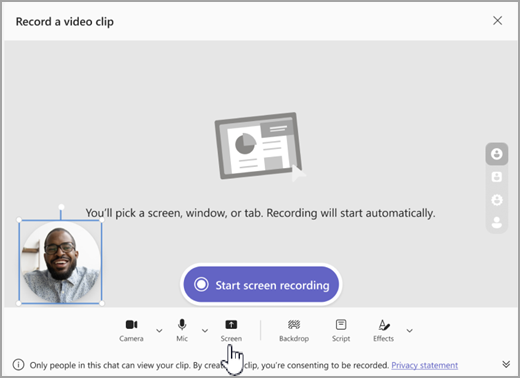 5. Nākamajā ekrānā izvēlieties ekrānu vai logu, no kura vēlaties veikt ierakstīšanu, un atlasiet Kopīgot.
6. Jūsu izvēlētais ekrāns vai logs tiks ierakstīts uz laiku līdz vienai minūtei, vai atlasiet Apturēt kopīgošanu , lai ātrāk pabeigtu video. Ierakstīšanu var apturēt, apturēt vai atsākt jebkurā laikā.
5. Nākamajā ekrānā izvēlieties ekrānu vai logu, no kura vēlaties veikt ierakstīšanu, un atlasiet Kopīgot.
6. Jūsu izvēlētais ekrāns vai logs tiks ierakstīts uz laiku līdz vienai minūtei, vai atlasiet Apturēt kopīgošanu , lai ātrāk pabeigtu video. Ierakstīšanu var apturēt, apturēt vai atsākt jebkurā laikā.
Piezīme
Ierakstīšana automātiski tiek pārtraukta, tiklīdz tiek sasniegta viena minūte.
- Pārskatiet klipus. Ja vēlaties, atlasiet Apgriezt , lai apgrieztu klipu, pārvietojot slīdņus rediģēšanas rīkā. Lai akceptētu izmaiņas, atlasiet Apstiprināt apgriešanas .
- Lai nosūtītu jums ierakstu, atlasiet Turpināt apakšējā labajā stūrī. Varat arī atlasīt Atpakaļ
 , lai veiktu papildu rediģējumus vai dzēstu un sāktu no jauna.
Audioklipa ierakstīšana, izmantojot mikrofonu
Varat arī ierakstīt tikai audioklipu ar mikrofonu, lai nosūtītu tērzēšanā.
Dodieties uz jebkuru individuālu, grupas tērzēšanu vai kanāla diskusiju.
Atlasiet Darbības un programmas
zem kuras rakstāt ziņojumu.Atlasiet Ierakstīt videoklipuChat
. Atlasiet Kamera , lai ieslēgtu tikai audioierakstīšanu, pēc tam atlasiet Sākt ierakstīšanu.
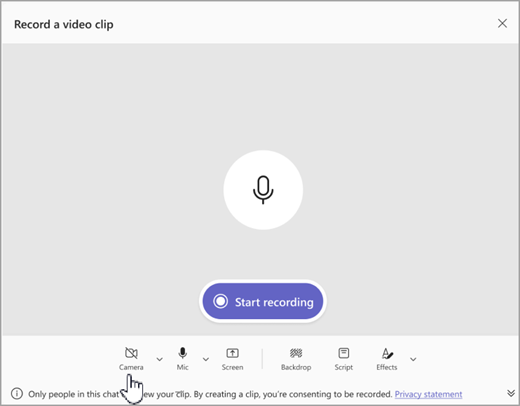
Ierakstīt uz brīdi līdz vienai minūtei vai atlasiet kvadrātu, lai ierakstīšanu apturētu.
Padoms
Ierakstīšanu var apturēt un restartēt pēc nepieciešamības.
Lai noklausītos klipu, atlasiet Pārskatīšana . Ja vēlaties, atlasiet Apgriezt , lai apgrieztu klipu, pēc tam atlasiet Apstiprināt apgriešanas
, lai turpinātu.Atlasiet Turpināt
apakšējā labajā stūrī, lai to pievienotu savam ziņojumam. Kad esat gatavs kopīgot, atlasiet nosūtīšanas .
Video, audio vai transkripcijas lejupielāde un saglabāšana
- Atveriet programmu Teams un pārejiet pie ziņojuma ar video vai audio.
- Norādiet uz klipu, lai izvēlētos Vairāk videoklipa opciju
 augšējā labajā stūrī.
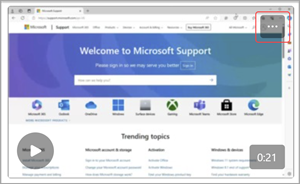
- Atlasiet Lejupielādēt norakstu
 vai Lejupielādēt video . .mp4 fails ir mapē Lejupielādes.
Padoms
Atrodiet failu lejupielādes logā, kas tiek parādīts Microsoft Teams augšējā labajā stūrī. Novietojiet kursoru virs faila nosaukuma un atlasiet  Rādīt mapē , lai pārietu tieši uz lejupielāžu mapi.
Slēpto titru ieslēgšana vai izslēgšana
Videoklipiem, kas tiek kopīgoti pakalpojumā Teams, ir automātiski ģenerēti titri. Ja vēlaties izslēgt titrus videoklipam, kuru skatāties, atlasiet Titri . Lai tos atkal ieslēgtu, atlasiet Titri .
Lai skatītu titriem atbalstīto valodu sarakstu, skatiet rakstu Valodas un balss atbalsts.