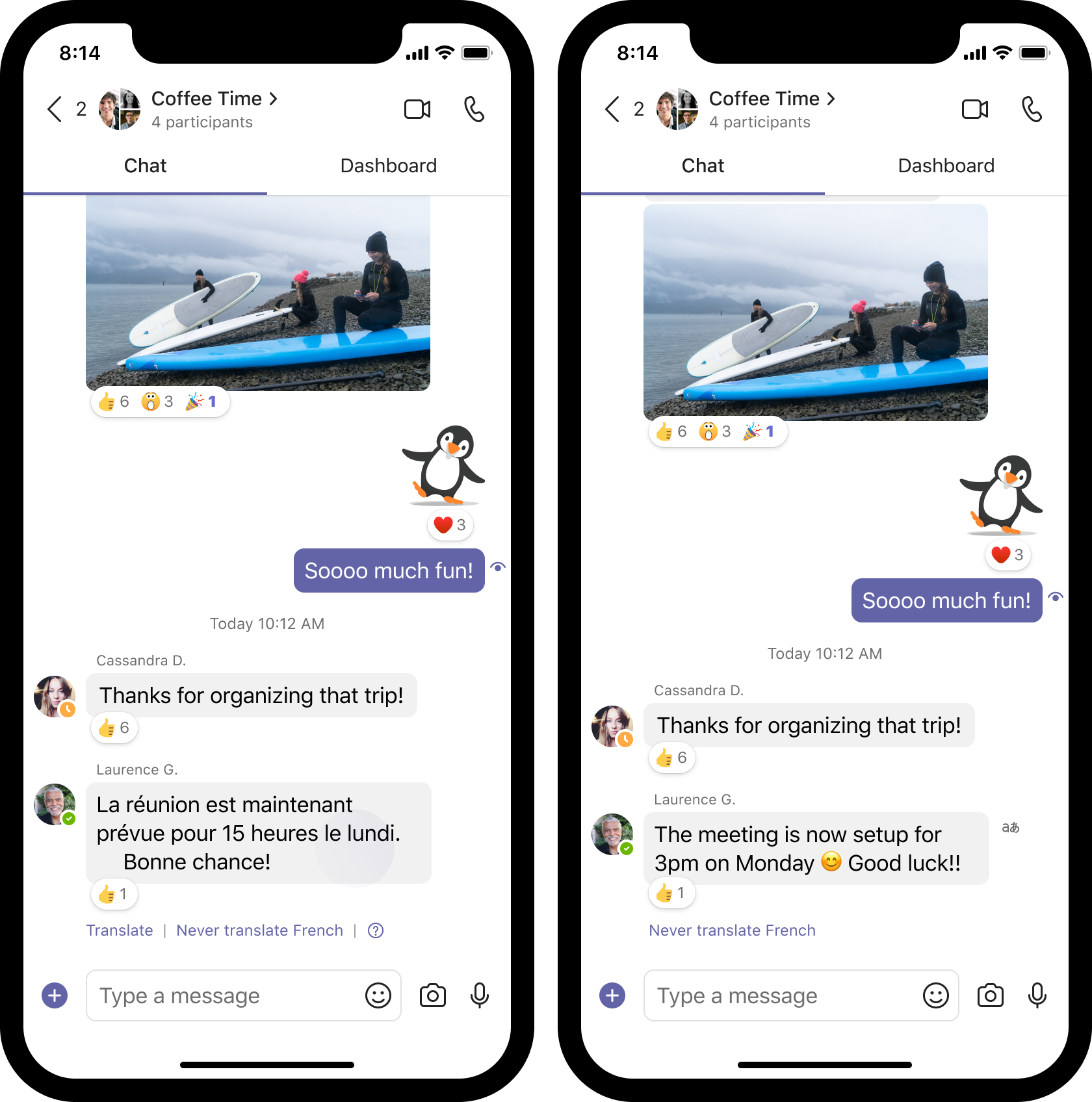
Kad saņemat ziņojumu citā valodā, jums ir iespēja to tulkot vēlamajā valodā. Varat arī izvēlēties ienākošo ziņojumu automātisku tulkošanu. Virs tulkotā ziņojuma ir ikona, lai informētu, ka tas ir iztulkots.
Ziņojuma tulkošana
Lai tulkotu ziņojumu, virs ziņojuma atlasiet Tulkot .
Atspējojiet tulkošanas ieteikumus, virs ziņojuma atlasot Nekad netulkot (valoda).

Ja neredzat tulkošanas ieteikumu, joprojām varat pieprasīt tulkojumu. Tulkojiet jebkuru ziņojumu noklusējuma valodā, novietojot kursoru virs ziņojuma un atlasot Papildu opcijas > Papildu opcijas
  > Tulkošanas
Automātiska ziņojumu tulkošana
Ja nepieciešams, Teams var automātiski tulkot saņemtos ziņojumus. Lai ieslēgtu automātisko tulkošanu:
- Norādiet uz ziņojumu, kas sākotnēji bija citā valodā, un atlasiet Papildu opcijas. .

- Atlasiet Tulkošanas un pēc tam atlasiet Ieslēgt automātisko tulkošanu.
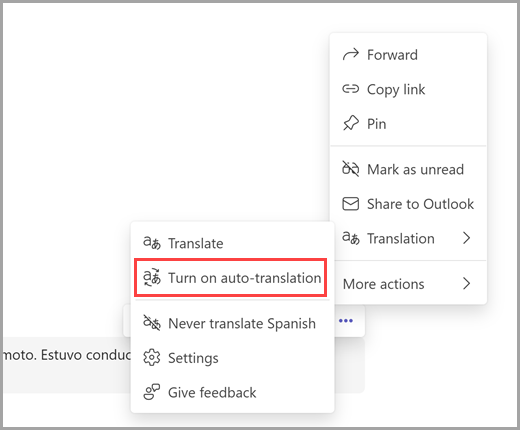
Lai izslēgtu automātisko tulkošanu:
-
Atlasiet tulkošanas opcijas virs ziņojuma
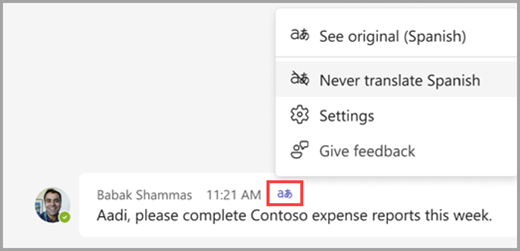
- Atlasiet pogu Iestatījumi
 , pēc tam dodieties uz sadaļu Tulkošana, lai mainītu tulkošanas iestatījumus.
Piezīme
- Automātiskās tulkošanas iestatījumi ir atkarīgi no valodas. Jūs varat izvēlēties tulkot dažas valodas, bet netulkot citas. Mēs nepiedāvāsim tulkot valodas, kuras esat pievienojis sarakstā Nekad netulkot.
- Īsziņu automātiskā tulkošana netiek atbalstīta.
Tulkošanas iestatījumu mainīšana
Lai piekļūtu tulkošanas iestatījumiem:
- Dodieties uz sadaļu Iestatījumi un citas iespējas
 > Papildu opcijasPoga>Iestatījumi Vispārīgie>Vispārīgie iestatījumi Tulkošana
Lai atjauninātu iestatījumus, veiciet tālāk norādītās darbības.
- Atlasiet Tulkot ziņojumus šajā valodā , lai izvēlētos valodu, kurā vēlaties tulkot ziņojumus.
- Izvēlieties, kā rīkoties ar ziņojumiem citās valodās:
Jautāt pirms tulkošanas
Skatiet tulkošanas ieteikumus un izlemiet, vai vēlaties tulkot atsevišķus ziņojumus.
Visu ziņojumu automātiska tulkošana
Citās valodās saņemtie ziņojumi tiek tulkoti automātiski.
Nekad netulkot
Šī opcija atspējo tulkošanas ieteikumus.
- Atlasiet opciju Nekad netulkot ziņojumus šajās valodās, lai no tulkošanas ieteikumiem un automātiskās tulkošanas izslēgtu noteiktas valodas.
Piezīme
Tulkošanas ieteikumi un automātiskās tulkošanas funkcijas ir pieejamas tikai ziņojumiem pakalpojumā Chat.
Sniedziet atsauksmes par tulkojumiem
Uzlabojiet tulkošanas rezultātus, kopīgojot atsauksmes. Lai sniegtu atsauksmes, noklikšķiniet uz Tulkošanas opcijas>Sniegt atsauksmes .
.

Piezīme
Ja neredzat tulkošanas opciju programmā Teams, sazinieties ar savu IT administratoru un pārliecinieties, vai tā ir ieslēgta.
Atbalstītās valodas
- Afrikandu
- Albāņu
- Amharu
- Arābu
- Asamiešu
- Armēņu
- Azerbaidžāņu (latīņu alfabēts)
- Bengāļu
- Baškīru valoda
- Basku
- Bosniešu (latīņu alfabēts)
- Bulgāru
- Kantoniešu (tradicionālā)
- Katalāņu
- Ķīniešu (literārā)
- Ķīniešu (vienkāršotā)
- Ķīniešu (tradicionālā)
- Horvātu
- Čehu
- Dāņu
- Dari
- Divehi
- Holandiešu
- Angļu
- Igauņu
- Fēriešu
- Fidži
- Filipino
- Somu
- Franču
- Franču (Kanāda)
- Galisiešu
- Gruzīnu
- Grieķu
- Gudžaratu
- Haiti kreolu
- Ebreju
- Hindu
- Hmong Daw (latīņu alfabēts)
- Ungāru
- Islandiešu
- Indonēziešu
- Inuinnaqtun
- Inuītu
- Inuītu (latīņu alfabēts)
- Īru
- Itāļu
- Japāņu
- Kannaru
- Kazahu
- Khmeru
- Klingonu valoda
- Klingonu (plqaD)
- Korejiešu
- Kurdu (centrālā)
- Kurdu (ziemeļu)
- Kirgīzu (kirilica)
- Laosiešu
- Latviešu
- Lietuviešu
- Maķedoniešu
- Malagasu
- Malajiešu (latīņu alfabēts)
- Malajalu
- Maltiešu
- Maoru
- Marathu
- Mongoļu (kirilica)
- Mongoļu (tradicionālā)
- Mjanma
- Nepāliešu
- Norvēģu
- Oriju
- Pashto
- Persiešu
- Poļu
- Portugāļu (Brazīlija)
- Portugāļu (Portugāle)
- Pendžabu
- Queretaro Otomi
- Rumāņu
- Krievu
- Samoa (latīņu alfabēts)
- Serbu (kirilica)
- Serbu (latīņu alfabēts)
- Slovāku
- Slovēņu
- Somāļu (arābu alfabēts)
- Spāņu
- Svahili (latīņu alfabēts)
- Zviedru
- Taitiešu
- Tamilu
- Tatāru (latīņu alfabēts)
- Telugu
- Taju
- Tibetas
- Tigrinja
- Tongiešu
- Turku
- Turkmēņu (latīņu alfabēts)
- Ukraiņu
- Augšējā sorbija
- Urdu
- Uiguru (arābu alfabēts)
- Uzbeku (latīņu alfabēts)
- Vjetnamiešu
- Velsiešu
- Jukatanas maiju
- Zulu