
In de Gratis versie van Microsoft Teams heb je de mogelijkheid om te posten naar een community en kanaal. U kunt een nieuw bericht starten, iets delen vanaf uw apparaat, een app gebruiken en een bericht beantwoorden. Kijk wat u nog meer kunt doen wanneer u een bericht plaatst in een community of kanaal in de gratis Gratis versie van Microsoft Teams.
Posten op een community
In een community kunt u een gesprek voeren en informatie veilig delen.
Een nieuw bericht in een community maken
Ga in Teams naar de community waarnaar u wilt posten.
Tik op de knop Nieuwe post
 .
.In het venster Nieuwe post kun je:
Voeg een titel toe aan uw bericht.
In het gebied Een nieuw gesprek beginnen kunt u uw bericht opstellen en iemand in de community @vermelden .
Wanneer u een post of aankondiging maakt of een antwoord verzendt, kunt u deze opties gebruiken om uw bericht op te maken:
Tik op de knop met het plusteken
 met het volgende:
- De
 van uw camera of galerie toevoegen aan uw post of aankondiging.
 -
Bestanden bijvoegen
 om te delen.
 - Uw bericht markeren als hoge prioriteit

- Een app gebruiken om naar uw community te verzenden
-
Emoji's, GIF's en stickers toevoegen
 om reacties te delen.
 - Voeg Audio opnemen toe om een audiobestand te delen. U kunt dit doen door te tikken en vast te houden om op te nemen. Wanneer u klaar bent met opnemen, kunt u items verzenden of verwijderen.
- Gebruik de opmaakopties om uw bericht aan te passen met vet, cursief, onderstrepen en nog veel meer.
- De
Bovenaan kunt u op Verzendopties
 om ook via e-mail te verzenden. Hiermee wordt je nieuwe bericht ook in een e-mail naar alle leden verzonden.
Wanneer u klaar bent, tikt u op
 om naar de community te posten.
Iets delen in een community vanaf je mobiele apparaat
U kunt eenvoudig iets delen vanuit uw camera-album, apps of browser met een community.
- Selecteer het item dat u wilt delen met een community.
- Tik op Delen.
- Scroll naar Teams gratis en selecteer onder Community's de community waarmee je wilt delen. U hebt ook de mogelijkheid om een bericht toe te voegen
- Wanneer u klaar bent, tikt u op om naar de community te posten.
Een post in een community beantwoorden
Ga naar het bericht in de community waarop je wilt reageren en tik op Beantwoorden.
U kunt uw bericht typen in het veld Beantwoorden . U kunt ook het volgende doen:
- Tik op de emoji's, GIF's en stickers Reacties op evenementen om emoji's of gifs op te nemen.
- Tik op de knop Camera
 om een foto te maken of selecteer er een uit uw camera-album.
- Tik op de emoji's, GIF's en stickers Reacties op evenementen
Tik op de knop met het plusteken
om de op te nemen , Bestanden bijvoegen , Markeer uw bericht als hoge prioriteit, Formatteer uw bericht of gebruik een app om naar uw community te verzenden.Wanneer u klaar bent, tikt u op
om het bericht te beantwoorden.
Hoe kan ik een post of aankondiging in een community bewerken?
Wanneer u een post of aankondiging maakt of een antwoord verzendt, gebruikt u de opties om uw bericht op te maken.
Tik op de knop met het plusteken met het volgende:
- De van uw camera of galerie toevoegen aan uw post of aankondiging.
-
Bestanden bijvoegen om te delen.
- Uw bericht markeren als hoge prioriteit
- Een app gebruiken om naar uw community te verzenden
-
Emoji's, GIF's en stickers toevoegen om reacties te delen.
- Voeg Audio opnemen toe om een audiobestand te delen. U kunt dit doen door te tikken en vast te houden om op te nemen. Wanneer u klaar bent met opnemen, kunt u items verzenden of verwijderen.
- Gebruik de opmaakopties om uw bericht aan te passen met vet, cursief, onderstrepen en nog veel meer.
Waarom is mijn communitybericht verwijderd?
Wanneer u deelneemt aan een community van Gratis versie van Microsoft Teams, ontvangt u mogelijk een bericht met de melding 'Dit bericht is verwijderd.' in uw gesprek.
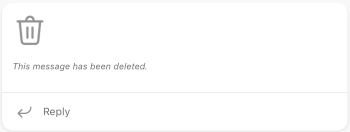
Dit kan een van de volgende oorzaken hebben:
- De auteur van het bericht heeft het verwijderd.
- De eigenaar van de community heeft ervoor gekozen deze te verwijderen.
- Het bericht is gemeld.
Opmerking
Posten op een kanaal
Met kanalen kunt u zich gemakkelijker richten op specifieke doelstellingen en projecten. U kunt kanalen gebruiken om onderwerpen te posten, zoals aankondigingen en vragen&vragen.
Een nieuw bericht in een kanaal maken
Ga in Teams naar het communitykanaal waarnaar u wilt posten.
Tik op de knop Nieuwe post
.In het venster Nieuwe post kun je:
Voeg een titel toe aan uw bericht.
In het gebied Een nieuw gesprek beginnen kunt u uw bericht opstellen en iemand in de community @vermelden.
Wanneer u een post of aankondiging maakt of een antwoord verzendt, kunt u deze opties gebruiken om uw bericht op te maken:
Tik op de knop met het plusteken
met het volgende:- De van uw camera of galerie toevoegen aan uw post of aankondiging.
-
Bestanden bijvoegen om te delen.
- Uw bericht markeren als hoge prioriteit
-
Emoji's, GIF's en stickers toevoegen om reacties te delen.
- Gebruik de opmaakopties om uw bericht aan te passen met vet, cursief, onderstrepen en nog veel meer.
- De
Wanneer u klaar bent, tikt u op om naar het kanaal te posten.
Iets in een kanaal delen vanaf uw mobiele apparaat
U kunt eenvoudig iets delen vanuit uw camera-album, apps of browser met een community.
- Selecteer het item dat u wilt delen met een community.
- Tik op Delen.
- Scroll naar Teams gratis en selecteer onder Community's de community waarmee je wilt delen. U hebt ook de mogelijkheid om een bericht toe te voegen
- Wanneer u klaar bent, tikt u op om naar de community te posten.
Een bericht in een kanaal beantwoorden
- Ga naar het bericht in het kanaal dat u wilt beantwoorden en tik op Beantwoorden.
- U kunt uw bericht typen in het veld Beantwoorden en op de emoji's, GIF's en stickers tikken .
- Tik op de knop Plus de op te nemen, Bestanden bijvoegen, , uw bericht met hoge prioriteit markeren of Uw bericht opmaken.
- Tik op de om een foto op te nemen of een nieuwe te nemen.
- Wanneer u klaar bent, tikt u op om het bericht te beantwoorden.
Hoe kan ik een post of aankondiging in een kanaal bewerken?
Wanneer u een post of aankondiging maakt of een antwoord verzendt, gebruikt u de opties om uw bericht op te maken.
Tik op de knop met het plusteken met het volgende:
- De van uw camera of galerie toevoegen aan uw post of aankondiging.
-
Bestanden bijvoegen om te delen.
- Uw bericht markeren als hoge prioriteit
-
Emoji's, GIF's en stickers toevoegen om reacties te delen.
- Gebruik de opmaakopties om uw bericht aan te passen met vet, cursief, onderstrepen en nog veel meer.

Verwante onderwerpen
Een aankondiging verzenden naar een kanaal in Microsoft Teams
Contact opnemen
Neem voor meer hulp contact op met ondersteuning of stel een vraag in de Microsoft Teams-community.