Om du har en delad anteckningsbok och du inte vill att andra ska kunna se eller redigera den längre kan du ta bort behörigheter för en eller alla användare eller ändra inställningarna för delningsbehörighet.
Om du vill hindra någon från att redigera din anteckningsbok, men ändå låta dem visa den, ändrar du deras behörigheter från Kan redigera till Kan visa.
Om du vill sluta dela tar du bort alla delningslänkar och slutar dela med personer som har direkt åtkomst.
Om du vill förhindra att en viss person kan se eller redigera din anteckningsbok kan du ändra behörighet för Delas med.
Öppna relevant anteckningsbok.
Välj
 Dela i det övre högra hörnet i fönstret.
Välj Hantera åtkomst.
Välj att ta bort en eller flera People eller ta bort och inaktivera länkarna.
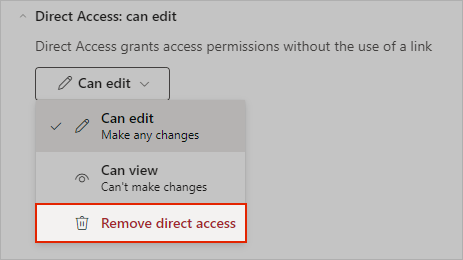
Om du vill ta bort åtkomst helt väljer du alternativet
 kan redigera eller
  kan visa .
Under Direktåtkomst väljer du
kan redigera igen och väljer sedan  direktåtkomst.