

Use these strategies to get the best results from Copilot in Excel.
Write effective prompts
- Be specific. The more detail you provide, the more useful Copilot's response.
- Name the columns or ranges you want Copilot to work with, especially for formatting and analysis requests.
- Start broad, then refine. If a result isn't quite right, add more detail and ask Copilot to try again.
- Ask follow-up questions to build on a previous result.
For more prompting tips, see Cooking up a great prompt: Getting the most from Copilot.
Customize your Copilot in Excel
Copilot in Excel offers customization options. Return results based on your preferences with personalization. Create guidelines for a workbook with rules. Use custom skills to complete repeatable tasks.
Choose your model
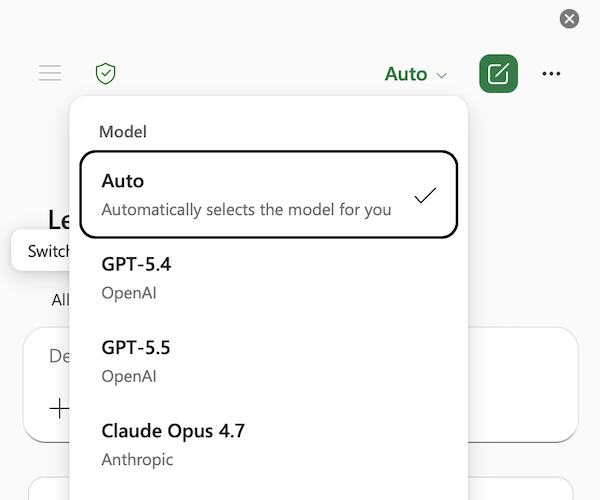
Before submitting a prompt, you can select which model you prefer to use. Copilot in Excel supports the latest Anthropic and OpenAI models. To switch between models, use the model picker menu in the upper right corner of the Copilot in Excel pane. By default, the model picker is set to Auto and the model is automatically chosen for you.
Note
If you have a commercial Microsoft Copilot subscription, your admin must allow access to Anthropic AI models by allowing "AI providers for other large language models" in the Microsoft 365 Admin Center. For more information, see Anthropic as a sub-processor for Microsoft Online Services.
Your model choice applies only to the active session. When you close Excel or end your session, Copilot reverts to the default generative AI model for Microsoft 365.
View your previous Copilot in Excel conversations
Access to Copilot in Excel conversation history is currently rolling out for commercial Microsoft Copilot subscriptions. To access chat history, use the menu icon in the upper left corner of the Copilot in Excel pane to open your previous conversations. Conversations are listed based on recency, with your most recent chat at the top of the list. Select a conversation from the list to view it.
To delete your Copilot in Excel conversation history, follow the steps to Delete your Microsoft Copilot activity history. The ability to delete individual Copilot conversations is not available at this time.
Manage autosave for your Copilot in Excel workbooks
Copilot in Excel runs in workbooks with autosave enabled or disabled. To experiment with Copilot in Excel changes without automatically saving those changes to a workbook, disable autosave. For more information about autosave, see Turn on autosave in Microsoft 365 apps.
Review the change history of your workbook
Use Copilot in Excel to explore edits to your workbook, such as who made changes and when changes occurred. For more information, see Review the change history of your workbook with Copilot in Excel.
Undo changes with view previous versions
Be mindful when editing with Copilot for sensitive or shared files. Copilot makes direct changes to your workbook. If you need to revert your changes, you can undo changes or view prior versions at any time.