
Applies To: Microsoft Teams for Education, LMS solutions that work with Microsoft 365
Some assignments include Learning Activities — interactive practice tools like flashcards, matching, fill in the blanks, and more. You can do them right inside Teams or your LMS without leaving the assignment.
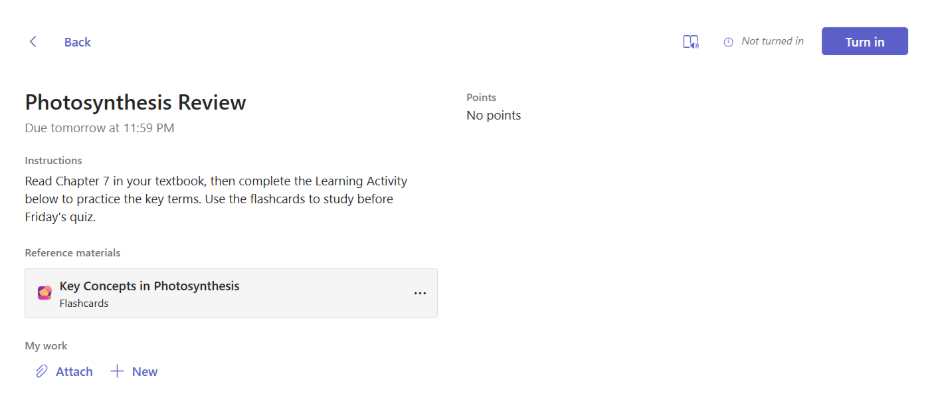
Start a Learning Activity
- Open your assignment in Teams or your LMS.
- You'll see the Learning Activity as a card in the assignment. Select it to open the activity.
- The activity opens inline — you don't need to go to a different app or page.
- Complete the activity at your own pace.
Open in the Learning Activities app
Want a bigger view or the full experience?
- Select Open in Learning Activities from the activity card or the inline view.
- The activity opens in the Learning Activities web experience in a new tab.
- Everything you do there still counts.
Good to know
- Learning Activities aren't graded. They don't affect your assignment score.
- You don't need to turn in a Learning Activity. It's there for practice.
- You can do Learning Activities on a computer, tablet, or phone.
- Your progress is saved. If you stop partway through, you can come back and continue later.
- You can redo a Learning Activity as many times as you want.