
Note
SharePoint Knowledge Base is in Frontier preview, and availability might vary in your organization. This means that you might not yet see this feature or it might look different from what is described in this article. If you don’t see the option to create a knowledge base, contact your SharePoint administrator.
Before you begin
To create a knowledge base manually, you need permission to create content on the SharePoint site. To write or edit KB pages, you need permission to edit the knowledge base. Manual creation and editing don't require a Microsoft 365 Copilot license or Copilot credits.
Create a knowledge base manually
Use one of the following entry points:
On a SharePoint site, select + New on the command bar, and then select Knowledge base.
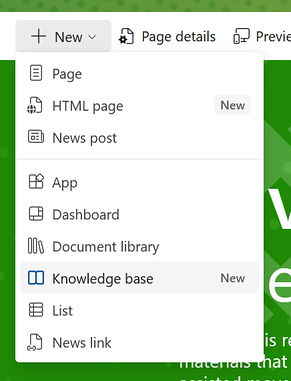
On the app bar, select Build, select Knowledge base under Start building, and then choose the destination site.
Then complete these steps:
Choose whether to start with blank content or one of the three import options.
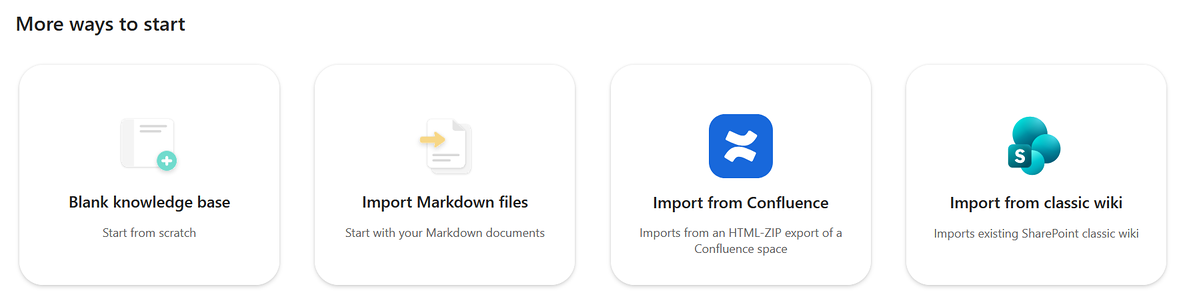
Follow the prompts to finish creating the knowledge base.
Write and edit KB pages manually
Write KB pages in the Visual editor or edit their Markdown in the Source editor. Both editors work on the same KB page.
Create a KB page manually
- In the knowledge base, select New, and then select Blank page.
- Select the page name at the top, enter a name, and then press Enter.
- Add your content. On the first KB page, explain what the knowledge base covers and where readers should start.
- Select Save and exit.
Edit a KB page manually
- Select the KB page in the knowledge base navigation.
- Select Edit.
- Make your changes. Use the toolbar to format text or insert images, videos, and links.
- Select Save and exit.
To add page properties, select Edit, select Properties on the editing toolbar, and then select Add property. In the Source editor, properties appear as YAML frontmatter at the top of the file.
Note
Renaming or moving a KB page manually can break links to it from other KB pages. After you rename or move a KB page, update those links, or ask Copilot to check the knowledge base’s health to find broken links. A health check uses Copilot credits.
Use Markdown in the KB page Source editor
| To add | Markdown |
|---|---|
| Heading | # Heading through ###### Heading |
| Bold, italic, strikethrough, highlight | **Important**, *Emphasis*, ~~Old wording~~, ==Review this== |
| Bulleted, numbered, or task list | - First item, 1. First step, - [ ] To do, - [x] Completed |
| Quote | > Quoted text |
| Inline code or code block | `command`, or three backticks on separate lines before and after the code |
| Link | [Microsoft Support](https://support.microsoft.com) |
| Link to another KB page | [[Page name]] |
| Image or video | ,  |
| Table | A header row, a separator row, and data rows, with vertical bars between cells |
| Horizontal rule | --- on a separate line |
| Math | $x^2$, or an expression between $$ lines |
| Mermaid diagram | A code block with mermaid after the opening backticks |
| Property | YAML key-value pairs enclosed by --- on separate lines at the beginning and end of the block. The opening --- must be on the first line of the file. |
Related articles
- Get started with SharePoint Knowledge Base (preview)
- Create and update a Knowledge Base with Copilot in SharePoint (preview)
- Create and update a SharePoint Knowledge Base with Autopilot (preview)
- Import content into a SharePoint Knowledge Base (preview)
- Find information and collaborate on a SharePoint Knowledge Base (preview)
- Copilot in SharePoint: An overview