
Note
SharePoint Knowledge Base is in Frontier preview, and availability might vary in your organization. This means that you might not yet see this feature or it might look different from what is described in this article. If you don’t see the option to create a knowledge base, contact your SharePoint administrator.
Import Markdown files, a Confluence space, or Classic wiki pages. Each import is a one-time copy that isn’t synchronized with the source. Permissions and file sensitivity labels from the source don’t carry over; KB pages use the destination knowledge base’s SharePoint permissions.
Important
Don’t edit the source content or start another import into the same destination until the current one finishes. Retrying an interrupted import can create duplicate content.
Before you begin
You need permission to create or edit content in the destination knowledge base and access the source content. Importing content doesn't require a Microsoft 365 Copilot license or Copilot credits.
Choose the import method that matches your source: Markdown for .md files and folders, Confluence for an exported space, or SharePoint Classic wiki migration for eligible Classic wiki pages.
Import Markdown files and folders
Open the knowledge base, and then select New > Import. When you create a new knowledge base, you can also select Import Markdown files.
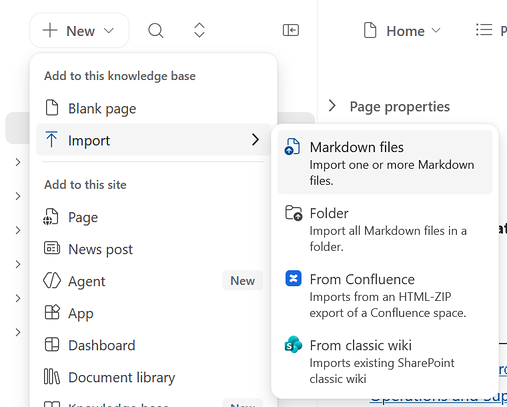
Select Markdown files to import individual
.mdfiles, or Folder to import a folder with its file hierarchy.Select the files or folder, and then follow the prompts to import the content.
Check the imported KB pages in the knowledge base navigation.
Important
Keep Markdown files in their original relative folders and check the KB pages after import. Images that your files reference aren’t copied during import, so add them manually or link to a location readers can access. Readers also need access to any other assets that stay linked to their original location. Renaming another file type to .md doesn’t convert it.
Import from Confluence
- In Confluence, export the space by using the normal HTML export format, and then download the ZIP file. Don’t unzip it or reorganize its contents.
- Create or open the destination knowledge base, and then select the option to import from Confluence.
- Select the ZIP file, enter the Confluence space URL, review any requirements, and then start the import.
- When the import finishes, review the migration report for failures and warnings.
The import preserves supported text, headings, lists, code, common tables, links, page hierarchy, images, and attachments. Macros, layouts, and complex tables might be simplified. Comments, reactions, version history, permissions, analytics, and users and groups might not be imported.
Migrate from a SharePoint Classic wiki
You can migrate Classic wiki pages. Other classic pages, publishing layouts, blogs, and custom pages aren’t supported. You need permission to view the source pages and add content to the destination. The source and destination must be in the same Microsoft 365 organization and geolocation.
- Open the Site Pages library that contains the Classic wiki pages.
- Select the pages you want to migrate. If you don’t select any pages, the import process includes all eligible pages in the library.
- On the command bar, select Organize into knowledge base.
- Choose the destination site and knowledge base, review the permissions and any sensitivity warning, and then start the migration.
- When the migration finishes, open the import report in the knowledge base to see which pages need attention.
You can also start from the destination knowledge base: select New > Import > From classic wiki, or on any KB page, select + (Add) > Import > From classic wiki. Then select the source site and library, and start the import.
Warning
Web parts, custom scripts, CSS, page-level permissions, and full version history aren’t migrated. For large libraries, migrate in smaller batches and review each result before continuing.
Related articles
- Get started with SharePoint Knowledge Base (preview)
- Create and update a Knowledge Base with Copilot in SharePoint (preview)
- Create and update a SharePoint Knowledge Base with Autopilot (preview)
- Create and edit a SharePoint Knowledge Base manually (preview)
- Find information and collaborate on a SharePoint Knowledge Base (preview)
- Copilot in SharePoint: An overview