
Note
SharePoint Knowledge Base is in Frontier preview, and availability might vary in your organization. This means that you might not yet see this feature or it might look different from what is described in this article. If you don’t see the option to create a knowledge base, contact your SharePoint administrator.
Before you begin
Ensure that you can access your sources, such as files or lists in OneDrive and SharePoint, emails, and meetings, and have approval to reuse them for your audience.
The Knowledge Base skill is automatically enabled in Copilot in SharePoint and remains visible even when Copilot credits aren't available. You don't need to enable it. To use the skill, you need Copilot credits. If credits aren't available, Copilot explains what it can't complete.
Before Copilot continues with a task that uses credits, it asks you to approve the credit use. After the task, enter /cost to see how many credits it used. For details, see Do knowledge base tasks use Copilot credits?.
Create a knowledge base with Copilot in SharePoint
Describe the knowledge base you want, including the sources you need, and Copilot in SharePoint creates KB pages from your sources, organized by topic.
Go to the SharePoint site where you want to create the knowledge base, and then open Copilot in SharePoint.
In the prompt box, describe the knowledge base: its name, purpose, source links, the questions it should answer, and how to organize it.
Tip
For example:
“Create a knowledge base named Zava Product Support based on [link to your sources]. It should help support engineers find current troubleshooting guidance and onboard new team members. Organize it by product area.”
“Create an onboarding knowledge base for new hires from the files in [folder URL], with sections for tools, processes, and FAQs.”
Answer any follow-up questions and review the proposed goal and scope.
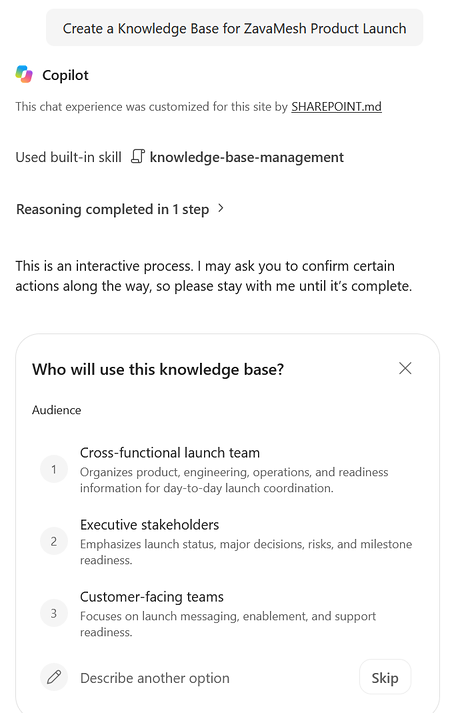
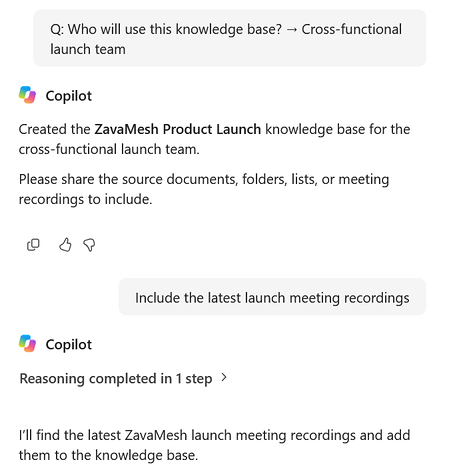
When creation is complete, open the knowledge base and review the KB pages.
Important
Stay in the Copilot in SharePoint session until the requested action is complete. If Copilot asks you to confirm a change to a KB page name or location, respond so it can continue. AI-generated content can be incomplete or incorrect, so review facts, source links, and conflicts before you share the knowledge base.
Keep the knowledge base current with Copilot
Use Copilot in SharePoint to add sources, update KB pages, and check the knowledge base’s health. Updates happen only when you ask; source changes don’t update KB pages automatically.
Open the knowledge base, and then open Copilot in SharePoint.
In the prompt box, describe what you want to update.
Tip
For example:
“Add the documents in [folder URL] to this knowledge base.”
“Check this knowledge base for updates from its sources. Summarize the proposed changes before updating any KB pages.”
“Check the health of this knowledge base and show me what needs attention.”
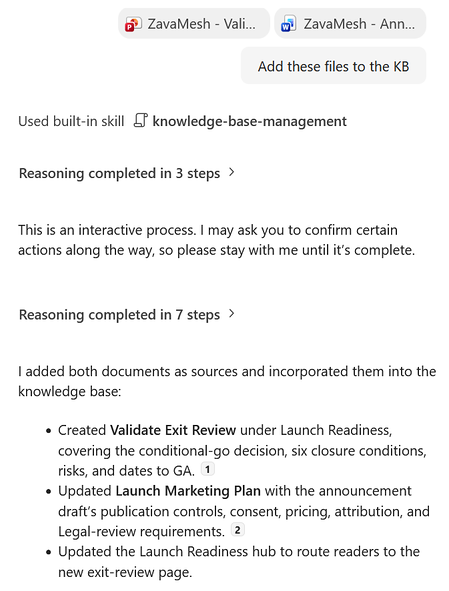
Review the proposed changes, conflicts, and source links before you accept them.
Follow best practices for Copilot knowledge base updates
- Add no more than 10 files at a time.
- Run one Copilot update at a time on a knowledge base. If someone else is updating it with Copilot in SharePoint or Autopilot, wait until their update finishes.
- Removing a source doesn’t remove guidance taken from it, so review the KB pages that used it.
- A health check uses Copilot credits and finds broken links, KB pages that aren’t in the navigation, and incomplete source references. It doesn’t verify accuracy.
Important
After you add content from a source, anyone who has access to the knowledge base can see that content, including people who can’t open the source. A citation or link doesn’t grant access to its source. Before you add content, ensure it’s appropriate for everyone who has access to the knowledge base.
During preview, updates from Copilot in SharePoint or Autopilot can reverse edits made by people or recreate deleted KB pages. After an update, open the affected KB pages and request a targeted correction if needed.
Related articles
- Get started with SharePoint Knowledge Base (preview)
- Create and update a SharePoint Knowledge Base with Autopilot (preview)
- Create and edit a SharePoint Knowledge Base manually (preview)
- Import content into a SharePoint Knowledge Base (preview)
- Find information and collaborate on a SharePoint Knowledge Base (preview)
- Copilot in SharePoint: An overview