Get to know the latest features and capabilities of the Surface Pro 12-inch (2nd Edition).
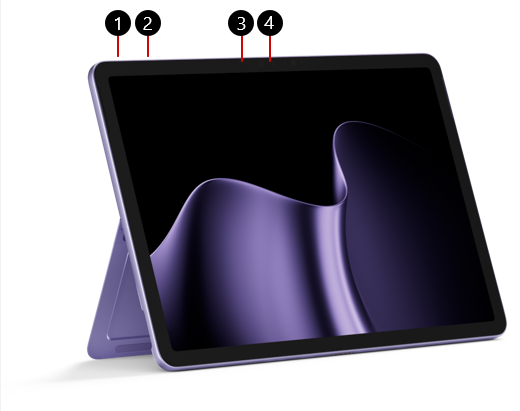
1. Power button
2. Volume
3. Windows Hello camera
4. Front-facing camera
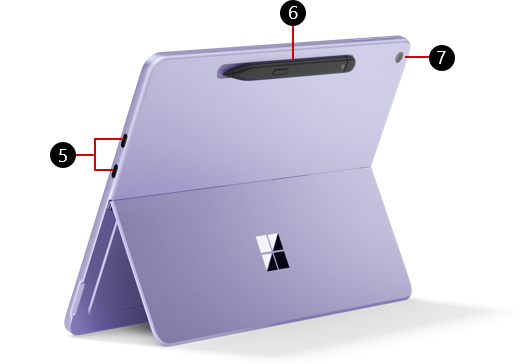
5. Two USB-C / USB 3.2 ports
6. Surface Slim Pen storage and charging (pen sold separately)
7. Rear camera
Available to purchase from the Microsoft Store and other retailers.
Charging your Surface
Charge your device using either USB-C port with a USB Type-C PD charger.
For best performance, we recommend using a USB-C PD charger that provides at least 27W. If you connect a lower-wattage charger, your device may charge slowly or not at all.
For Fast Charging, use a charger that provides at least 45W. With Fast Charging, you can charge your battery up to 80% in about an hour.
We recommend using the Surface 45W USB-C Wall Charger.
To learn more about charging your device, see USB-C and Fast Charging for Surface.
Connect a Surface Pro 12-inch Keyboard
To use your Surface Pro 12-inch like a traditional laptop, connect a Surface Pro 12-inch Keyboard. (Keyboard sold separately.)
- Bring the bottom edge of your Surface Pro close to the top edge of the keyboard until the magnets click into place.
Note
The Surface Pro 12-inch is compatible with the Surface Pro 12-inch Keyboard. Other Surface Pro Keyboards, including the Surface Pro 13-inch Keyboard with pen storage and the Surface Pro 13-inch Flex Keyboard, are not compatible with Surface Pro 12-inch. Learn more about Surface Pro Keyboards and Type Covers.
Microsoft Ink Canvas
Microsoft Ink Canvas is preinstalled on the Surface Pro 12-inch (2nd Edition). Ink Canvas gives you a freeform digital workspace where you can start with a blank canvas, bring in visual content, mark it up, and use Copilot features to help move your ideas forward. (Inking and non-AI features in Microsoft Ink Canvas are available without a Microsoft 365 subscription. Copilot-powered features require a Microsoft 365 subscription.)
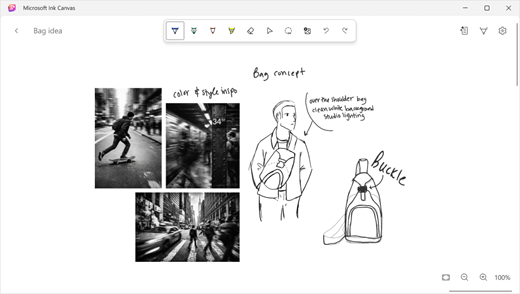
On Surface Pro 12-inch (2nd Edition), a single click of the Slim Pen shortcut button opens a new canvas, giving you a direct way to capture an idea the moment it starts. (Slim Pen sold separately.)
Learn more about how to use Microsoft Ink Canvas.
Surface Pro for Business features
Surface Pro for Business, 12-inch models include an NFC reader. Learn more about supported NFC experiences.
If your Surface Pro for Business is 5G enabled, learn how to set up the 5G connection.
A more repairable device design
Many components can be replaced by authorized service providers or skilled technicians — supporting a more repairable device design. Replacement components are available for out-of-warranty repair. Availability and service options may vary by product, market, and over time.
To learn more, see Self-repair information for your Surface device.
Related topics
- Product safety warnings and instructions
- Surface regulatory information
- Warranty and Protection Plan Terms & Conditions
- Windows accessibility features
- Which edition of Windows comes with your Surface device?
Need more help?
Technical support

For technical support, open the Surface app or web browser, describe your problem and select Get Help.
Community support

Communities can help you ask questions, and hear from experts with rich knowledge. Ask the Community.
Other support

If you can't use your Surface or have a question about something else, open Get Help to get other support online.