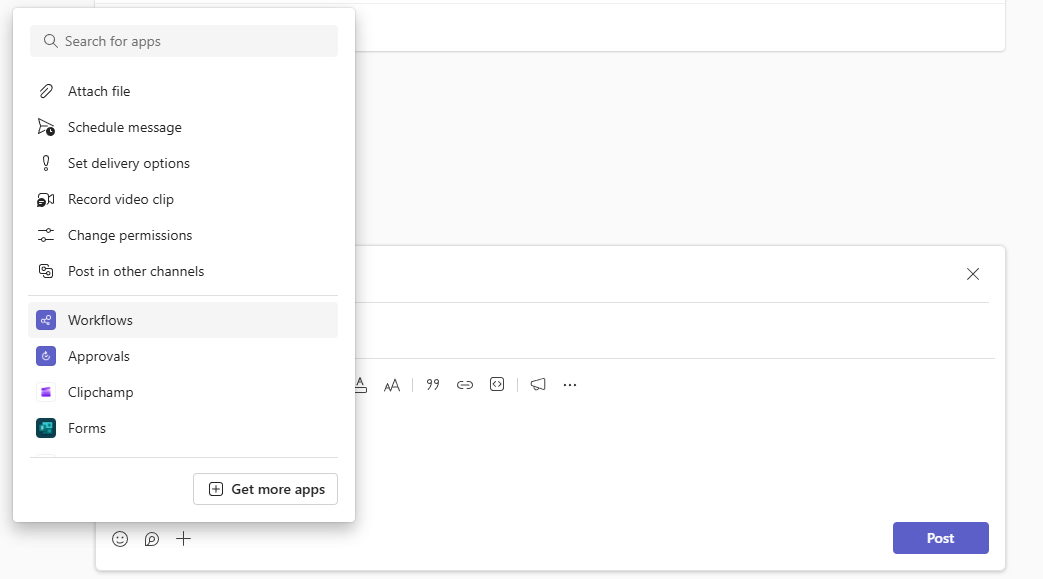
Add the Workflows app
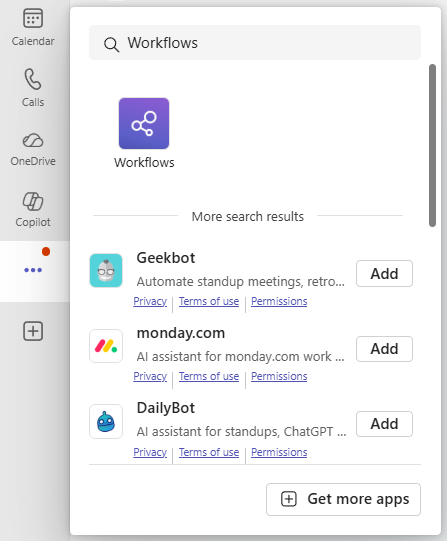
There are several ways to add an app to Microsoft Teams. The simplest way is to select View more apps, search for Workflows in the search bar, and then select Add.
Tip
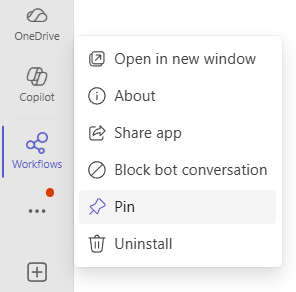
To pin the app for easy access, right click on Workflows after adding the app and select Pin. To open the Workflow app in a separate window, select Open in new window.
Note
If you don't see the Workflow app, your organization might not have the app turned on. Check with your administrator to find out more.
Access Workflows app through chats or channels
Open the Microsoft Teams app.
Navigate to any chat or channel you want to set up a workflow for.
Warning
Currently, private channels aren't supported. We are actively working on supporting this channel type as soon as possible.
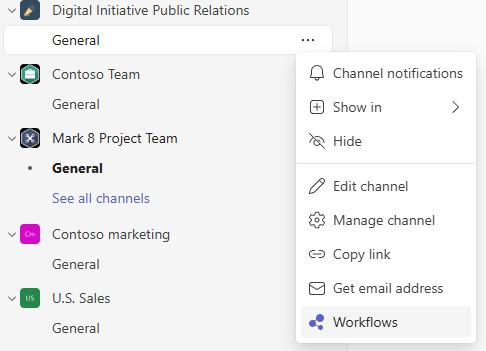
Next to the chat or channel name you want to create the workflow for, select More options (...)
Select Workflows.
Access Workflows app through a message
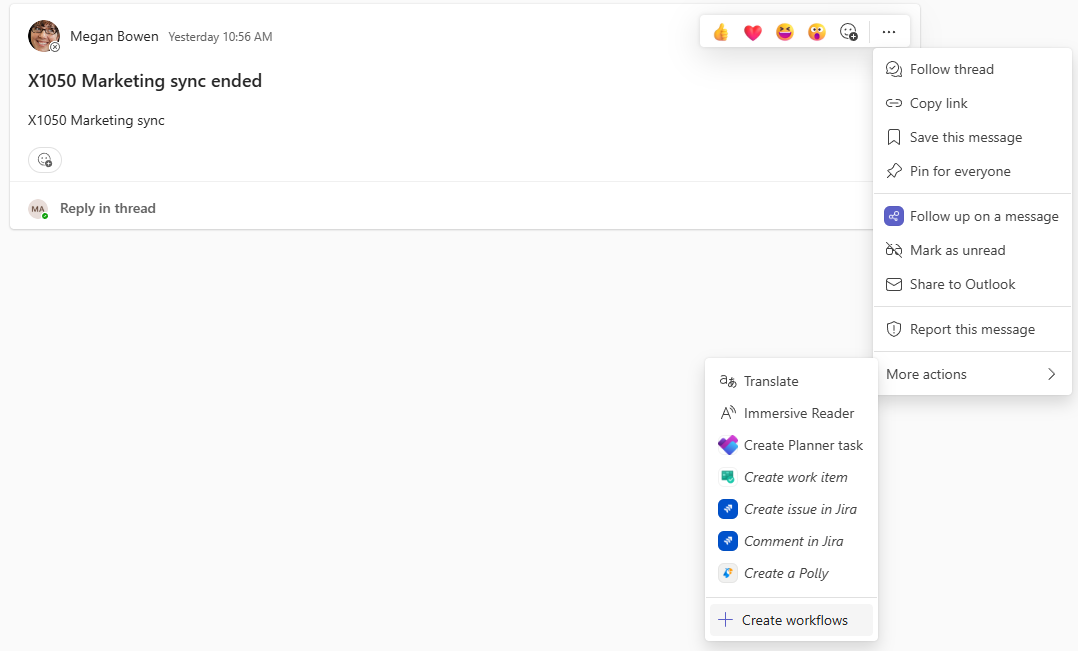
- Navigate to any message you want to set up a workflow for.
- Select More options (...) or right click on the message.
- Select More actions
- Select Create workflows
Access Workflows app through the compose box
Navigate to a chat or channel.
Warning
Currently, private channels aren't supported. We are actively working on supporting this channel type as soon as possible.
Select Actions and apps (+) at the right side of the compose box where you type a message.
Select the Workflows app.