
Try it!
An Incoming webhook lets external applications share content in chats and channels in Microsoft Teams. Webhooks are used as tools to track and notify. You can post to a channel or chat when a webhook request is received.
Note
Using these templates and the Teams webhook trigger does not require a premium license to use.
Chat webhook templates:
- Send webhook alerts to a chat
- Send webhook alerts from specific people to a chat
- Send webhook alerts from people in an org to a chat
Channel webhook templates:
- Send webhook alerts to a channel
- Send webhook alerts from specific people to a channel
- Send webhook alerts from people in an org to a channel
Set up from a template
Open Workflows from any entry point.
Search for the specific webhook template that fits your needs.
Important
Depending on if you want the webhook to post within a chat or channel, choose the webhook template that best suits your needs. Each template has a different authentication type.
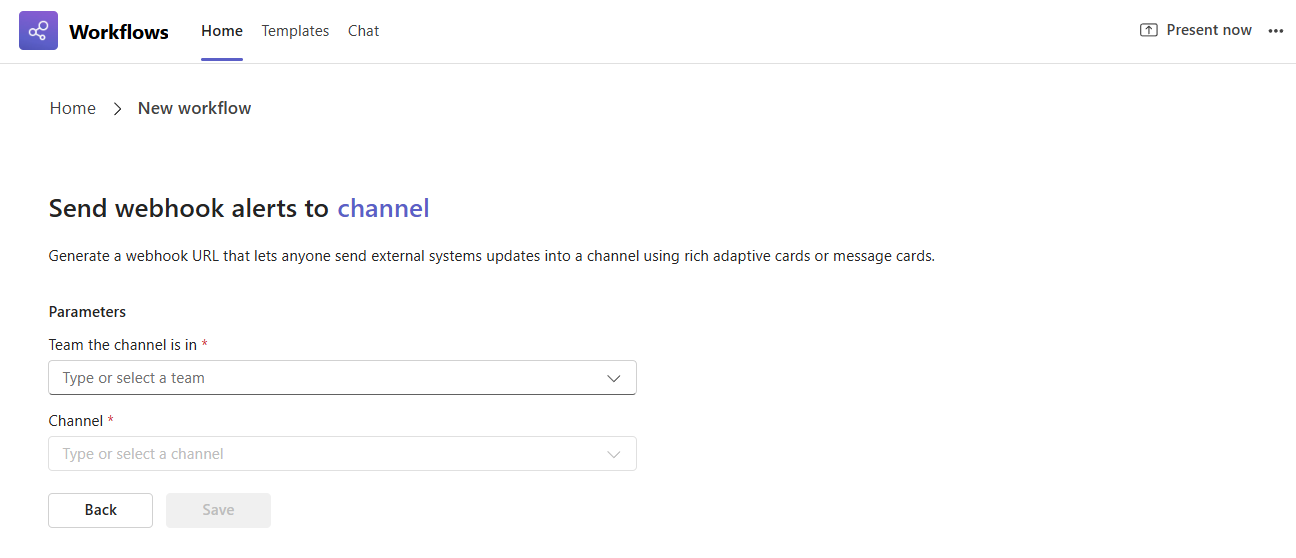
Choose the Team and Channel, or Chat that this webhook notification will post to.
When you're ready, click Save to create your workflow.
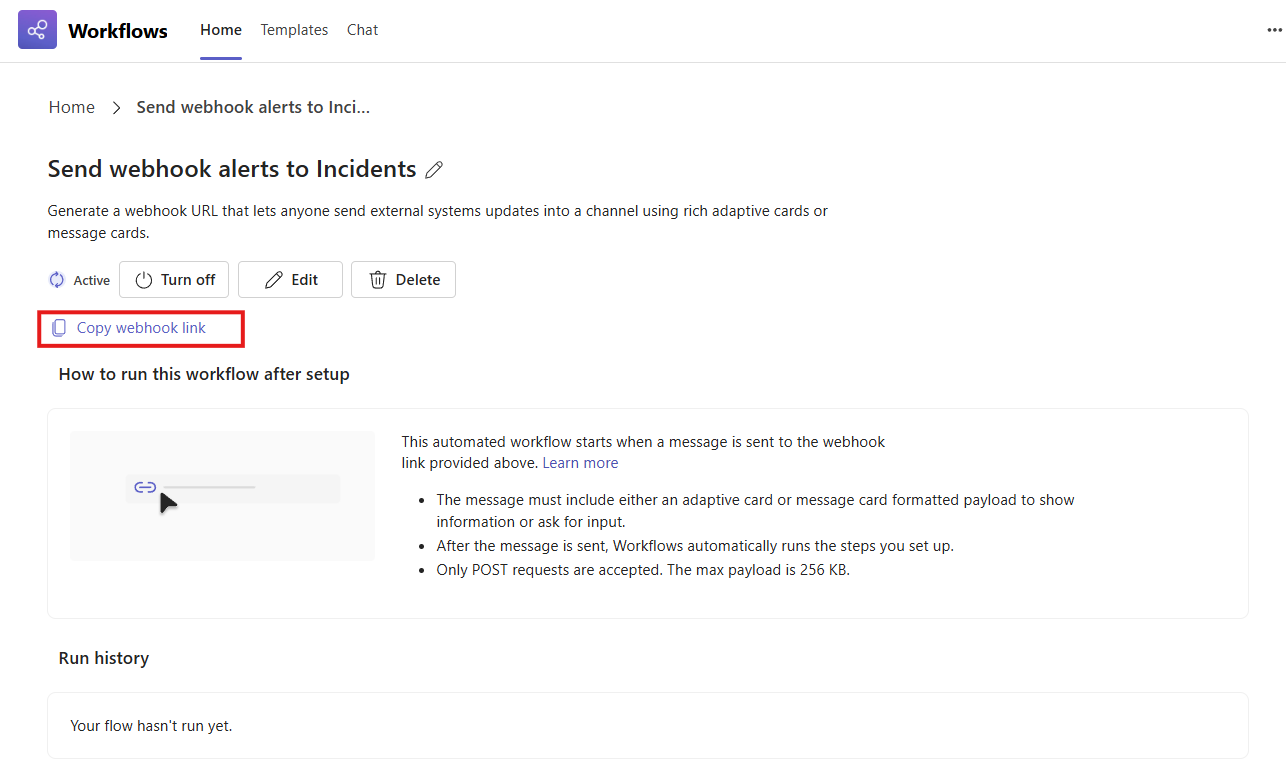
Once created you will be automatically redirected to the details page of the workflow where you can then copy the webhook URL.
Use your incoming webhook URL
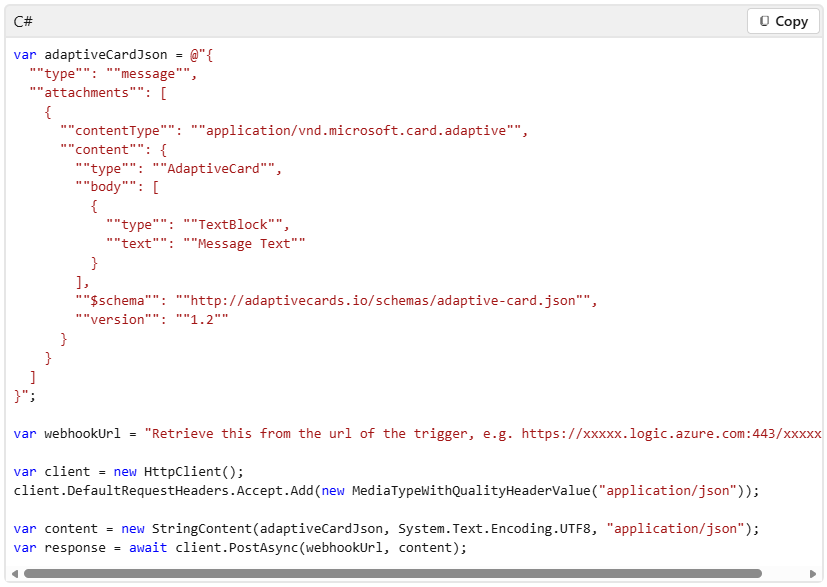
Test your Adaptive Card with Postman:
- Test the Adaptive Card using Postman to send a POST request to the URL, created to set up Incoming Webhook.
- Paste the JSON file in the body of the request and view the Adaptive Card message in Teams.
Note
Both Adaptive card and Message card format are supported.
For full developer documentation on incoming webhook visit: Microsoft Teams - Connectors | Microsoft Learn