Se sono stati importati contatti da più origini, ad esempio un'origine esterna come iCloud o Gmail, o se l'elenco contatti di un altro utente è stato ereditato, è possibile che i contatti duplicati siano archiviati in Outlook. Come gestire questi duplicati dipende dalla versione di Outlook in uso.
Se si usano nuove versioni di Outlook e Web di Outlook, i duplicati esatti vengono nascosti automaticamente.
Con La versione classica di Outlook è possibile scegliere se creare o meno un nuovo record di contatto (un duplicato) o unire i contatti duplicati.
Con il nuovo Outlook, l'elenco contatti viene pulito continuamente e i duplicati vengono nascosti automaticamente dopo la ricerca dei duplicati esatti e appropriati del sottoinsieme.
Gli scenari di esempio seguenti descrivono in che modo il nuovo Outlook gestisce le voci duplicate in base al fatto che il record contatto sia o meno un duplicato esatto o un sottoinsieme di un altro record.
Nell'esempio seguente, il contatto B è un duplicato esatto del contatto A.
| Contatto A |
Contatto B |
Nome: Sam Elliot
Email:sam.elliot@contoso.com
Numero di telefono: 123-456-7890
Società: Contoso
Titolo: Senior Sales Manager |
Nome: Sam Elliot
Email:sam.elliot@contoso.com
Numero di telefono: 123-456-7890
Società: Contoso
Titolo: Senior Sales Manager |
La funzionalità di pulizia automatica dei contatti nel nuovo Outlook identifica tali duplicati; Pertanto, in questo scenario il contatto B verrà nascosto all'elenco contatti.
Nell'esempio 2, al contatto D mancano le informazioni sulla società e sul titolo fornite nel contatto C. In questo modo Contatto D è un sottoinsieme del contatto C, mentre il contatto C è il superset.
| Contatto C |
Contatto D |
Nome: Kavya Rao
Email:kavya.rao@fourthcoffee.com
Numero di telefono: 123-456-7890
Azienda: Fourth Coffee
Titolo: Direttore della contabilità |
Nome: Kavya Rao
Email:kavya.rao@fourthcoffee.com
Numero di telefono: 123-456-7890
Azienda:
Titolo: |
In questo caso, il nuovo Outlook nasconderà automaticamente il contatto D e il contatto C rimarrà visibile nell'elenco contatti.
L'esempio 3 mostra tre record di contatti molto simili. In questo esempio, al contatto F mancano le informazioni sulla società e sul titolo fornite nel contatto E. Di conseguenza, contatto F un sottoinsieme di Contatto E.
Il contatto G manca anche dei dettagli che si trovano nel contatto E, ma il contatto G include una voce Indirizzo che non si trova nel contatto E. In questo modo il contatto G diventa un superset aggiuntivo perché condivide gli stessi dettagli del contatto E e del contatto F perché include l'indirizzo, che è un dettaglio aggiuntivo.
| Contatto E |
Contatto F |
Contatto G |
Nome: Caleb Miller
Email:caleb@wingtiptoys.com
Numero di telefono: 987-654-3210
Azienda: Wingtip Toys
Titolo: Cliente potenziale di marketing
Indirizzo: |
Nome: Caleb Miller
Email:caleb@wingtiptoys.com
Numero di telefono: 987-654-3210
Azienda:
Titolo:
Indirizzo: |
Nome: Caleb Miller
Email:caleb@wingtiptoys.com
Numero di telefono: 987-654-3210
Azienda:
Titolo:
Indirizzo: 789 Main Street |
In questo scenario, sia il contatto E che il contatto G rimarranno visibili perché sono entrambi superset.
Il contatto F sarà l'unico elemento nascosto perché è un sottoinsieme degli altri due.
È possibile aggiornare manualmente il contatto E e includere l'indirizzo trovato nel contatto G. In questo modo il contatto E sarà l'unico superset e il contatto G sarà nascosto. Per altre informazioni, vedere la sezione Aggiornare un contenuto duplicato visibile .
Se una scheda contenuto duplicata è nascosta nel nuovo Outlook, ma la si modifica quando si usa la versione classica di Outlook, Outlook per Mac o Outlook Mobile, il contatto riapparirà nel nuovo Outlook perché non è più considerato un duplicato.
Se si aggiorna un contatto in uno dei due nuovi Outlook, gli stessi aggiornamenti vengono visualizzati in tutti i client di Outlook.
L'eliminazione di un contatto in qualsiasi nuovo client Outlook ne comporta la rimozione da tutti i client di Outlook.
Ad esempio, se si elimina un contatto usando la versione classica di Outlook o Outlook per Mac, ma tale contatto è stato nascosto nel nuovo Outlook, il record contatto viene visualizzato di nuovo finché non vengono rimossi tutti i duplicati nascosti. Se il contatto è visibile in queste app, verrà visualizzato di nuovo un duplicato nascosto finché non vengono eliminati tutti i duplicati.
L'eliminazione di un contatto dal nuovo Outlook rimuove il contatto e tutti i duplicati nascosti da tutte le app Outlook.
Per recuperare un contatto eliminato, seguire la procedura descritta in Ripristinare o recuperare un contatto eliminato in Outlook.
È possibile visualizzare, gestire, eliminare o esportare tutti i contatti, inclusi i contatti duplicati nella versione classica di Outlook per Windows, Outlook per Mac e Outlook per dispositivi mobili.
È possibile esportare tutti i contatti, inclusi i contatti duplicati. Vedere Importare o esportare contatti in Outlook.
Vedere anche
Aggiungere, trovare, modificare o eliminare un contatto in Outlook
Importare o esportare contatti in Outlook
Con La versione classica di Outlook è possibile scegliere se creare un nuovo record di contatto (un duplicato) o unire i contatti duplicati. In Outlook classico non è disponibile un processo automatizzato per nascondere o rimuovere i duplicati. È tuttavia possibile esportare tutti i contatti in un file, quindi reimportarli in Outlook e sfruttare le funzionalità di controllo duplicate predefinite.
Dopo aver duplicato i contatti nelle cartelle dei contatti, non è disponibile alcun processo automatico per rimuoverli. È tuttavia possibile esportare tutti i contatti in un file, quindi reimportarli in Outlook e sfruttare le funzionalità di controllo duplicate predefinite.
Se si hanno solo pochi contatti duplicati, è possibile ordinare l'elenco contatti ed eliminarli manualmente, come descritto di seguito.
- Nella versione classica di Outlook fare clic su People.

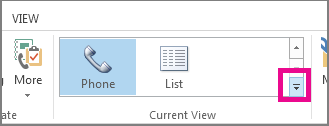
- Nel gruppo Visualizzazione corrente della scheda Home della barra multifunzione fare clic sull'angolo in basso a destra della casella delle visualizzazioni e quindi su Telefono. Questa è la visualizzazione più semplice da usare per analizzare l'elenco contatti alla ricerca di duplicati.
- Nell'elenco dei contatti tenere premuto CTRL e fare clic su ogni contatto da eliminare.
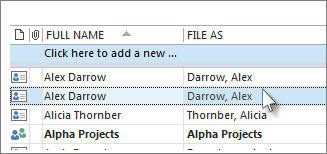
- Dopo aver selezionato tutti i duplicati, premere CANC o CTRL+D.
Se si ha un numero elevato di contatti duplicati, l'eliminazione dei duplicati uno alla volta può essere noiosa e richiede molto tempo. Il modo più rapido per eliminare un numero elevato di contatti duplicati consiste nell'esportarli in un file e quindi importarli in una nuova cartella. Per sfruttare la funzionalità di rilevamento duplicati nel processo di importazione di Outlook classico, usare la procedura seguente:
Nella versione classica di Outlook fare clic su People.
Fare clic con il pulsante destro del mouse sulla cartella Contatti corrente e scegliere Nuova cartella.
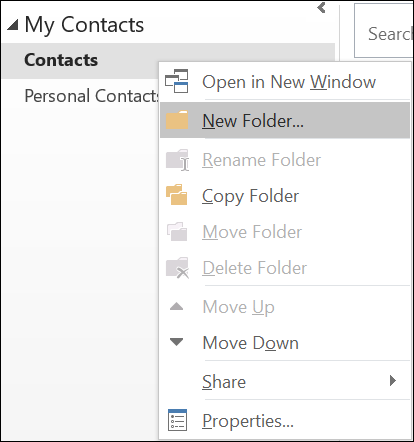
Assegnare un nome alla nuova cartella, ad esempio Duplicati.
Fare clic di nuovo nella cartella Contatti principale.
Premere CTRL+A per selezionare tutti i contatti.
Trascinare i contatti nella cartella Duplicati oppure premere CTRL+MAIUSC+V per aprire la finestra di dialogo Sposta nella cartella e selezionare la cartella Duplicati .
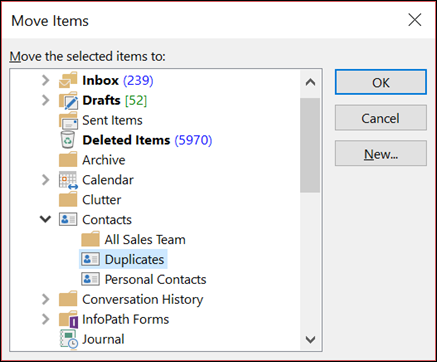
La cartella contatti principale dovrebbe ora essere vuota.
Selezionare Apri file>& Importa>/Esporta.
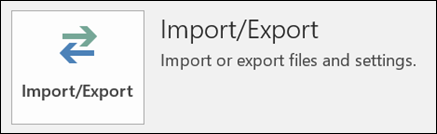
Selezionare Esporta in un file.
Selezionare Valori separati da virgola (Windows).
Selezionare la cartella Duplicati creata nel passaggio 3.

Salvare il file in un percorso in cui sarà possibile trovarlo di nuovo.
Fare clic su Fine.
Selezionare Apri file>& Importa>/Esporta.
Selezionare Importa dati da altri programmi o file.
Selezionare Valori separati da virgola (Windows).
Individuare il file creato nella procedura precedente.
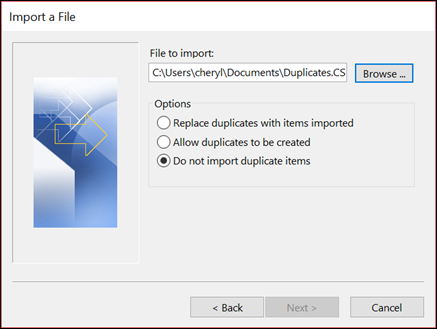
Selezionare l'opzione Non importare duplicati.
Scegliere la cartella contatti principale come cartella di destinazione. Questa è la cartella attualmente vuota.
Scegliere Fine.
Copiare di nuovo i contatti dalla cartella Duplicati nella cartella Contatti principale nella versione classica di Outlook
Nella versione classica di Outlook selezionare la cartella contatti Duplicati .
Fare clic su uno dei contatti nella cartella, quindi premere CTRL+A per selezionare tutti i contatti.
Spostare i contatti selezionati nella cartella Contatti principale. È possibile trascinarli o premere CTRL+MAIUSC+V per usare la finestra di dialogo Sposta nella cartella .
Ogni volta che Outlook classico rileva un contatto duplicato, viene visualizzato un messaggio con due opzioni.
- Selezionare Aggiungi nuovo contatto se il contatto non è un duplicato.
- Selezionare Aggiorna le informazioni del contatto selezionato se il contatto è un duplicato.
Dopo aver scelto l'opzione desiderata, seleziona Aggiorna. Se si vuole ripetere la stessa scelta per tutti i contatti duplicati, selezionare Aggiorna tutto.

Al termine del processo di spostamento alla cartella, è possibile eliminare la cartella Duplicati.
Con Outlook sul web, l'elenco contatti viene pulito continuamente e i duplicati vengono nascosti automaticamente dopo la ricerca dei duplicati esatti e appropriati del sottoinsieme.
Gli scenari di esempio seguenti descrivono come Outlook sul web gestisce le voci duplicate in base al fatto che il record contatto sia o meno un duplicato esatto o se si tratta di un sottoinsieme di un altro record.
Nell'esempio seguente, il contatto B è un duplicato esatto del contatto A.
| Contatto A |
Contatto B |
Nome: Sam Elliot
Email:sam.elliot@contoso.com
Numero di telefono: 123-456-7890
Società: Contoso
Titolo: Senior Sales Manager |
Nome: Sam Elliot
Email:sam.elliot@contoso.com
Numero di telefono: 123-456-7890
Società: Contoso
Titolo: Senior Sales Manager |
La caratteristica di pulizia automatica dei contatti in Outlook sul web identifica tali duplicati, pertanto in questo scenario il contatto B verrà nascosto all'elenco contatti.
Nell'esempio 2, al contatto D mancano le informazioni sulla società e sul titolo fornite nel contatto C. In questo modo Contatto D è un sottoinsieme del contatto C, mentre il contatto C è il superset.
| Contatto C |
Contatto D |
Nome: Kim Akers
Email:kim.akers@fourthcoffee.com
Numero di telefono: 123-456-7890
Azienda: Fourth Coffee
Titolo: Direttore della contabilità |
Nome: Kim Akers
Email:kim.akers@fourthcoffee.com
Numero di telefono: 123-456-7890
Azienda:
Titolo: |
In questo caso, Outlook sul web nasconderà automaticamente il contatto D e il contatto C rimarrà visibile nell'elenco contatti.
L'esempio 3 mostra tre record di contatti molto simili. In questo esempio, al contatto F mancano le informazioni sulla società e sul titolo fornite nel contatto E. Di conseguenza, contatto F un sottoinsieme di Contatto E.
Il contatto G manca anche dei dettagli che si trovano nel contatto E, ma il contatto G include una voce Indirizzo che non si trova nel contatto E. In questo modo il contatto G diventa un superset aggiuntivo perché condivide gli stessi dettagli del contatto E e del contatto F perché include l'indirizzo, che è un dettaglio aggiuntivo.
| Contatto E |
Contatto F |
Contatto G |
Nome: Caleb Miller
Email:caleb@wingtiptoys.com
Numero di telefono: 987-654-3210
Azienda: Wingtip Toys
Titolo: Cliente potenziale di marketing
Indirizzo: |
Nome: Caleb Miller
Email:caleb@wingtiptoys.com
Numero di telefono: 987-654-3210
Azienda:
Titolo:
Indirizzo: |
Nome: Caleb Miller
Email:caleb@wingtiptoys.com
Numero di telefono: 987-654-3210
Azienda:
Titolo:
Indirizzo: 789 Main Street |
In questo scenario, sia il contatto E che il contatto G rimarranno visibili perché sono entrambi superset.
Il contatto F sarà l'unico elemento nascosto perché è un sottoinsieme degli altri due.
È possibile aggiornare manualmente il contatto E e includere l'indirizzo trovato nel contatto G. In questo modo il contatto E sarà l'unico superset e il contatto G sarà nascosto. Per altre informazioni, vedere la sezione Aggiornare un contenuto duplicato visibile .
Se una scheda contenuto duplicata è nascosta in Outlook sul web, ma la si modifica usando la versione classica di Outlook, Outlook per Mac o Outlook Mobile, il contatto tornerà di nuovo in Outlook sul web perché non è più considerato un duplicato.
Se si aggiorna un contatto in Outlook sul web, gli stessi aggiornamenti vengono visualizzati in tutti i client di Outlook.
L'eliminazione di un contatto in Outlook sul web la rimuove da tutti i client di Outlook.
Ad esempio, se si elimina un contatto usando la versione classica di Outlook o Outlook per Mac, ma tale contatto è stato nascosto in Outlook sul web, la scheda contatto viene nuovamente visualizzata finché non vengono rimossi tutti i duplicati nascosti. Se il contatto è visibile in queste app, verrà visualizzato di nuovo un duplicato nascosto finché non vengono eliminati tutti i duplicati.
L'eliminazione di un contatto da Outlook sul web rimuove il contatto e tutti i duplicati nascosti da tutte le app Outlook.
Per recuperare un contatto eliminato, seguire la procedura descritta in Ripristinare o recuperare un contatto eliminato in Outlook.
È possibile visualizzare, gestire, eliminare o esportare tutti i contatti, inclusi i contatti duplicati in Outlook per Windows classico, Outlook per Mac e Outlook su Mobile.
È possibile esportare tutti i contatti, inclusi i contatti duplicati. Vedere Importare o esportare contatti in Outlook.
Vedere anche
Aggiungere, trovare, modificare o eliminare un contatto in Outlook
Importare o esportare contatti in Outlook
Con Outlook.com, l'elenco contatti viene pulito continuamente e i duplicati vengono nascosti automaticamente dopo la ricerca dei duplicati esatti e appropriati del sottoinsieme.
Gli scenari di esempio seguenti descrivono come Outlook.com gestisce le voci duplicate in base al fatto che il record del contatto sia o meno un duplicato esatto o se si tratta di un sottoinsieme di un altro record.
Nell'esempio seguente, il contatto B è un duplicato esatto del contatto A.
| Contatto A |
Contatto B |
Nome: Sam Elliot
Email:sam.elliot@contoso.com
Numero di telefono: 123-456-7890
Società: Contoso
Titolo: Senior Sales Manager |
Nome: Sam Elliot
Email:sam.elliot@contoso.com
Numero di telefono: 123-456-7890
Società: Contoso
Titolo: Senior Sales Manager |
La funzionalità di pulizia automatica dei contatti in Outlook.com identifica tali duplicati; Pertanto, in questo scenario il contatto B verrà nascosto all'elenco contatti.
Nell'esempio 2, al contatto D mancano le informazioni sulla società e sul titolo fornite nel contatto C. In questo modo Contatto D è un sottoinsieme del contatto C, mentre il contatto C è il superset.
| Contatto C |
Contatto D |
Nome: Kim Akers
Email:kim.akers@fourthcoffee.com
Numero di telefono: 123-456-7890
Azienda: Fourth Coffee
Titolo: Direttore della contabilità |
Nome: Kim Akers
Email:kim.akers@fourthcoffee.com
Numero di telefono: 123-456-7890
Azienda:
Titolo: |
In questo caso, Outlook.com nasconderà automaticamente il contatto D e il contatto C rimarrà visibile nell'elenco contatti.
L'esempio 3 mostra tre record di contatti molto simili. In questo esempio, al contatto F mancano le informazioni sulla società e sul titolo fornite nel contatto E. Di conseguenza, contatto F un sottoinsieme di Contatto E.
Il contatto G manca anche dei dettagli che si trovano nel contatto E, ma il contatto G include una voce Indirizzo che non si trova nel contatto E. In questo modo il contatto G diventa un superset aggiuntivo perché condivide gli stessi dettagli del contatto E e del contatto F perché include l'indirizzo, che è un dettaglio aggiuntivo.
| Contatto E |
Contatto F |
Contatto G |
Nome: Caleb Miller
Email:caleb@wingtiptoys.com
Numero di telefono: 987-654-3210
Azienda: Wingtip Toys
Titolo: Cliente potenziale di marketing
Indirizzo: |
Nome: Caleb Miller
Email:caleb@wingtiptoys.com
Numero di telefono: 987-654-3210
Azienda:
Titolo:
Indirizzo: |
Nome: Caleb Miller
Email:caleb@wingtiptoys.com
Numero di telefono: 987-654-3210
Azienda:
Titolo:
Indirizzo: 789 Main Street |
In questo scenario, sia il contatto E che il contatto G rimarranno visibili perché sono entrambi superset.
Il contatto F sarà l'unico elemento nascosto perché è un sottoinsieme degli altri due.
È possibile aggiornare manualmente il contatto E e includere l'indirizzo trovato nel contatto G. In questo modo il contatto E sarà l'unico superset e il contatto G sarà nascosto. Per altre informazioni, vedere la sezione Aggiornare un contenuto duplicato visibile .
Esempio 4: Quasi duplicati esatti con una mancata corrispondenza di categoria in Outlook.com
Nell'esempio 4, il contatto H e il contatto I hanno gli stessi dettagli tranne le categorie. Quando tutte le informazioni di contatto sono esattamente uguali, ma hanno una leggera differenza, vengono considerate quasi esatte con le categorie duplicate non corrispondenti. In questo caso, i dettagli categoria inclusi in Contatto H e Contatto I verranno aggiunti al contatto H. Il contatto H sarà il sottoinsieme e visibile, mentre il contatto I sarà nascosto.
| Contatto H |
Contatto I |
Nome: Bill Joe
Email:bill.jonas@hotmail.com
Numero di telefono: 987-654-3210
Titolo: Terapeuta
Categoria: Personale |
Nome: Bill Joe
Email:bill.jonas@hotmail.com
Numero di telefono: 987-654-3210
Titolo: Terapeuta
Categoria: iPhone di Bill |
Se una scheda contenuto duplicata è nascosta in Outlook.com, ma la si modifica usando la versione classica di Outlook, Outlook per Mac o Outlook Mobile, il contatto tornerà di nuovo in Outlook.com perché non è più considerato un duplicato.
Se si aggiorna un contatto in Outlook.com, gli stessi aggiornamenti vengono visualizzati in tutti i client di Outlook.
L'eliminazione di un contatto in Outlook.com la rimuove da tutti i client di Outlook.
Ad esempio, se si elimina un contatto usando la versione classica di Outlook o Outlook per Mac, ma tale contatto è stato nascosto in Outlook.com, la scheda contatto viene nuovamente visualizzata finché non vengono rimossi tutti i duplicati nascosti. Se il contatto è visibile in queste app, verrà visualizzato di nuovo un duplicato nascosto finché non vengono eliminati tutti i duplicati.
L'eliminazione di un contatto da Outlook.com rimuove il contatto e tutti i duplicati nascosti da tutte le app Outlook.
Per recuperare un contatto eliminato, seguire la procedura descritta in Ripristinare o recuperare un contatto eliminato in Outlook.
È possibile visualizzare, gestire, eliminare o esportare tutti i contatti, inclusi i contatti duplicati in Outlook per Windows classico, Outlook per Mac e Outlook su Mobile.
È possibile esportare tutti i contatti, inclusi i contatti duplicati. Vedere Importare o esportare contatti in Outlook.
Vedere anche
Aggiungere, trovare, modificare o eliminare un contatto in Outlook
Importare o esportare contatti in Outlook
