
Naršykite bloknoto turinį ir sužinokite, kaip pagrindinės temos, sąvokos arba temos vizualiai susijungia, naudodami interaktyvų minčių žemėlapį. "Copilot" sugeneruoja pagrindinių temų ir ryšių žemėlapį iš bloknoto, kad galėtumėte suprasti, kaip informacija dera kartu, akimirksniu. Peržiūrėkite ryšius, peržiūrėkite trumpas atskirų mazgų santraukas ir paprašykite "Copilot" padėti išsamiau paaiškinti sąvoką. Minčių žemėlapiai padeda suprasti sudėtingą darbą.
Pastaba
„Copilot“ bloknotai pasiekiami "Microsoft Copilot", "Copilot Chat", "Personal", "Family" ir "Premium" prenumeratoriams. Bloknotams kurti taip pat reikalinga aktyvi "SharePoint" arba "„OneDrive“" licencija. Tačiau minčių žemėlapiai yra išskirtiniai "Microsoft Copilot" ir "Copilot Chat" licencijuotiems vartotojams. Sužinokite daugiau apie "Microsoft Copilot" licencijavimą ir "Microsoft Copilot" planus.
Minčių žemėlapio kūrimas
Pastaba
Minčių žemėlapiai šiuo metu pasiekiami "„Copilot“ bloknotai" programoje "OneNote". Netrukus bus teikiamas supaprastintų bloknotų palaikymo "Microsoft Copilot" programoje.
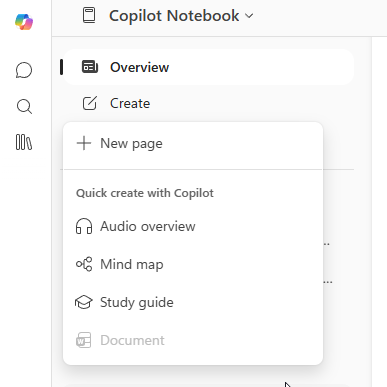
- Atidarykite esamą "Copilot" bloknotą programoje "OneNote" ir eikite į Kurti.
- Pasirinkite minčių žemėlapį iš sparčiojo kūrimo naudojant "Copilot" parinkčių.
- Minčių žemėlapis bus sugeneruotas automatiškai.
Naršykite minčių žemėlapį
Išplėtimas ir sutraukimas
Spustelėkite bet kurio mazgo numerį, kad išplėstumėte jo šakas.
Naudokite išplėtimo ir sutraukimo mygtukus žemėlapio apačioje, kad atskleistumėte ir paslėptumėte visas šakas.

Gaukite daugiau informacijos šia tema
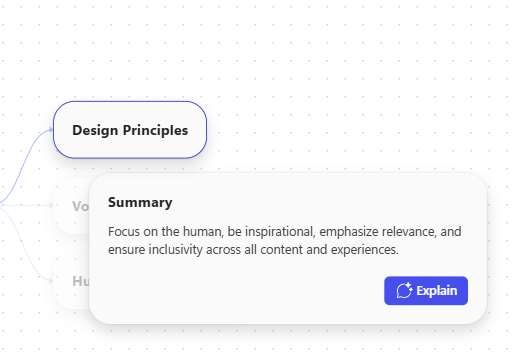
- Spustelėkite bet kurį mazgą, kad pamatytumėte suvestinę.
- Pasirinkite Paaiškinti, kad gautumėte gilesnį temos paaiškinimą Copilot Chat srityje.
- Tęskite pokalbį su "Copilot", kad sužinotumėte daugiau ir užduokite tolesnius klausimus apie tą mazgą. "Copilot" nurodys jūsų bloknoto turinį, kad sugeneruotų atsakymus.
Eksportuokite minčių žemėlapius
- Naudokite parinktį Eksportuoti , kad išsaugotumėte žemėlapį kaip PNG.
- Eksportuojant užfiksuojamas ekranas, todėl prieš eksportuodami išplėskite arba sutraukite mazgus, kad gautumėte norimą rodinį.
Svarbūs apribojimai
- Minčių žemėlapiai jums yra privatūs net ir bendrame bloknote.
- Minčių žemėlapiai saugomi 30 dienų nuo sukūrimo datos; Galiojimo data rodoma žemėlapio viršuje.
- Minčių žemėlapiai pasiekiami darbalaukyje ir žiniatinklyje tik "„Copilot“ bloknotai" programoje "OneNote". Netrukus bus teikiamas supaprastintų bloknotų palaikymo "Microsoft Copilot" programoje.
Atsiliepimai
Norėdami pateikti atsiliepimą, naudokite žemėlapio nykščiai aukštyn / nykščiai žemyn mygtukus.
Sužinokite daugiau
Darbo su "Microsoft Copilot" bloknotais pradžia
Nuorodų failų įtraukimas į "Microsoft Copilot" bloknotus
Gaukite atsakymų ir įžvalgų apie savo "Microsoft Copilot" bloknotą
Dažnai užduodami klausimai apie "Microsoft Copilot" bloknotus