
U SharePoint biblioteci dokumenata možete da izbrišete datoteke, fascikle ili veze koje vam više nisu potrebne, kao što su stari sadržaj ili zastarele fascikle.
Napomena
Veze su dostupne samo u sistemu SharePoint u sistemu Microsoft 365.
Napomena
Ovi koraci su za nemodifikovane verzije sistema SharePoint. Ako su administrator ili preduzeće prilagodili aplikaciju, možda nećete videti ove opcije.
Brisanje datoteke, fascikle ili veze u sistemu SharePoint
Važno
Kada izbrišete fasciklu, briše se fascikla i sve datoteke ili potfascikle koje ona sadrži. Razmotrite premeštanje ili arhiviranje sadržaja fascikle pre nego što je izbrišete. Vi ili administrator možete da oporavite fasciklu i njen sadržaj iz korpe za otpatke.
U sistemu SharePoint otvorite biblioteku dokumenata i izaberite stavku koju želite da izbrišete. (Izbegavajte biranje samog imena datoteke jer bi to otvorilo datoteku.) Znak potvrde se pojavljuje u koloni sa krajnje leve strane.
Napomena
Da li vaš ekran izgleda drugačije od ovoga i koristite SharePoint u usluzi Microsoft 365 ili SharePoint Server 2019? Administrator možda ima podešeno klasično iskustvo u programu SharePoint u biblioteci dokumenata.
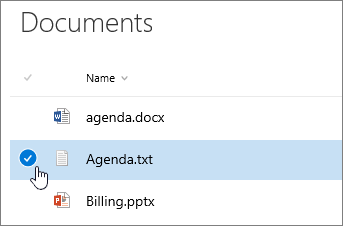
Da biste izbrisali više stavki, ponovite ovaj korak. Možete da izbrišete koliko god stavki želite.
Izaberite stavku "Izbriši"
 " na traci sa alatkama iznad liste.
Kliknite na dugme "Izbriši " u okviru za poruku da biste potvrdili radnju.
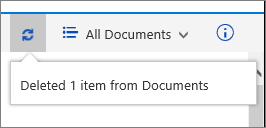
U biblioteci dokumenata pojaviće se polje "Status" sa obaveštenjem da je stavka izbrisana.
Otpremanje, prikaz i uklanjanje datoteka ili dokumenata projekta
Brisanje datoteke, fascikle ili veze u sistemu SharePoint Klasičan utisak pri radu
Važno
Kada izbrišete fasciklu, briše se fascikla i sve datoteke ili potfascikle koje ona sadrži. Razmotrite premeštanje ili arhiviranje sadržaja fascikle pre nego što je izbrišete. Vi ili administrator možete da oporavite fasciklu i njen sadržaj iz korpe za otpatke.
Otvorite SharePoint biblioteku dokumenata u koju želite da izbrišete stavke.
Da biste izabrali neke stavke koje želite da izbrišete, zadržite pokazivač iznad fascikle, a zatim potvrdite izbor u polju za potvrdu.
Kliknite desnim tasterom miša na ikonu datoteke, fascikle ili veze, a zatim izaberite stavku "Izbriši".

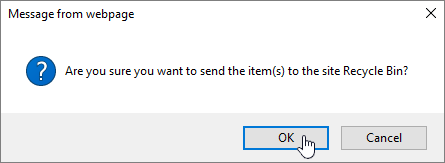
U dijalogu za potvrdu brisanja kliknite na dugme "U redu".
Otpremanje, prikaz i uklanjanje datoteka ili dokumenata projekta

Druge teme koje vas mogu zanimati
Premeštanje ili kopiranje datoteka u sistemu SharePoint
Pravljenje fascikle u biblioteci dokumenata
Otpremanje datoteka i fascikli u biblioteku
Upotreba mobilnog uređaja za rad sa SharePoint lokacijama
Ostavite komentar
Da li je ovaj članak bio koristan? Da li je nedostajao sadržaj? Ako jeste, javite nam na dnu ove stranice. Javite nam šta je bilo nejasno ili šta nedostaje. Navedite svoju verziju sistema SharePoint, operativnog sistema i pregledača. Iskoristićemo vaše povratne informacije da bismo dodatno proverili podatke, dodali informacije i ažurirali ovaj članak.