
Let's say you have a vacation planned to Maui. You want to let the group know that you'll be out of office for awhile, but you don't want to clutter group member inboxes with an invitation describing your out-of-office plans. With the group calendar, you can schedule your out-of-office event and opt out of sending the event to others. When group members check the group calendar, they'll see the dates you're out.
Of course, if you want your group members to receive notifications of your vacation plans, you can do that, too.
- In classic Outlook for Windows; At the bottom of the screen, select
 to open Calendar.
 - In the navigation pane, select All Group Calendars and select your group. If you have multiple calendars open, the events for each will be displayed.
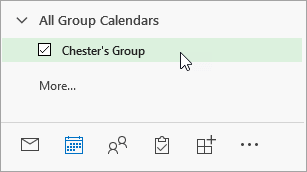
- If you have multiple calendars open, select your group calendar.
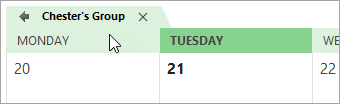
- Select Home > New Appointment.

- Fill out the details of your absence, including name, place, start and end dates, and, if desired, a personal note.
- Next to Show As, select Free.
- Next to Reminder, select None.
- Select the All day event check box if you'll be out of office for more than a few hours.
- Select Save and Close. If you've included group members on the invitation, you'll select Send instead.

See also
Use a Group calendar in Outlook to schedule and edit events
Send automatic (out-of-office) replies in Outlook on the web