
Important work doesn't always happen in documents or recorded meetings, but often takes place during in-person conversations, whiteboard sessions, quick brainstorms, or when you're capturing notes on the go.
Capture lets you bring those offline moments into Copilot Notebooks so they're saved alongside your project's content. Once captured, you can review them later, ask Copilot questions, or use them as part of your ongoing work in the same notebook to create presentations, documents, mind maps, audio overviews, and more.
Note
A Microsoft 365 Copilot license is required to use Copilot Notebooks, and an active SharePoint or OneDrive license is required to create notebooks. Copilot Notebooks is also available to Microsoft 365 Personal, Family, and Premium subscribers; however, the Capture feature is available only to commercial Microsoft 365 users with work or school (Entra ID) accounts.
The Capture feature is rolling out in phases and will first be available in OneNote for iPhone. If you don't see Capture, it may not be available to you yet. Availability to other endpoints will expand over time.
Learn more about Microsoft 365 Copilot Notebooks in OneNote, Microsoft 365 Copilot licensing, and Microsoft 365 Copilot plans.
How to use Capture on iPhone
Open the OneNote app on your iPhone.
Go to Copilot Notebooks.
On the notebook list page, tap Capture.
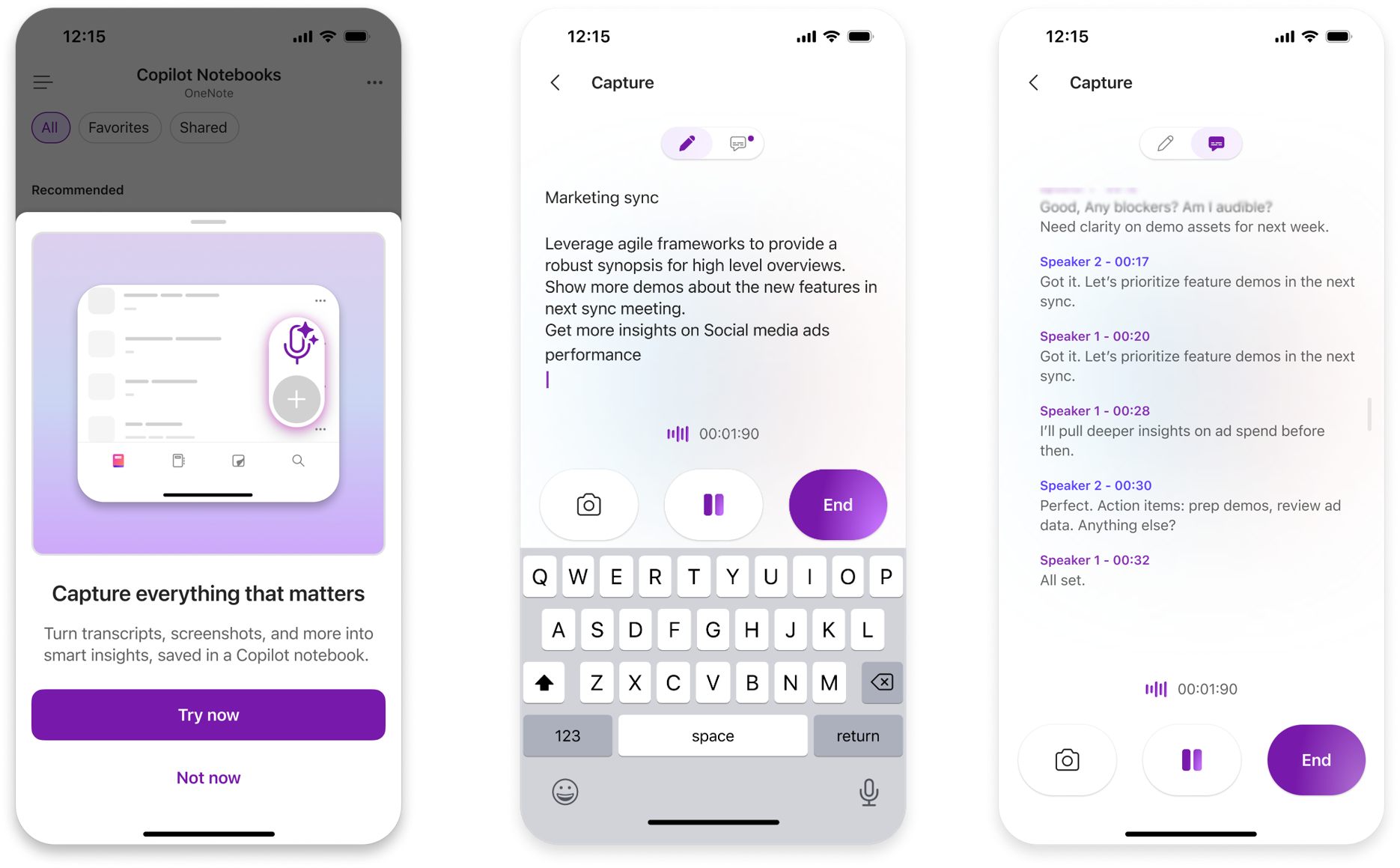
Use Capture to transcribe the discussion, take photos, and type notes during the session.
When you're done, tap End.
Choose the notebook where you want to save your capture.
Copilot creates a structured Copilot Page with your transcript, photos, notes, and key insights, and saves it in your selected notebook for you to access from any Copilot Notebooks endpoint.
Scenarios to try
- In-person conversations – capture key points, decisions, and follow-ups from hallway chats or quick syncs.
- Whiteboard sessions – take a photo of the whiteboard, add notes, and transcribe the discussion to revisit later.
- Voice notes and ideas – capture quick thoughts and ideas and keep them with the rest of your notebook content.
Use Capture on Windows for offline or third-party meetings
Note
Capture on Windows for offline and third-party meetings is currently only available to Office Insiders Beta customers.
- Join the Zoom, Webex, Google Meet, or browser-based meeting on your Windows device.
- When Capture detects the meeting, look for the prompt in the bottom-right corner of your screen and select Take notes.
- Capture starts transcribing the meeting so you can capture the discussion as it happens. You can also select Pause at any time to temporarily pause the capture.
- When you’re finished capturing the conversation, select Generate. Note:
Privacy and your audio content
Copilot Notebooks and Microsoft 365 are built on Microsoft's comprehensive approach to security, compliance, and privacy. Capture uses Microsoft 365 enterprise data, privacy, and permission controls.
As with all AI-generated content, review Copilot's output before you share it or take action on it.
Audio processing
To generate real time transcription, audio is processed as a continuous stream using internal buffering and incremental processing. The audio is handled transiently to generate the corresponding transcription and isn't retained after transcription is complete.
Speaker separation
During transcription, audio is temporarily used for speaker separation, meaning to annotate the transcription with information about which speakers made each statement, e.g., Speaker 1, Speaker 2, Speaker 3. Data used for speaker separation is deleted immediately after transcription. Voice separation data can't be used to identify individuals.
Data retention
Audio data processed during a Capture session is deleted immediately after transcription and therefore can't be used for any other purpose.
Obtain consent
You're responsible for obtaining consent from all participants before using Capture to transcribe a meeting. By starting a Capture session, you agree that you've obtained adequate consent from every person to record audio and photos in accordance with applicable law.
Note
If you're the IT admin for your organization, you can use Capture in Copilot Notebooks for mobile devices Cloud Policy to manage this feature.
Feedback
To send feedback from OneNote on iOS, select your profile in the top left, then tap Help & Feedback.