

How to sign in to Microsoft 365 or Office
For Microsoft 365 or Office apps installed on a Windows PC:
- If you're not already in a Microsoft 365 or Office file or document, open an app such as Word or Excel, and open an existing file, or create a new one.
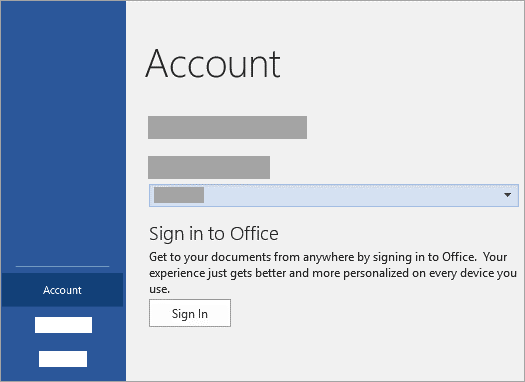
- Select File > Account (or Office Account if you're using Outlook).
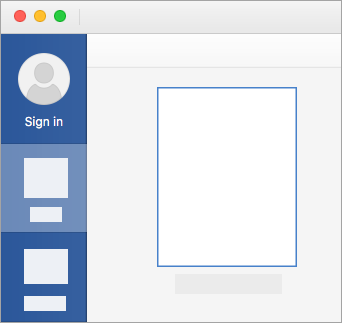
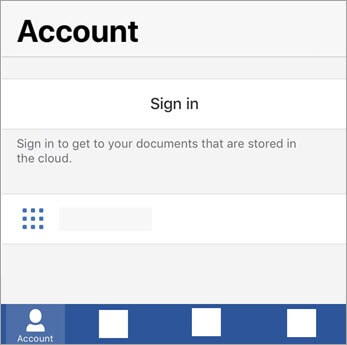
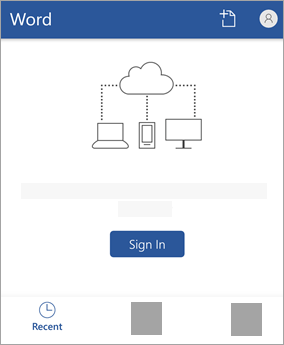
- If you're not already signed in, click Sign In.
- In the Sign in window, type the email address and password you use with Office. This might be the personal Microsoft account you associated with Office, or the username and password you use with your work or school account.

Can't sign in to Microsoft 365 or Office
If you can't sign into your Microsoft account, most issues can be identified by our sign-in helper tool.
The tool will ask you to enter the email address or mobile phone number you're trying to sign in with and check the details you provide. If we detect a problem with your account, we'll tell you what you need to do to solve the problem. If we don't detect any problem, we'll guide you through how you can help yourself.
Click the button to begin:
Learn more
How sign in works in Microsoft 365
If you subscribe to Microsoft 365, you'll be prompted to sign in to use Office after installation, or after you sign out. Your subscription has a sign-in limit that determines how many Office installs you can sign in to at the same time. Use the tabs below to select your subscription type and learn more about sign-in limits for your subscription.
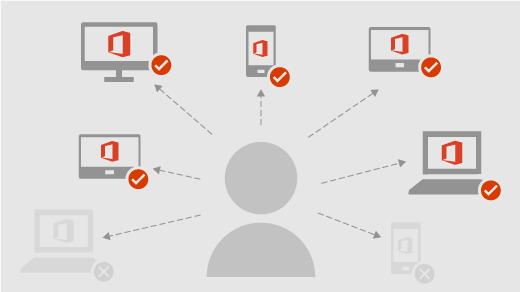
With Microsoft 365, you can install Microsoft 365 or Office on all your devices and sign in to Office on five devices at the same time. This includes any combination of PCs, Macs, tablets, and phones.
Here's what you need to know
Here are some tips for using Microsoft 365 on multiple devices:
- Each person who uses Microsoft 365 or Office on a device must have an account that's associated with Microsoft 365. This can be the account that subscribes to Microsoft 365, or any accounts that share a Microsoft 365 Family subscription.
- When you install Microsoft 365 or Office on a device, you'll be prompted to sign in the first time you start a Microsoft 365 or Office app.
- Office remains activated as long as you're signed in. If you sign out, your account's license is removed and the app is deactivated. You can view and print files, but not create or edit files.
To activate Microsoft 365 or Office after you've signed out, you can sign in again with the account that's associated with your subscription. - If you have more than five devices, Microsoft 365 or Office will sign you out of devices automatically to stay within your sign-in limit. To use Office on a device where you've been signed out, just sign back in.
Common question about signing in to Microsoft 365 or Office
Common questions
I signed in. Should I stay signed in?
We recommend staying signed in to Office so that your apps remain activated.
What happens if I sign out of Microsoft 365 or Office?
If you sign out, your apps will be deactivated. You can view and print files, but not create or edit files, until you sign back in. To learn more, see What happens when you sign out of Office.
If I share Microsoft 365 Family, how does signing in work?
You can share your Microsoft 365 Family subscription with up to five other people. Each person will use their own Microsoft account to install Microsoft 365 Office on all their devices and be signed in to five at the same time.
Can other people sign in to Microsoft 365 or Office on my device?
If a person signs in to Microsoft 365 or Office on your device without a subscription, they will be able to view and print files, but not create or edit files. If you have Microsoft 365 Family, you can share your subscription with five additional people. Each person can sign in to Office using their own Microsoft account on your device to create and edit their own files.
See also
Download, install, or reinstall Office on a PC or Mac
Forgot your account or password?
Easily switch between accounts
Why you need a Microsoft account, or work or school account with Microsoft 365 or Office
Need more help?
Can't sign in?
If you can't sign into your Microsoft account, most issues can be identified by our sign-in helper tool.
Contact Support
For technical support, go to Contact Microsoft Support, enter your problem and select Get Help. If you still need help, select Contact Support to be routed to the best support option.
Important
To protect your account and its contents, our support agents are not allowed to send password reset links, or access and change account details.