How to add a video recording to an assignment
Adding Flip video recordings to assignments in Microsoft Teams for Education is an excellent way to engage students and enhance your teaching methods. Follow the steps below to easily integrate video instructions into your assignments, all from the convenience of your mobile device.
1. Navigate to your class team on Microsoft Teams.
2. Tap the Create button and select New Assignment.
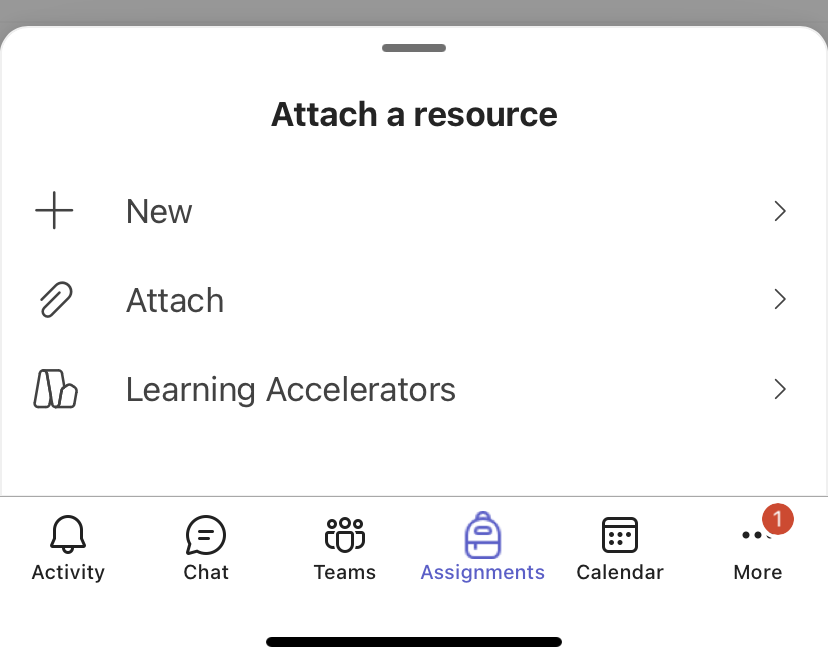
3. Choose the option to Add Files.
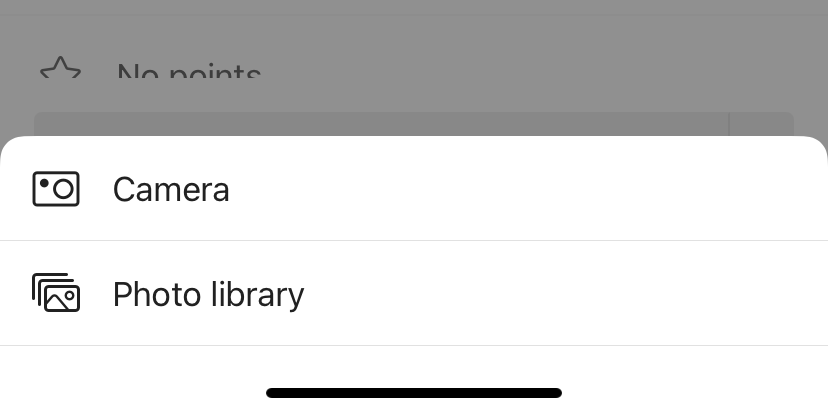
4. Tap +New to open the menu and select Flip video recording.
5. Teams will prompt you for permission to access your camera.
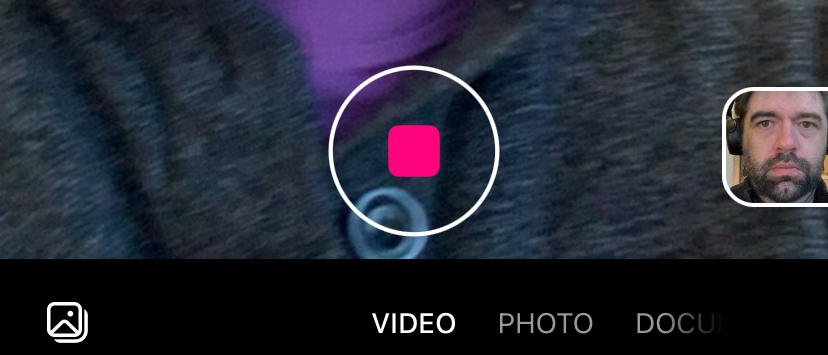
6. Tap the recording icon at the bottom of the screen to start recording.
A short three second countdown will display, giving you time to prepare.
The recording icon will appear as shown in the image while recording.
Note
Video recordings for assignments are limited to maximum of five minutes.
- When you are done with your recording, tap the recording icon again to stop.
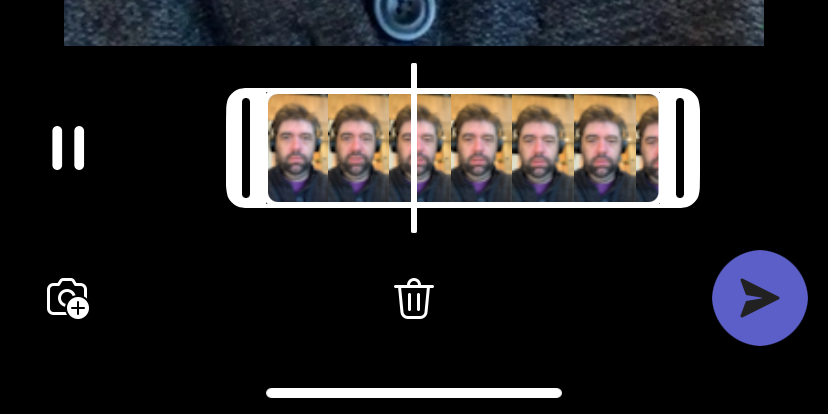
7. On the review screen, you can edit your recording:
- Trim: Cut out sections of the recording you don't wish to include. Hold and drag the ends of the clip to change.
- Delete Clip (Trash Can icon): Remove the clip entirely to start over.
8. Tap the Send button to upload your recoding to the assignment.
9. Name your recording; it will be saved as an .mp4 file and attached to your assignment.
Once uploaded, the video will appear in your attachments. You can then proceed with the steps to complete and share the assignment in Microsoft Teams. Your students will be able to review the video presentation when they access the assignment.