
Onboarding takes about 10 to 15 minutes. You’ll try Copilot tasks tailored to your role, practice writing a strong prompt, explore tools you can use in your work, and learn how to use Copilot responsibly in your organization.
If your organization has turned on Copilot onboarding, your admin will send you an onboarding link in a message or email. When you open the link, onboarding starts automatically in the location your admin specified: the Copilot app, Copilot on the web, or Copilot in Teams. Learning Agent guides you through the experience.
What you see next depends on your license: Copilot onboarding for users with a Premium license or Copilot onboarding for users without a Premium license.
Copilot onboarding for users with a Premium license
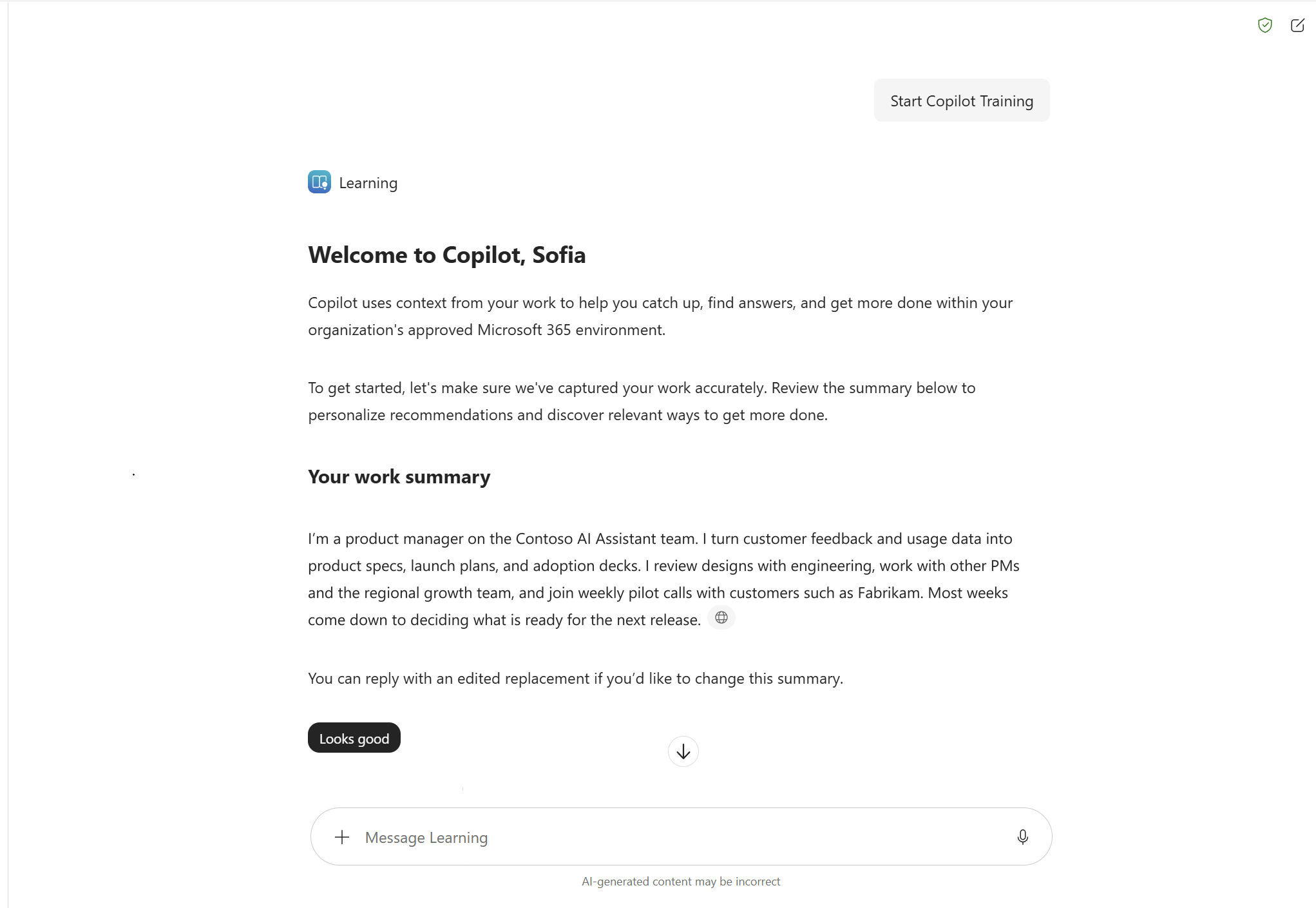
Review your work summary. Copilot uses your work context to create a summary and personalize your task recommendations and onboarding experience. Confirm that the summary is accurate, add anything that’s missing, and then select Looks good.
Explore how Copilot can help. Select Start exploring, then choose a personalized work task based on your role and work summary. Copilot explains the parts of an effective prompt, including its goal, context, source, and expected result, and creates an example for your task. Review and run the prompt, explore the result, and use your additional work context to create something relevant to your role.
Create faster in Microsoft 365 apps. Learn how Copilot can help you create and refine your work in Word, PowerPoint, and Excel. Watch short videos without leaving the onboarding experience.
Learn about agents. Review how agents can help with specialized tasks and workflows related to your role. Then select Explore recommendations to find agents that may be useful for your work.
Review your organization's AI guidelines. Learn how to use Copilot responsibly, how your work data is protected, and what information you should avoid including in prompts. If your organization provides an AI policy, you can open it during this section.
Complete onboarding. Take the optional knowledge check or skip it, then complete your onboarding. On the completion screen, you can start using Copilot or continue exploring AI learning resources.
Copilot onboarding for Starter users
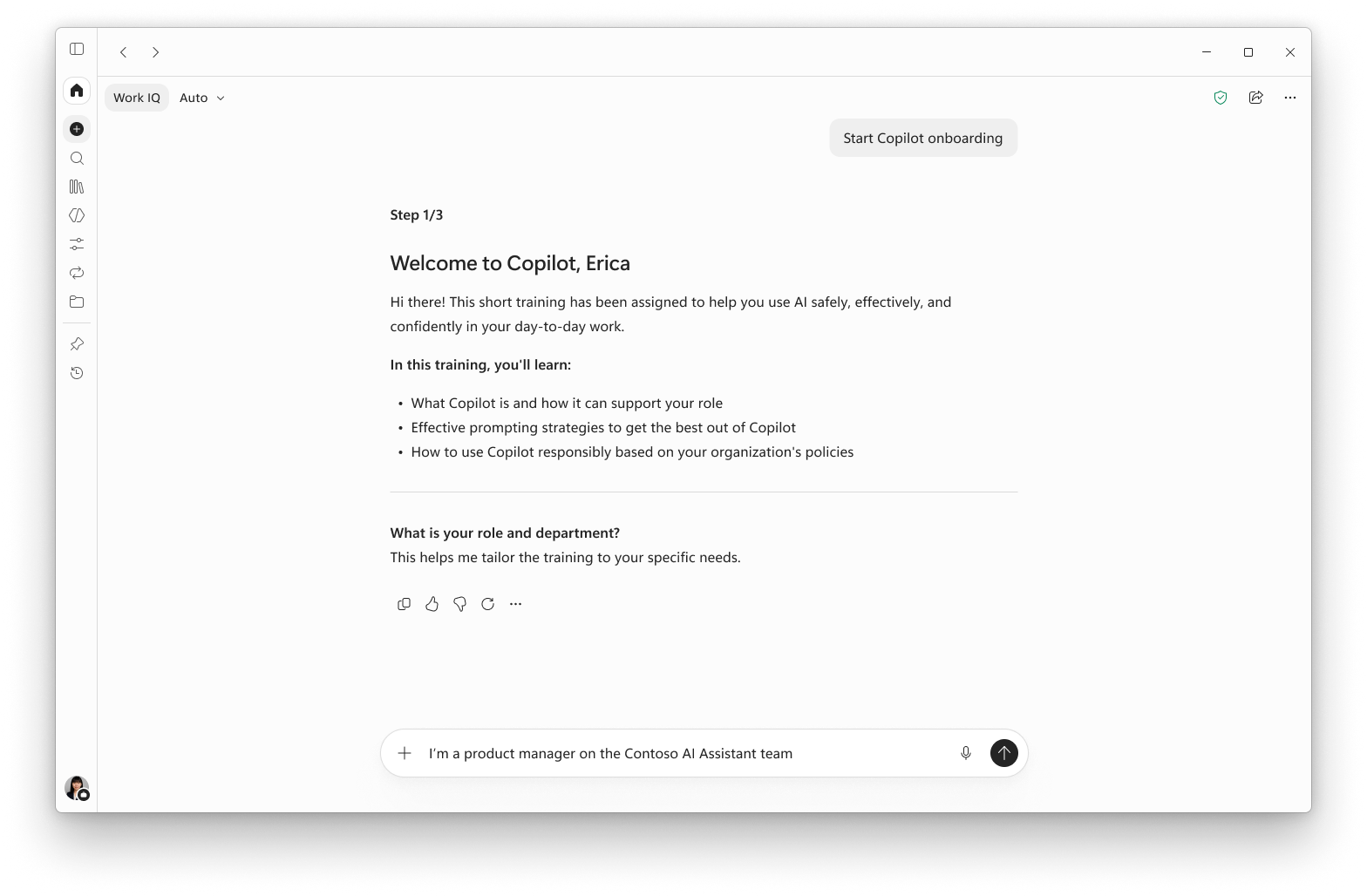
If you don't have a premium license, Copilot can’t use your work context. You’ll still get an onboarding experience tailored to the information you provide.
Tell Copilot about your work. Describe your role, industry, and main responsibilities. For example: “I’m a [role] in the [industry], and my main responsibilities are…” Copilot explains what your license includes and creates a short work summary for you to review and update.
Share your experience level. Choose Beginner, Intermediate, or Advanced based on your experience with AI and prompting. Your answer isn’t shared and helps Copilot tailor the guidance you receive for writing a strong prompt.
Explore scenarios for your role. Based on the information you provided, Copilot shares example use cases based on your role and the tools you use most.
Learn prompting. Compare a weak prompt with a strong prompt based on your role and responsibilities, then write your own. Copilot reviews your prompt and gives you a reusable pattern and a few ready-to-use prompts for your work.
Learn about safe use. Review the do’s and don’ts for using Copilot safely. If your admin added an AI policy link in the Microsoft 365 admin center onboarding settings, you can open your organization’s policy. Otherwise, onboarding skips this section.
Pop quiz. Select Start pop quiz to finish with a five-question knowledge check.
Complete your onboarding. You’ll receive a Copilot cheat sheet with prompts tailored to your role. To keep building your skills, start a new Copilot chat or explore more AI learning resources.