
Note
If you use Copilot with a work or school account, your organization controls whether sharing is available. Some sharing options might not appear if your administrator turns them off.
Found something useful in a Copilot conversation and want someone else to see it? You can share it with just a link. No copying and pasting screenshots or retyping what Copilot said.
In Microsoft Copilot, you can share either an entire conversation or just a single response. Whoever opens the link sees the content directly in Copilot, and they can pick up from there as a starting point for their own work.
You can share content in two ways:
- Conversation sharing shares an entire Copilot conversation, including prompts and responses.
- Response sharing shares a single Copilot response and the prompt that generated it.
Important
Sharing a Copilot conversation or response doesn't give anyone access to referenced Microsoft 365 content. People can open referenced files, emails, meetings, or chats only if they already have permission to access them.
Share a conversation or a response
| Items | Conversation sharing | Response sharing |
|---|---|---|
| What you share | Entire conversation | One response and its prompt |
| Best for | Multi-step work or research | Sharing a single answer |
| Where you start | Share button in the conversation | More options (...) on a response |
| What recipients see | Full conversation | Shared response |
| Example | Sharing a brainstorming session or research chat | Sharing a draft email, summary, or plan |
Shared conversations and responses are snapshots. People who open your link can't change your original conversation. If they continue from shared content, Copilot creates a separate copy in their own chat history.
Share a conversation
Use conversation sharing when someone needs the full context of your interaction with Copilot.
Open the conversation you want to share.
Select Share near the top of the conversation.
Select Share chat from the dropdown menu.
Select Copy link. Copilot creates the link and copies it to your clipboard.
Send the link to the people you want to share with.
Share a response
Use response sharing when you want to share a specific Copilot response without sharing the rest of the conversation.
Find the response you want to share.
Select More options (...).
Select Share response.
Select Copy link.
Send the link to the people you want to share with.
The shared link includes the response and the prompt that generated it, so recipients have the context needed to understand the answer.
Who can open a shared link
The type of account you use to share a link determines who can open it:
- Work or school account: Anyone in your organization who has the link can open it by signing in with their work or school account.
- Personal Microsoft account: Anyone you share the link with can open it by signing in with their Microsoft account.
In either case, recipients must sign in before they can view the shared content.
What happens when you share
Viewing shared content
When you open a shared conversation or response:
- You see the conversation or response exactly as it appeared when it was shared.
- You can review the included prompts and responses.
- Nothing is added to your chat history unless you continue from the shared content.
Important
If a shared link doesn't open, it might no longer be available, the original conversation might be deleted, or the link might only be available to people in a different organization.
Continuing from shared content
To build on a shared conversation or response:
Open the shared link.
Review the shared content.
Enter a prompt and send it.
After you send your first message, Copilot creates a copy of the shared conversation in your chat history. You can continue working from that copy without affecting the original conversation.
- New prompts and responses stay private to your conversation.
- Updates from the original sharer don't appear in your copy.
- Your changes don't appear in the original conversation.
- Opening the same shared link again creates a new copy.
Manage shared links
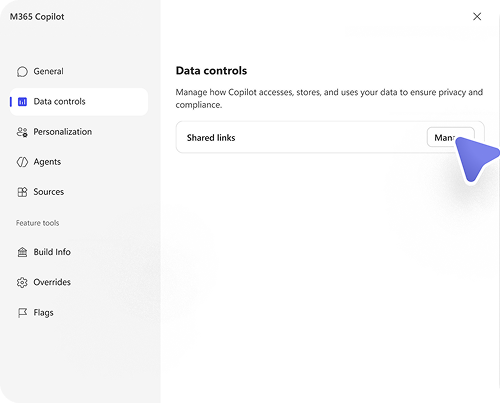
You can review links you created and stop sharing them at any time. Use the Shared links page to find links you've created, share them again, or stop sharing them when they're no longer needed.
Open Copilot.
Go to Settings.
Select Data controls.
Select Shared links, where you can:
- Review links you created.
- Copy a sharing link again.
- Stop sharing an existing link. To stop sharing a link, find the link you want to remove and select Stop sharing.
Once you stop sharing, the link stops working and people can no longer access the shared conversation or response. If you delete the original conversation, any sharing links for that conversation also stop working.
Privacy and security
Keep these things in mind when sharing Copilot content:
- Anyone who opens a sharing link can view the prompts and responses included in the shared content.
- Sharing a conversation or response doesn't automatically give people access to files, emails, meetings, chats, or other Microsoft 365 content.
- Access to referenced content is always controlled by existing Microsoft 365 permissions.
- Some conversations or responses might not be available to share because of your organization's sharing policies or sensitivity label protections.
- Sharing availability depends on how your organization has configured Microsoft Copilot.