

Resetting Microsoft OneDrive can sometimes resolve sync issues and resets all OneDrive settings. OneDrive will perform a full sync after the reset.
Important
You won't lose files or data by resetting OneDrive on your computer. Resetting OneDrive only disconnects all your sync connections (including personal and work or school).
Follow the steps below to reset your OneDrive app
| Step | Screenshot |
|---|---|
1. On your computer keyboard, press the Windows key  and R at the same time to open the Run dialog box.
 |

|
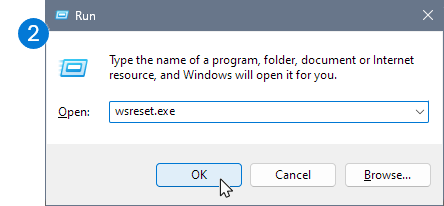
| 2. Copy or type wsreset.exe into the box then select OK. Note: A blank Command Prompt window will open and close briefly, then the Microsoft Store app will open. You can ignore these and close any unwanted windows. If OneDrive is still not syncing, let's continue with resetting the OneDrive sync app. |
|
| 3. Press the Windows key
and R again. |

|
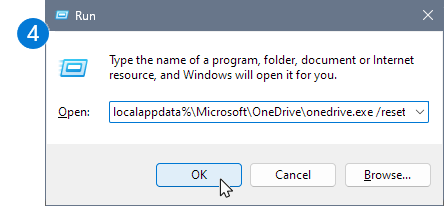
4. This time copy the text below and paste it into the dialog window, then press OK. %localappdata%\Microsoft\OneDrive\onedrive.exe /reset |
|
5. If you see a "Windows cannot find..." message, copy and paste the text below instead, then press OK.C:\Program Files\Microsoft OneDrive\onedrive.exe /reset |

|
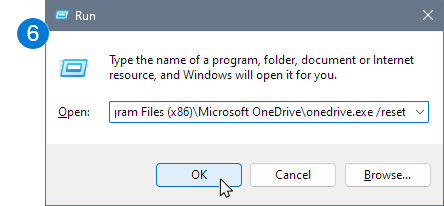
6. If you still see a "Windows cannot find..." message, copy and paste the text below instead, then press OK.C:\Program Files (x86)\Microsoft OneDrive\onedrive.exe /resetNote: If none of these steps work, you do not have the OneDrive sync app installed. Learn more. |
|
| 7. Manually restart OneDrive by going to Start
, type OneDrive in the search box, and then click on the OneDrive desktop app. |

|
Note
- If none of these steps work, you do not have the OneDrive sync app installed. Learn more.
- If you had chosen to sync only some folders before the reset, you will need to do that again once sync has completed. You will need to complete this for your personal OneDrive and OneDrive for work or school accounts. Read Choose which OneDrive folders to sync to your computer for more information.
To reset the OneDrive store app
Tip
If you're not sure which OneDrive app you have, read Which OneDrive app do I have?
- Press Start
and enter
apps:onedrive - Select App settings
- Scroll down the list and select Reset.
What does resetting OneDrive do?
During a reset, OneDrive does the following:
- Deletes the DAT file.
- Stores the application logs in the registry.
- Stores the settings on the disk.
When OneDrive restarts, it checks with the registry to confirm the reset has taken place and then loads the settings and re-builds the DAT file.
You won't lose any data by resetting OneDrive.
Need more help?
Account support. For help with your Microsoft account and subscriptions, visit Account & Billing Help.
Technical support. For technical support, select Contact Microsoft Support below, enter your problem and select Get Help.
Mobile users can contact Support by opening the OneDrive app and gently shaking your device.
Community support. Communities help you ask questions, give feedback, and hear from experts with rich knowledge. Ask the Microsoft Community. Do not disclose personal or sensitive information in public forums.