

Planner Agent helps you ask questions about your work, create and update tasks and plans, and create status reports.
Conduct Q&A
You can ask questions about:
Your private tasks
Tasks assigned to you
Flagged emails
Shared basic plans and tasks
Goals and related work
Note
Refer to the FAQ section for the current list of supported sources.
Planner Agent answers questions related to your work and displays results in interactive task cards, allowing you to review and update tasks without leaving Copilot.

Example prompts:
"Show me my tasks due this week and help me prioritize what needs my attention first."
"What is the list of shared plans that need my attention right now?"
"Show me progress toward our launch goal."
Edit tasks and plans
Update existing work using natural language or interactive task cards.
You can:
Update task properties
Mark task as completed
Update plan details
Move task between plans
Associate tasks with goals
Edit directly in interactive task cards

Example prompt:
"Help me adjust the deadline of my Marketing task to this Friday and change its priority to Important."
"Rename the launch plan to FY27 Launch Planning."
"Move these tasks to the Product Readiness plan."
"Associate these tasks with the Launch Readiness goal."
Note
Editing tasks in Planner Agent is currently limited to the following fields: Name, Progress, Due date, Start date, Priority, Plan name.
Create tasks and plans
Create new tasks directly in Copilot chat using Planner Agent in private tasks or shared basic plans.
You can:
Create private tasks
Create tasks in shared plans
Create plans from scratch
Generate plans from Word, Excel, or PowerPoint files
Organize new work around goals and objectives
Review drafts before creation
Planner Agent generates proposed work in interactive task cards, allowing you to review and approve content before it is created.

Example prompt:
"Review my emails from today and draft private tasks for the most urgent follow-ups. "
"Create a marketing plan for the product launch."
"Generate a project plan from this PowerPoint."
Create status reports
Use Planner Agent in the Microsoft 365 Copilot app to create a status report from a shared basic plan. Summarize progress, highlight risks and blockers, and prepare updates for your team or leadership.
You can choose the reporting period, sections, audience, and level of detail. Ask for a comprehensive report, an in-depth analysis, or a short update. You can also attach a template to guide the report's structure and format.
Note
Status report creation in Planner Agent chat supports shared basic plans. Premium plans aren't currently supported in this experience.
Create a report
- Open Planner Agent in the Microsoft 365 Copilot app.
- Select a plan using the plan picker, or include the plan's name in your request.
- Describe the report you want, including the reporting period and any sections or formatting preferences. If you want to use a template, attach the file before sending your request.
- Send your request and review the generated report in the conversation.
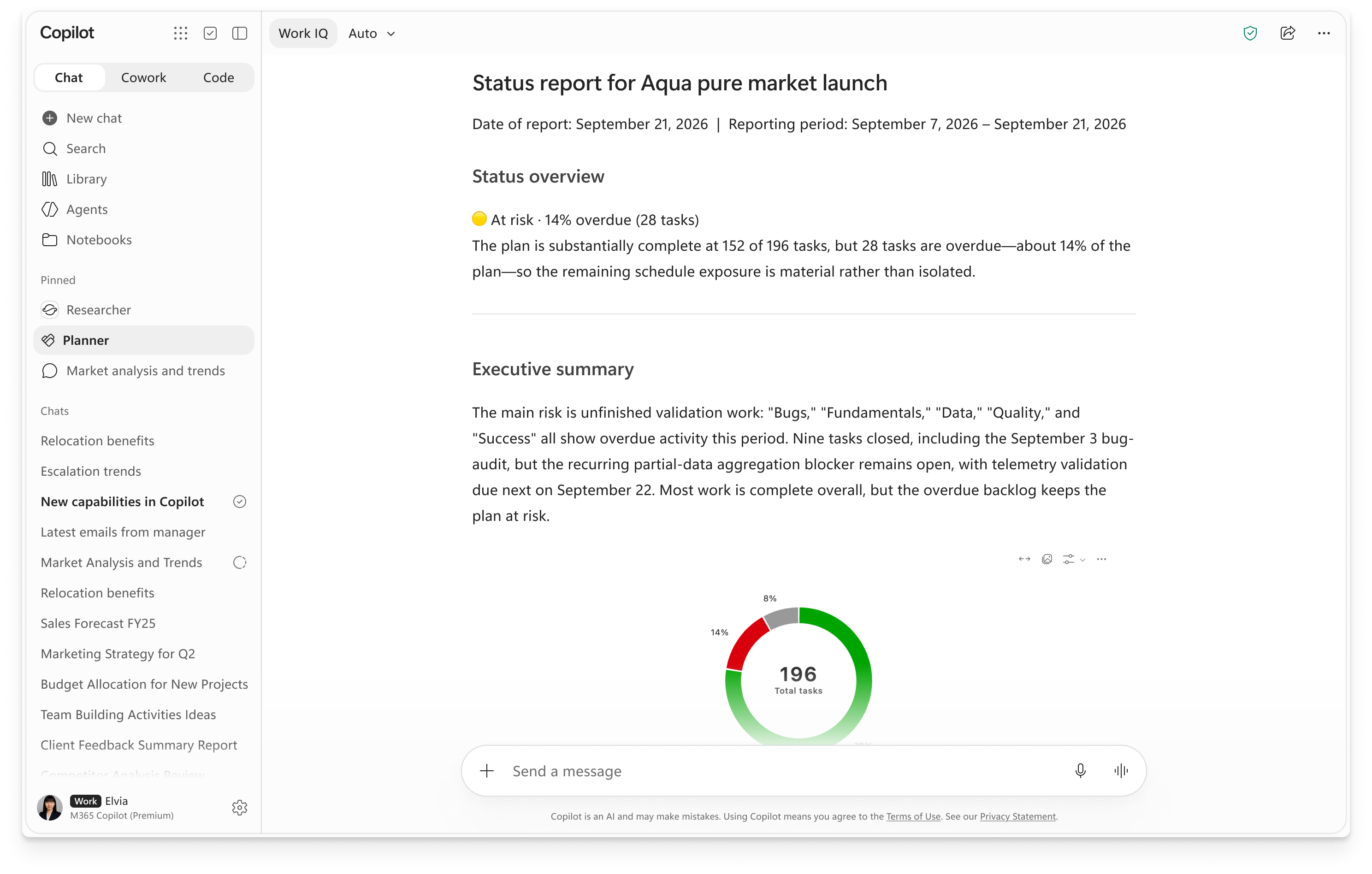
Example prompts
Replace [plan] with your plan's name, or select a plan using the plan picker.
Create a status report for this plan:
"Create a status report for [plan] for the last 14 days. Include a status overview, executive summary, risks and blockers, achievements, progress, upcoming commitments, and key milestones."Use this template to write a status report for this plan:
"Create a status report for [plan] covering the last 14 days. Use the file I attach as a template for its sections and format. Use information from the plan, not facts from the template."Draft a detailed, insightful status report for this plan:
"Create an in-depth status report for [plan] covering the last 14 days. Identify patterns in progress, task completion, and delays. Explain what they mean for the plan's goals and recommend practical actions. Use tables and visuals where they help explain the findings."Give me a quick status update for this plan:
"Create a short status report for [plan] covering the last 14 days. In about 200 words, summarize the overall status, important progress, key risks or blockers, and what comes next. Use a few short bullets."
Refine your report
Continue the conversation to change the report's sections, length, audience, or reporting period. For example:
- "Make this shorter and focus on the main risks."
- "Rewrite this report for leadership."
- "Change the reporting period to the last 30 days."
Review the report for accuracy before sharing it. Creating a report doesn't change the source plan or its tasks.
Use the plan picker to select the correct plan
The new plan picker makes it easier than ever to find and select the right plan. Users can search and filter their basic plans by name, then interact with the agent to update a task’s name, status, due date, or priority. This feature helps streamline navigation and ensures that teams can quickly access and manage the plans that matter most, improving overall planning efficiency.
