
Note
If you don’t see Copilot in Word, Excel, PowerPoint, or OneNote, it might not be included with your Microsoft 365 subscription or available based on your organization’s settings. Learn which Copilot license you have.
Interactive slides in PowerPoint are slides created by Copilot with visual interactivity that you and your audience can explore together. Describe the story you want to tell, and Copilot builds a slide you can click through, revealing context, steps, or data points as you interact with it.

Create an interactive slide
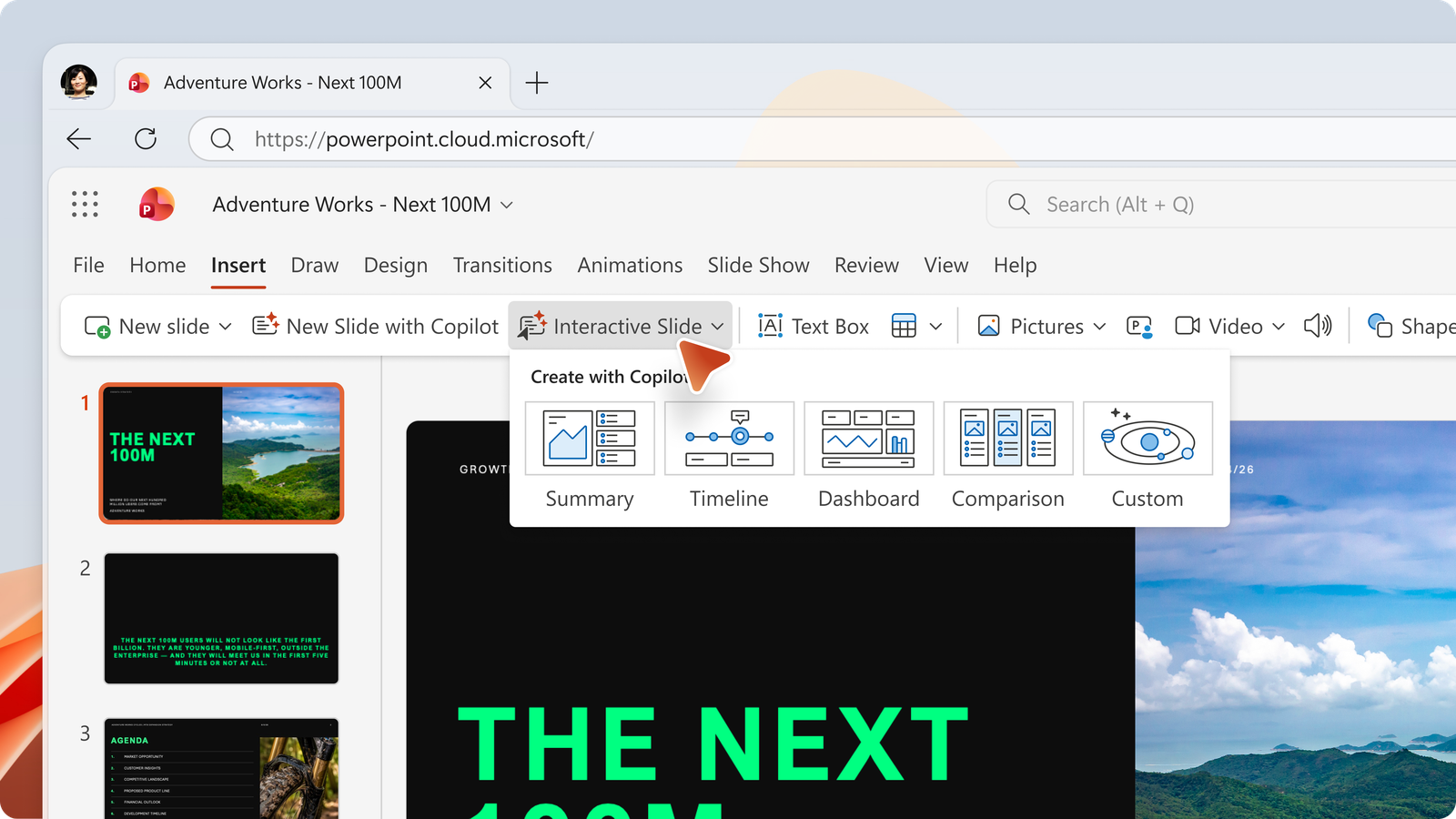
Select Interactive Slide from the PowerPoint Home or Insert ribbon to get started in the Copilot chat pane, then tell Copilot what you want to create. You can start with one of the suggested categories or choose to create a custom interactive slide. Be specific about the type of slide you want, and Copilot can match the content to your narrative.
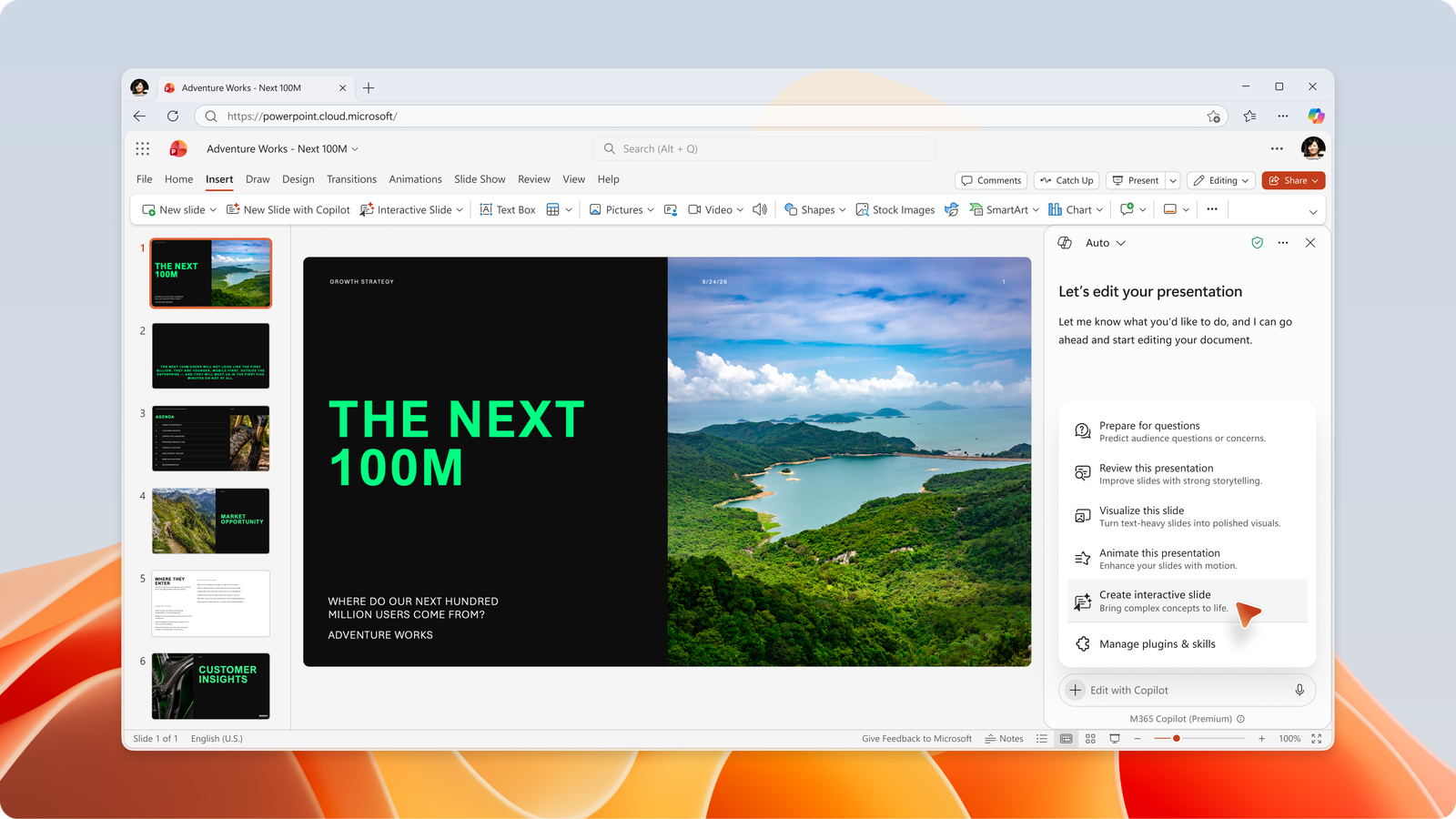
You can also find Create interactive slide in the Copilot skill picker in PowerPoint.
Ground your slide in your own content
Interactive slides can be based on content you already have by using Work IQ. Ask Copilot to build a dashboard based on a snapshot of data from an Excel workbook, or a timeline from a project document, and it uses your work content to fill in the numbers and dates.

Refine your slide
Not quite right? Keep the Copilot pane open and keep prompting — "Make this a bar chart," "Add a filter by region," or "Match the colors to my theme." Copilot updates the slide for you.
Important
Interactive slides are created and updated through Copilot rather than by editing the slide directly, so send your changes as a prompt instead of reaching for the canvas.
Note
Interactive slides are optimized for a full slide experience. On Mac and iPad, other content on the slide appears behind the interactive content.
Present and share
When you present your deck with PowerPoint for Windows, Mac, web, or iPad, you can engage with the interactive slide to let the story unfold — expand a step, filter a chart, or move through a timeline, based on the slide that was created.
With PowerPoint for Windows, web, and iPad, interactive slides work with both presenter view and slide show. On Mac, you can interact with the slide in slide show view but not in presenter view. Support for interaction in presenter view on Mac is planned as a future improvement.
In PowerPoint Live in Microsoft Teams, each meeting attendee can interact independently with slides created using the Create interactive slide skill. Interactions aren't shared; attendees see their own interactions, but not the presenter's or other attendees' interactions. Support for synchronizing presenter interactions across the meeting is planned as a future improvement.
Anyone you share the presentation with can explore the interactivity, even without a Copilot license.
What you need
License
Interactive slides are available to eligible consumer and commercial users who already have access to Copilot in PowerPoint, including Microsoft 365 Copilot Basic and Premium. There's no separate license for interactive slides.
Supported versions
Rollout of the skill and ribbon button for PowerPoint for Windows and Mac for Current Channel and Monthly Enterprise Channel starts in mid-October 2026 and is expected to complete by end of October 2026. Users with access to Frontier, Microsoft 365 Insiders Beta Channel, or Current Channel (Preview) can use the skill now.
Rollout of the skill and ribbon button for PowerPoint for the web starts in mid-October 2026 and is expected to complete by end of October 2026. Users with access to Frontier can use the skill now.
For the best experience viewing and interacting with interactive slides, users should update to the latest Current Channel or Monthly Enterprise Channel releases for PowerPoint for Windows and Mac, latest App Store release for iPad, and for PowerPoint Live, the latest generally available versions of Microsoft Teams.
Where you can use interactive slides
- Create or update: use the skill in the Copilot app and Copilot in PowerPoint for Windows, Mac, and web.
- Interactivity is supported when viewing the slide in the Copilot app, PowerPoint for Windows, Mac, web, and iPad, and PowerPoint Live in Microsoft Teams.
- No interactivity: iPhone, Android, and when printing and exporting to other formats like PDF. The slide appears as a non-interactive image of the slide content.
Accessibility
When presenting an interactive slide, left and right arrow keys always move between slides, even while an interactive slide is on screen. These keyboard commands for slide navigation aren't captured by the slide's interactive content, so you can always move forward or back across slides as needed.
To access the interactive content with a keyboard, press Tab to move focus into the interactive content, then Tab again to move through its elements in focus order. Each element shows a visible focus indicator.
Press Tab past the last element, or press Esc, to move focus back to PowerPoint. Press Esc again to leave the slide show.
Focus never moves into the interactive content on its own, so you can show a slide without changing what's on it.
Note
Additional keyboard navigation optimizations are planned as a future improvement. Moving focus out of an interactive slide, and reaching the interactive slide toolbar with the keyboard, might work differently in PowerPoint for Mac and PowerPoint for the web.
Keep in mind
Copilot uses AI models to generate the layout, content, and behavior of your interactive slide. Like other AI-generated content, it might produce something you didn't expect, and it might contain inaccuracies. Be sure to review and verify the information before you present or share.
We want to hear from you!
If there's something you like about interactive slides — or if there's something you don't — send us feedback. Just select the thumbs up or thumbs down button underneath the Copilot chat box. Your feedback helps us improve the experience in PowerPoint.
Frequently asked questions
Where can I create or interact with interactive slides?
Create interactive slides with the Copilot app and with Copilot in PowerPoint for Windows, Mac, and web. You can interact with the slides in the Copilot app, PowerPoint for Windows, Mac, web, and iPad, and when presenting in PowerPoint Live in Teams. On iPhone and Android, interactive slides appear as a non-interactive image.
Can I edit interactive slides directly, without Copilot?
You can create or update interactive slides with the Copilot skill, but not directly by editing the slide. Copilot creates or updates the content for you.
Are interactive slides HTML pages?
Interactive slides create web views to display and provide interaction on your slide. The web views are sandboxed and do not connect to other content or services.
How can I reset an interactive slide to look like it did before I explored the interactions?
When you open a presentation file, interactive slides default to the starting layout based on when you created or last updated the slide with Copilot. As you interact, the slide might reflect your most recent interactions until you close the file.
Can I print an interactive slide or export it to PDF?
When a presentation with an interactive slide is printed or exported, the interactive slide appears as a non-interactive image of the slide content.
How do interactive slides work with Microsoft Purview organizational policies and Information Protection sensitivity labels?
The Create interactive slide skill uses Microsoft 365 Copilot and Microsoft 365 Copilot agents to create or update slides. To learn more, see Microsoft Purview data security and compliance protections for generative AI apps and Use Microsoft Purview to manage data security and compliance for AI agents.
Are there admin controls for interactive slides?
No. All users with the appropriate Copilot license can use the skill to create or update interactive slides. When you share a presentation with interactive slides, others can explore the interaction without a Copilot license.
Related links
- Create a new presentation with Copilot in PowerPoint
- Add a slide or image to your presentation with Copilot in PowerPoint
- Summarize your presentation with Copilot in PowerPoint
- Use custom skills with Copilot in PowerPoint
- Present from PowerPoint Live in Microsoft Teams
Learn more
Welcome to Copilot in PowerPoint
Frequently Asked Questions about Copilot in PowerPoint
Make your PowerPoint presentations accessible to people with disabilities