
Note
If you don’t see Copilot in Word, Excel, PowerPoint, or OneNote, it might not be included with your Microsoft 365 subscription or available based on your organization’s settings. Learn which Copilot license you have.
If you repeat the same presentation-editing task, you can record it as a reusable custom skill. Copilot uses your changes in PowerPoint to draft the skill's instructions and saves it to your personal Skills folder in OneDrive.
Record a skill
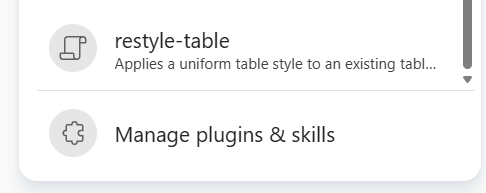
Open the presentation and the Copilot pane. In the prompt box, select +, and then select Choose skills. At the bottom of the list, select Manage plugins & skills.
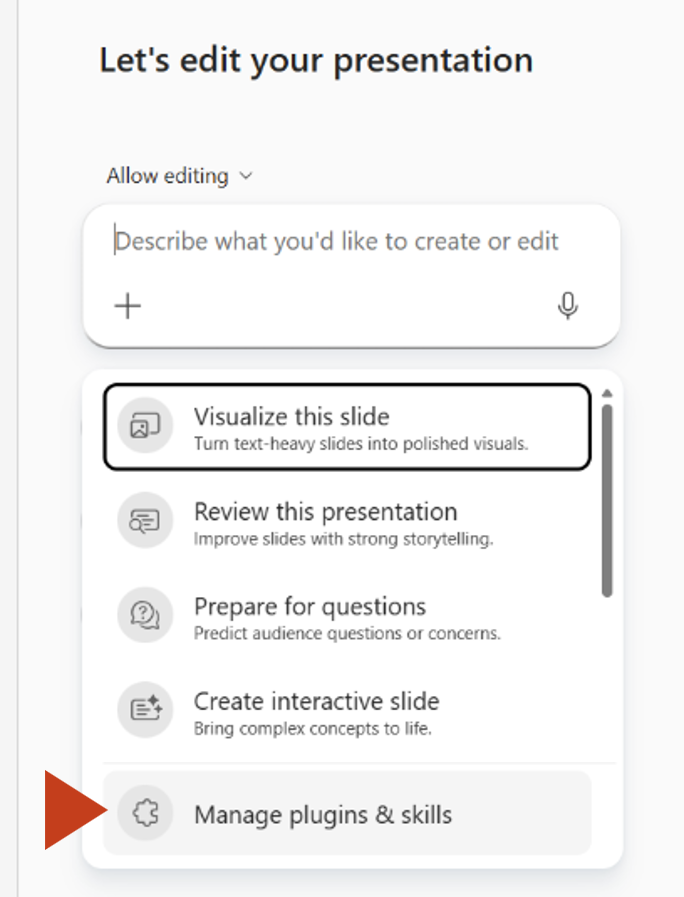
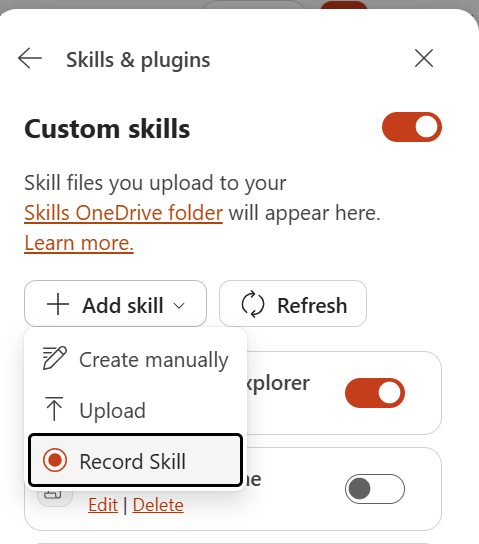
Under Custom skills, select Add skill > Record Skill.
Recording starts automatically. Complete the presentation task you want to reuse. You can give Copilot instructions, edit slides directly, or use controls on the PowerPoint ribbon to update the slides.
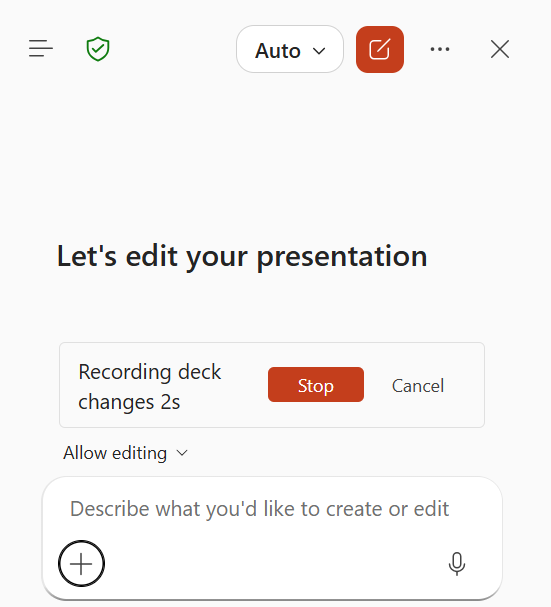
When the task is complete and the intended changes appear in the presentation, select Stop.
Important
Wait for Copilot to finish any action and confirm that the changes appear in the presentation before you stop recording. An action still in progress might not be included in the skill.
Wait while Copilot processes the recorded actions and creates a skill draft.
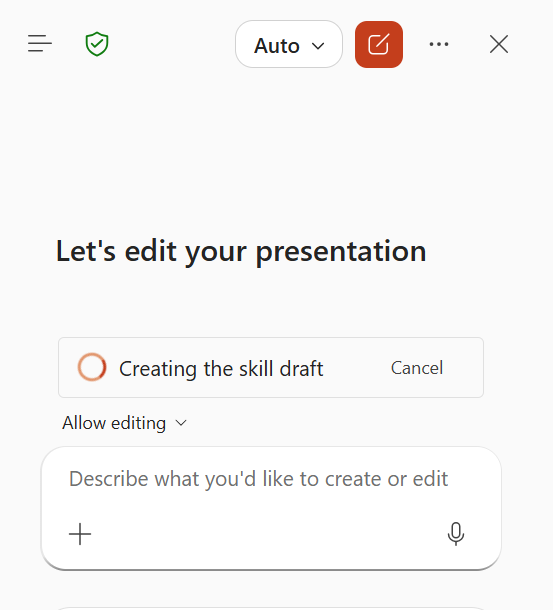
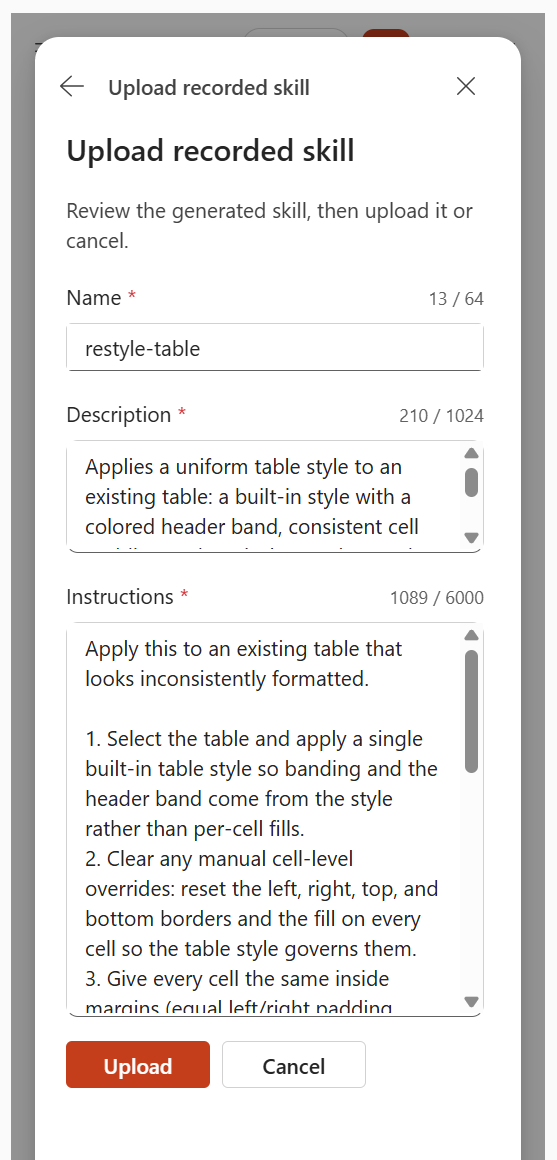
Review the generated Name, Description, and Instructions. Edit the draft as needed, and then select Upload.
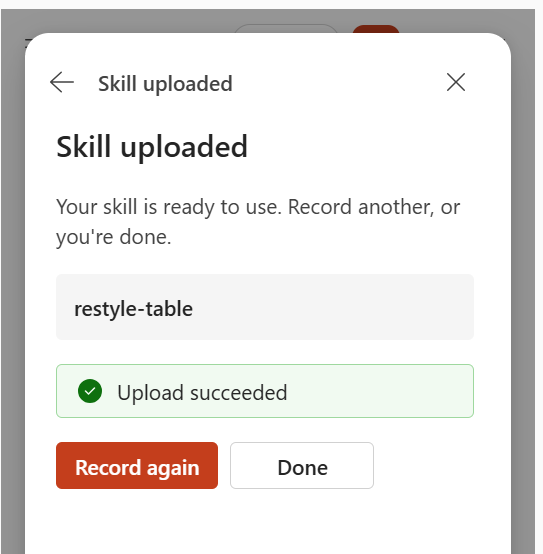
When the Skill uploaded confirmation appears, select Done. To capture another workflow, select Record again.
Use or manage a recorded skill
To use the skill, select + in the Copilot prompt box, select Choose skills, and then select the recorded skill. You can also use a skill by typing its name as an @mention in your prompt.
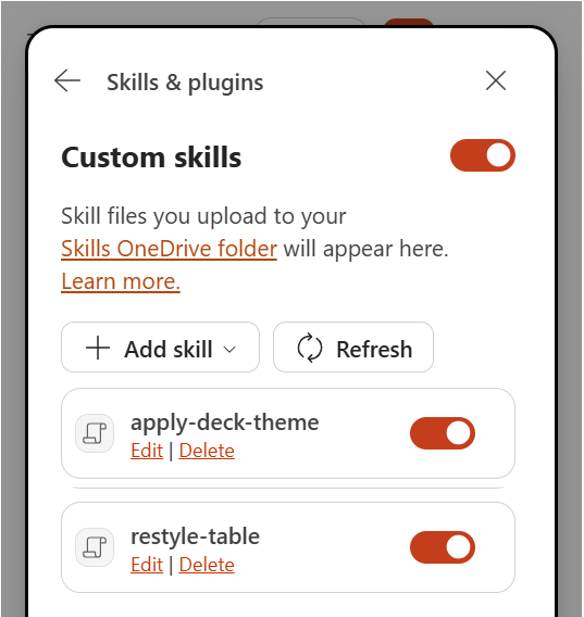
To manage custom skills, select Settings in the Copilot pane, select Manage plugins & skills, and then select Custom skills. You can turn a skill on or off, edit it, or delete it. A skill you turn off is not used automatically and does not appear in the skills menu. Custom skills are stored in your personal Skills folder in OneDrive.
Tips for recording a useful skill
- Record one clear, repeatable outcome at a time.
- Keep the recording shorter than 10 minutes.
- You can experiment, make corrections, and use Undo or Redo. Copilot focuses on the main task and the resulting presentation changes.
- Before you stop, verify that every change you want to reuse is visible in the presentation.
- Good candidates include recurring slide formatting, table cleanup, chart styling, logo placement, layout changes, and regular presentation updates.
Known limitations
- A recording must be shorter than 10 minutes.
- Voice narration isn't recorded.
- Actions performed after switching to another application or window aren't recorded.
- A Copilot action that is still running when you stop might not be included.