
Note
If you don’t see Copilot in Word, Excel, PowerPoint, or OneNote, it might not be included with your Microsoft 365 subscription or available based on your organization’s settings. Learn which Copilot license you have.
Connectors let Copilot in PowerPoint use information from connected apps and data sources when helping you create or refine a presentation. After a connector is available and connected, you can ask Copilot to find relevant information and use it as context in your presentation workflow.
Connectors can help you bring useful information into PowerPoint without switching apps or manually copying and pasting content. You control which connectors are available for Copilot in PowerPoint to use, including data from external sources through federated connectors.
Enable or disable connectors
You can enable or disable connectors from the Copilot chat field.
In PowerPoint, open Copilot.
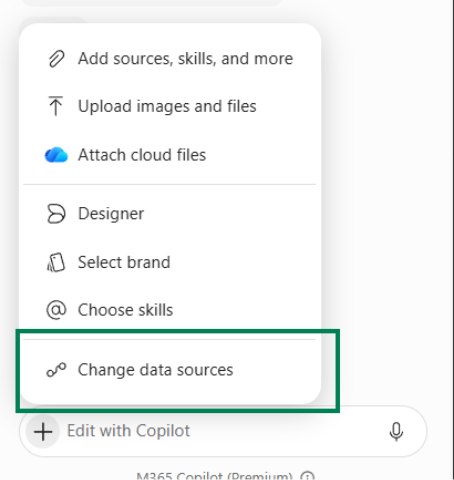
In the chat field, select the + button in the lower-left corner.
From the expanded menu, select Change data sources.
In the connectors list, review the connectors enabled by your admin.
Select Connect for a connector, or turn on a connector by using its toggle. Data sources that are turned off aren't used by Copilot in PowerPoint.
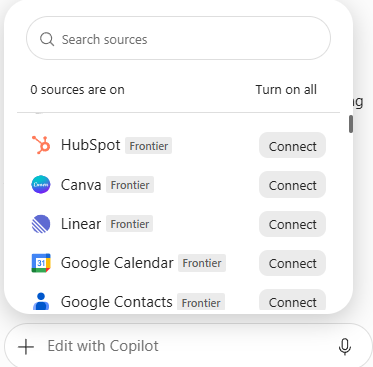
Depending on the connector and your organization's settings, you might need to sign in or grant permission before Copilot can use that connector. If a connector is disabled or unavailable, contact your IT admin.
Admins can review connector availability and controls in Microsoft 365 Copilot connectors overview.
Federated connectors
Federated connectors are available to customers with a Microsoft 365 Copilot commercial subscription. Federated connectors let Copilot retrieve information directly from external services in real time without importing or storing that information in your presentation.
Copilot uses your credentials and only accesses data you have permission to view. You must give explicit consent before any data is sent to an external service.
After you approve a federated connector, Copilot can use it to answer questions and help create or update a presentation. Copilot's response cites the sources it uses, so you know where information comes from. Your admin can also control which connectors are available in your organization.
To learn more, see Federated connectors in Microsoft 365 Copilot.
Available connectors
Available connectors may vary by tenant, license, and admin configuration. Examples include:
- Moody's: Connects to Moody's credit intelligence platform to provide access to credit ratings, research, and risk insights.
- CB Insights: Provides market insights, private company data, investment activity, and emerging trends.
- Linear: Connects to Linear to surface and work with issues, projects, and roadmap data.
- Notion: Connects to Notion workspaces so users can search, retrieve, and use content from pages, databases, and notes.
- HubSpot: Connects to HubSpot CRM data so users can access customer, sales, and marketing insights.
- Daloopa: Extracts structured, audit-ready financial data from company filings with traceability back to source documents.
- FactSet: Provides access to financial datasets, market data, and analytical tools.
- Intercom: Connects to Intercom customer communication data.
- LSEG: Connects to LSEG's financial data platform for market data, analytics, and valuation tools.
- Morningstar: Provides investment research, analyst ratings, and market data.
- PitchBook: Provides company, investor, and private-market transaction data.
- S&P Global: Provides access to S&P Global datasets, including company financials and market intelligence.
Microsoft-built connectors
Use Microsoft-built connectors to integrate Copilot in PowerPoint with Microsoft services and external platforms. Microsoft 365 Copilot connectors let you access information across your organization's platforms, such as work items, tickets, database rows, or CRM records, and then analyze them with Copilot in PowerPoint.
For more information and the full list of connectors, see the Microsoft-built connectors gallery.