
באפשרותך למזג שיחות ב- Teams בכמה דרכים שונות.
ביצוע שיחה חדשה ומיזוג אותה עם שיחה קיימת
כאשר אתה נמצא בשיחה אחת על אחד או בשיחה קבוצתית, ייתכן שתחליט שברצונך לשאול מישהו אחר שאלה רלוונטית.
באפשרותך לבצע שיחה נוספת כאשר אתה עדיין בשיחה הראשונה. כאשר השיחה השניה מתחברת, באפשרותך למזג אותה עם השיחה הראשונה שלך.
הערה
השיחה הראשונה נמצאת בהמתנה באופן אוטומטי כאשר אתה מבצע שיחה אחרת. לחלופין, באפשרותך לעבור אל פקדי השיחה ולבחור פעולות נוספות לחצן שלוש  > כלליותהחזק כדי לבצע פעולה זו לפני ביצוע שיחה אחרת.
כאשר השיחה השניה מתחברת, עבור אל פקדי השיחה ובחר פעולות נוספות לחצן שלוש > כלליות סמל שיחותלמיזוג .
.

מיזוג שיחה נכנסת עם שיחה קיימת
בזמן שאתה נמצא בשיחה ב- Teams, ייתכן שתקבל שיחה מאדם אחר או מקבוצה אחרת ותחליט שברצונך למזג את השיחה החדשה עם השיחה שאתה כבר נמצא בה.
כאשר אתה מקבל את השיחה החדשה, השיחה האחרת שלך נמצאת בהמתנה באופן אוטומטי. לאחר מכן תוכל לבחור למזג את השיחה החדשה עם השיחה הראשונה שלך.
עבור אל פקדי השיחה ובחר פעולות נוספות לחצן>שיחות למיזוג .
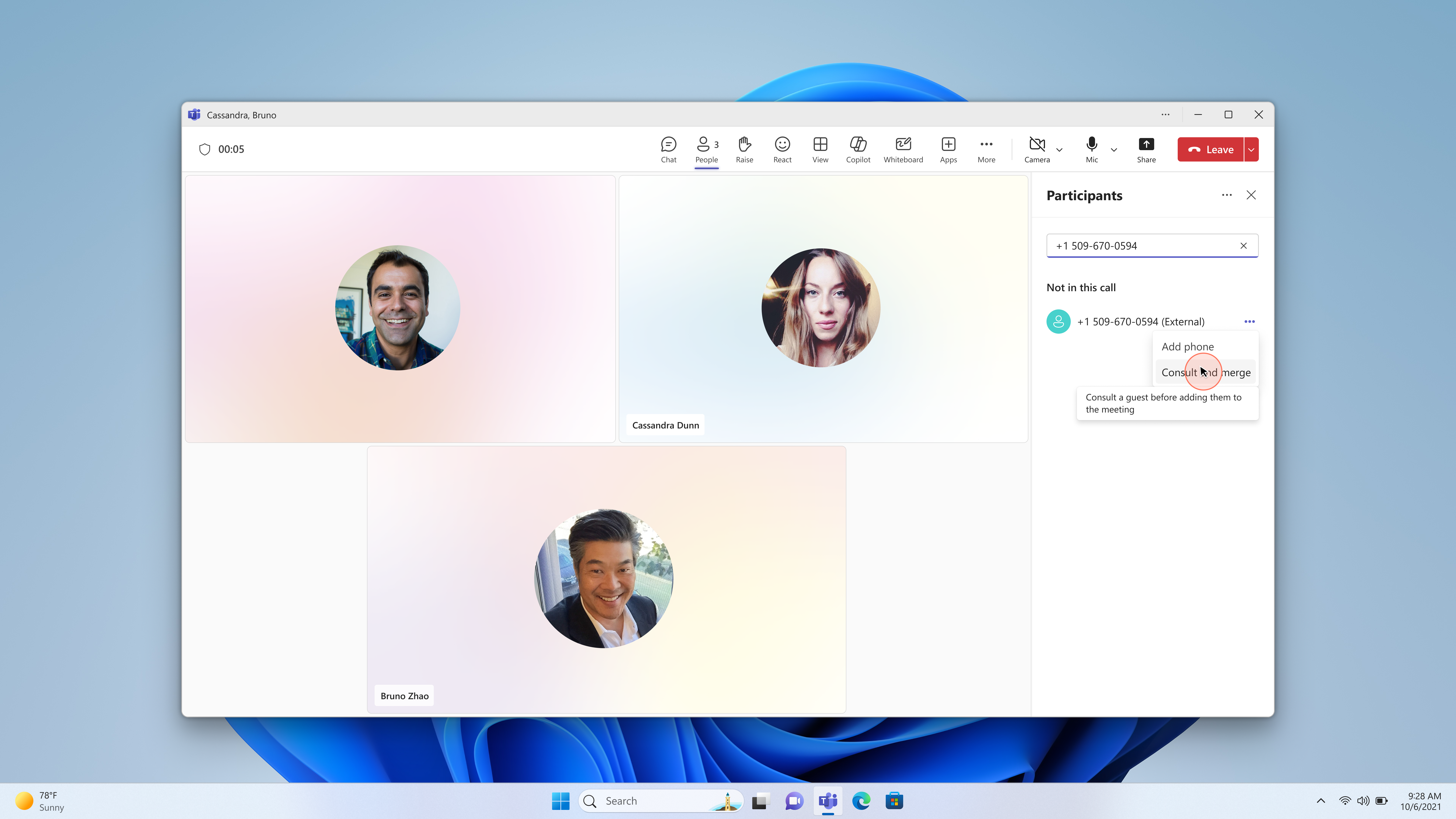
התייעץ ומזג שיחה לפגישה
כאשר אתה בפגישה של Teams, ייתכן שתצטרך להתייעץ במהירות עם מישהו לפני העברתו לשיחה.
באפשרותך לבצע שיחת ייעוץ ישירות מהפגישה, לשוחח עם האדם באופן פרטי ולאחר מכן למזג את השיחה בחזרה לפגישה כשתהיה מוכן.
- בכרטיסיה People בפגישה, הקלד מספר טלפון או חפש איש קשר בשדה הזמן מישהו או חייג מספר.
- בחר פעולות נוספות (...) >התייעץ ומזג.
- דבר עם האדם בשיחה לייעוץ. כשתהיה מוכן להכניס אותם לפגישה, בחר מזג.
לאחר המיזוג, המשתתף מופיע בלוח הפעילויות של הפגישה והשמע ממשיך עבור כולם.
עצה: אם עליך להשיג מישהו מאחורי IVR או מערכת ניתוב שיחות, בחר את סמל לוח החיוג במהלך שיחת הייעוץ כדי לשלוח גווני DTMF (0-9, *, #) ונווט בתפריט. לוח החיוג זמין רק במהלך שיחת הייעוץ - לאחר המיזוג, לוח החיוג כבר אינו מוצג.
הערה
- מיזוג שיחות אינו זמין עבור שיחות שורה משותפות שבוצעו על-ידי בוס ונציגים.
- באפשרותך להשתמש במיזוג שיחות כדי להוסיף משתמש מאחורי IVR לשיחה קבוצתית: בצע שיחה אישית חדשה ל- IVR, השתמש בלוח החיוג של DTMF כדי להגיע למשתמש היעד ולאחר מכן מזג את השיחה עם השיחה הקיימת או השיחה הקבוצתית הקיימת.
- כדי להתייעץ ולמזג שיחה לפגישה, למארגן הפגישה חייב להיות רשיון של שיחות ועידה בשמע או רשיון PSTN. אירועים, סמינרים מקוונים והעירייה אינם נתמכים.
- לוח החיוג זמין רק במהלך שיחת הייעוץ. לאחר מיזוג השיחה, לוח החיוג אינו מוצג עוד.