

Using Microsoft 365 Copilot to generate a first version of content (such as a draft, summary, analysis, or message) can save significant time—but the output is only a starting point. Copilot helps you create content faster, but it doesn’t replace your responsibility to review it for accuracy, clarity, and appropriateness before sharing.
This article explains how to evaluate Copilot output so you can decide whether it’s ready to use as‑is—or whether it needs changes before it supports your purpose and audience.
Why review Copilot output before sharing?
Copilot generates content based on the information and context you provide in your prompt. When that context is incomplete—or when expectations aren’t explicit—the resulting output might miss the mark.
Common issues include:
- Vague or generic language
- Missing context or key details
- Tone that doesn’t match the audience
- Content that doesn’t clearly support the intended outcome
Think of Copilot’s output as a starting point for many types of work. Your role is to evaluate whether it is accurate, complete, and appropriate for the situation before using it in documents, analyses, summaries, emails, or decisions.
What should I evaluate in Copilot output?
Before sharing or acting on Copilot‑generated content, review the output using the following criteria: Clarity, Accuracy, Tone and audience fit, and Context. This helps you identify potential risks or gaps that might not be obvious at first glance.
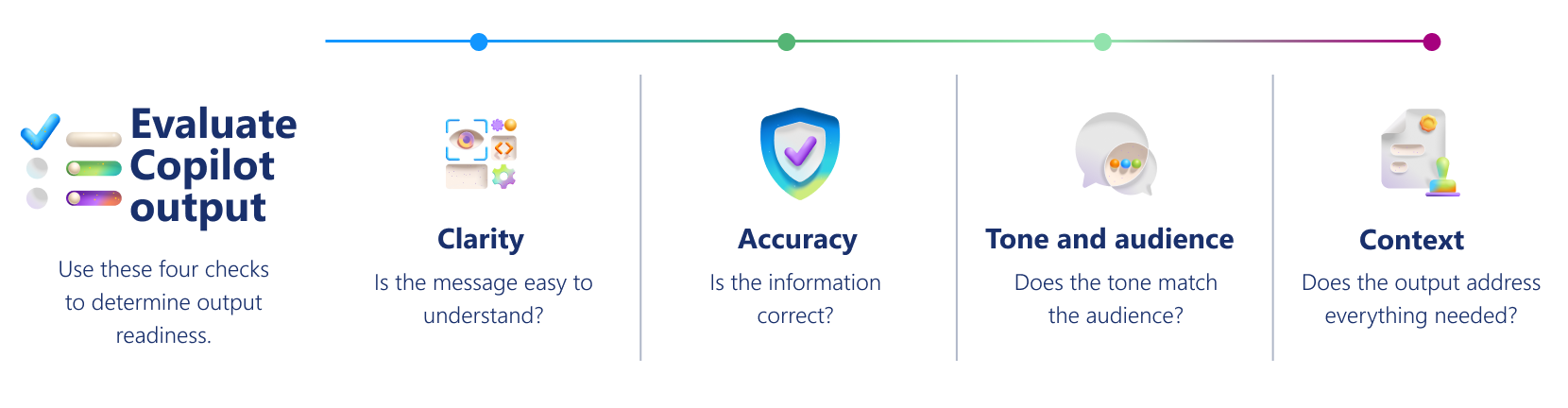
Evaluation criteria for Copilot output
| Area to review | What to check | Questions to ask yourself |
|---|---|---|
| Clarity | Each sentence should communicate a specific, concrete idea. Watch for broad or vague statements. |
|
| Accuracy | Verify all details, including facts, figures, names, dates, and references. Compare the output to your source material. |
|
| Tone and audience fit | Ensure the tone matches the intended audience (for example, executives, customers, or peers). Look for consistency. |
|
| Context | Check whether the output includes everything the audience needs—and nothing they don’t. |
|
Can I use Copilot prompts to evaluate output?
You don’t have to evaluate Copilot output on your own. You can also use Copilot to assist with the evaluation process—by asking it to compare versions, identify gaps, or assess how well the content supports your intended outcome.
The following sample prompts don’t change the content. Instead, they help you analyze whether the output is clear, complete, and appropriate before sharing it.
Check clarity
If a section feels vague or difficult to interpret, ask Copilot to identify what might confuse your audience.
 Identify any unclear or overly general statements in this section and explain how they might affect reader understanding.
 |
|---|
Check accuracy
If a claim seems unsupported or uncertain, use Copilot to flag assumptions or missing evidence.
|
Highlight any claims in this section that are not supported by the information provided. |
|---|
Check tone and audience fit
If the wording might not match your intended audience, ask Copilot to evaluate tone and level of detail.
|
Does the tone and level of detail in this section match an executive audience? Explain any mismatches. |
|---|
Check context
If the section might be missing key information, use Copilot to assess whether it supports your objective.
|
Based on this objective, what key information is missing or underexplained in this section? |
|---|
Treat Copilot’s feedback as an additional perspective—not a final decision. You are still responsible for determining whether the content is accurate, appropriate, and ready to share.
What does effective Copilot output look like after evaluation?
| Original output from Copilot | Revised version |
|---|---|
| “Our project is a comprehensive initiative designed to leverage multiple process improvements for significant efficiency gains.” | “Our project will automate data entry and approval workflows in customer support, reducing average handling time by an estimated 25% and allowing agents to focus more on customer issues.” |
Evaluation findings
|
What improved
|
Quick readiness checklist
Before relying on Copilot output, confirm:
✔️ Clarity: The content focuses on what matters most and makes the next action or decision clear.
✔️ Accuracy: Information is correct and can be verified.
✔️ Tone: It matches the expectations of the intended audience.
✔️ Context: It includes the right level of detail without being generic or incomplete.
If any of these are unclear, review your prompt and sources before proceeding.