
Last Updated: Oct 2026
A Brand Kit stores the logos, templates, fonts, and colors that keep presentations on brand. When you add a PowerPoint template to a Brand Kit, Copilot checks it and tells you how well it's set up to be used as a source for generated presentations.
Copilot builds presentations by reading your template's slide masters, layouts, theme, placeholders, and sample slides. The more clearly those are defined, the more consistent and on-brand the results. The template check shows you what's working, what to improve, and how—so you can fix things once, in the template, instead of correcting generated decks over and over.
Important
The check never changes your file, and it never blocks you from saving. It gives you recommendations; you decide what to act on and when.
Assess your template
Template assessment runs automatically when you upload a new template to the Brand Kit. You can also run the assessment at any time on existing templates.
Assess a new template when you upload it
In your Brand Kit, select Templates, and then select Add template.
Choose your PowerPoint file. The Save as brand template window opens.
Under Template assessment, the status appears while Copilot works: Checking your template for compatibility...
You can keep filling in the template name, tags, and description while the assessment runs.
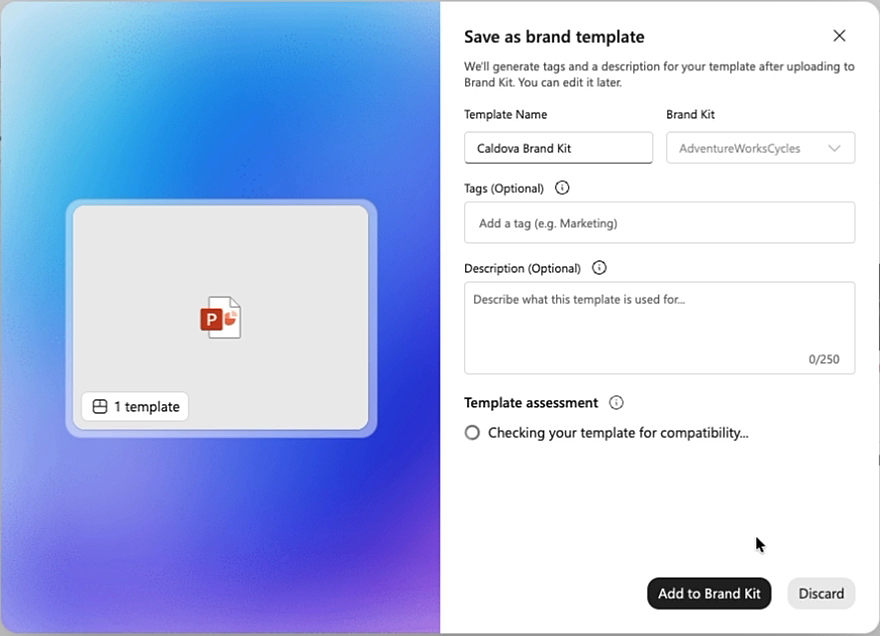
When the assessment finishes, review the results, and then select Add to Brand Kit.
Assess an existing template
In your Brand Kit, select Templates.
Point to the template you want to assess, select More options (...), and then select Template assessment.
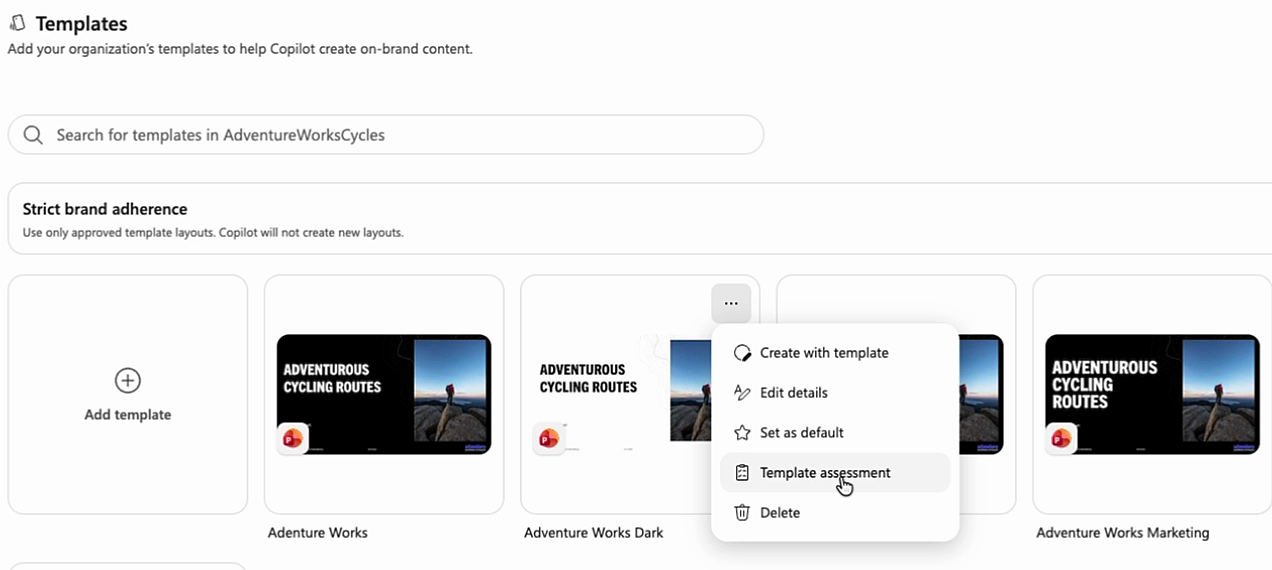
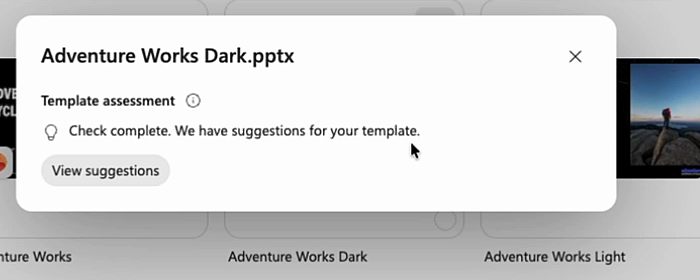
Wait for Checking your template for compatibility... to finish. When it's done, you'll see one of these:
Result What it means Check complete. Your template's ready to use with Copilot. Nothing needs attention. Check complete. We have suggestions for your template. There are recommendations to review. We couldn't check this template. Try again. The assessment didn't run. Try again. Select View suggestions to see the details.
Read your results
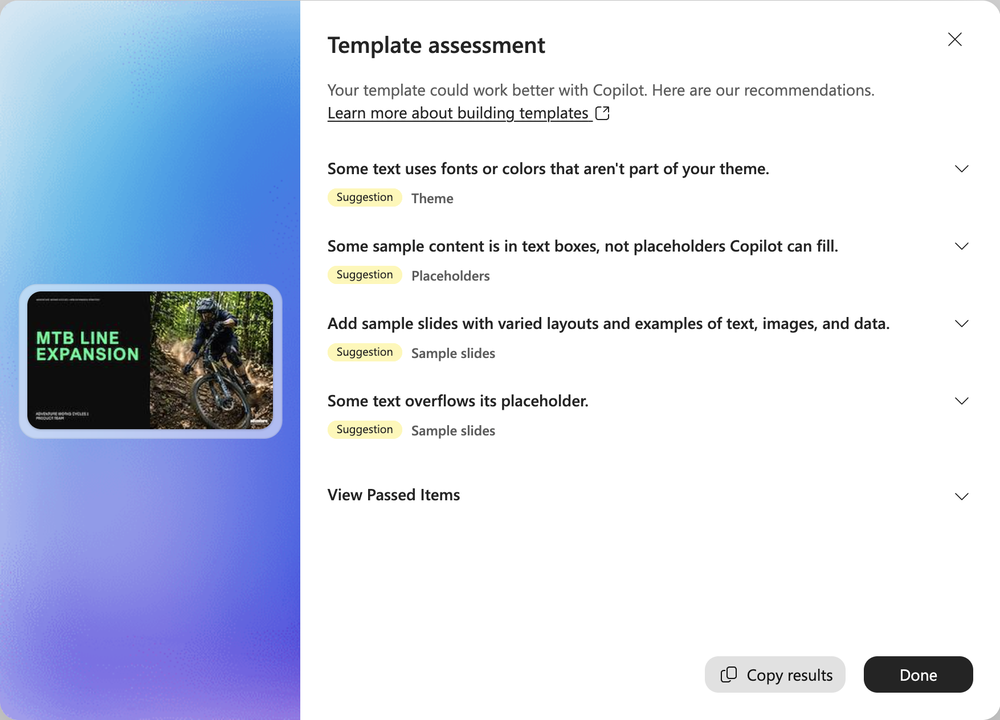
At the top of the results, a message summarizes the outcome.
| Message | What to do |
|---|---|
| Looks good! Your template's ready to use with Copilot. | Nothing to do. |
| Your template could work better with Copilot. Here are our recommendations. | Review the recommendations below. You can save the template now and improve it later. |
| Copilot can't use this file type. Save the template as a supported PowerPoint file to continue. | Save the file as .pptx or .potx and add it again. |
| Copilot couldn't read part of this template. Repair it or restore a working copy to continue. | Repair the file in PowerPoint, or go back to a working copy. |
Below the message, each recommendation appears as a row. The row itself states what was found, so you can scan the list without expanding anything. Each row has a label that shows its status and the part of the template it applies to—for example, Suggestion · Theme or Suggestion · Sample slides.
- Suggestion — the template works, but Copilot produces better output if you make the change.
- Pass — this part of your template is already set up well. Select View Passed Items to see them.
Some issues, like an unsupported file type or a file Copilot can't read, must be fixed before Copilot can use the template. Only the template file, slide master, and theme checks can reach this state.
Expand a row to see Why it matters and How to improve. For sample-slide checks, Found on lists the slides where the issue appears.
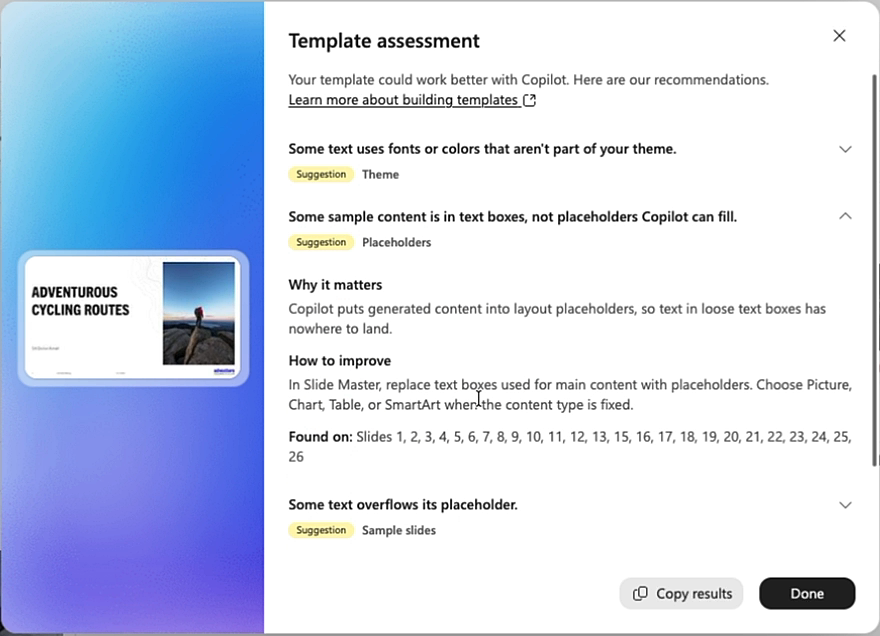
To share the results with whoever maintains the template, select Copy results. When you're finished, select Done.
Note
The check only reports what it actually observed. It won't tell you something is missing just because it couldn't be measured.
What Copilot checks
Template file
| Status | What the result says |
|---|---|
| Pass | This is a PowerPoint file Copilot can use. |
| Must fix | Copilot can't use this file type. |
| Suggestion | Some design details may be missing because this template was last saved in PowerPoint for the web. |
Why it matters: Copilot can't use the template unless the file is in a supported and readable PowerPoint format. And because Copilot reads the saved template package, the file needs to include its full design.
How to improve:
- Must fix — Open the template in PowerPoint and save it as
.pptxor.potx. Macro-enabled, password-protected, and older.pptfiles aren't supported. - Suggestion — Open the template in PowerPoint for Windows or Mac and save it again to include the full design.
Slide master
| Status | What the result says |
|---|---|
| Pass | Copilot can read every part of this template. |
| Must fix | Some parts of this template couldn't be read. |
| Suggestion | Some slide parts of this template didn't load correctly. |
Why it matters: Copilot builds slides from the template's masters and layouts, so those parts need to be present and readable.
How to improve:
- Must fix — Open the template in PowerPoint and use Repair if it's offered. Otherwise, restore a working copy.
- Suggestion — Open the template in PowerPoint and save a fresh copy to rebuild its internal structure.
Theme
Two checks look at your theme.
Your theme definition
| Status | What the result says |
|---|---|
| Pass | Your template has a complete, consistent set of theme colors and fonts. |
| Must fix | Your template is missing theme colors, theme fonts, or both. |
| Suggestion | Some slide masters or layouts use different theme colors or fonts. |
Why it matters: Copilot styles generated slides from the theme. A complete, consistent theme helps keep new slides on brand.
How to improve:
- Must fix — In Slide Master, open Colors and choose a full palette. Then open Fonts and set Heading and Body fonts.
- Suggestion — In Slide Master, apply the same theme colors and fonts to every master and layout you keep.
How your text uses the theme
| Status | What the result says |
|---|---|
| Pass | Your text uses the template's theme fonts and colors. |
| Suggestion | Some text uses fonts or colors that aren't part of your theme. |
Why it matters: Text that uses theme fonts and colors can update if you change your theme. Custom formatting might not update.
How to improve: In Slide Master, use Theme Fonts and Theme Colors for text placeholders. Apply them to text on sample slides, too.
Placeholders
| Status | What the result says |
|---|---|
| Pass | Your content is in placeholders Copilot can fill. |
| Suggestion | Some sample content is in text boxes, not placeholders Copilot can fill. |
Why it matters: Copilot puts generated content into layout placeholders, so text in loose text boxes has nowhere to land.
How to improve: In Slide Master, replace text boxes used for main content with placeholders. Choose Picture, Chart, Table, or SmartArt when the content type is fixed.
Sample slides
Sample slides are the finished example slides in your template. They show Copilot how your team actually uses your design. Several checks look at them.
Range of examples
| Status | What the result says |
|---|---|
| Pass | Your sample slides show Copilot a good range of content. |
| Suggestion | Add sample slides with varied layouts and examples of text, images, and data. If your template has none: Your template has no sample slides. |
Why it matters: Sample slides show Copilot how your team combines text, images, and data in your designs.
How to improve: Add sample slides with real content that covers text, images, and data. Vary the layouts and avoid exact copies.
Completed examples
| Status | What the result says |
|---|---|
| Pass | Your sample slides show examples in the content areas meant to demonstrate the layout. |
| Suggestion | Some sample slides don't show examples in all content areas. |
Why it matters: Sample slides show Copilot what belongs in each area; an empty area in a sample doesn't provide an example. This is about your sample slides, not about blank placeholders in your layouts.
How to improve: Add example content to the areas meant to demonstrate the layout. Leave areas intentionally blank when they don't need an example.
Text that fits
| Status | What the result says |
|---|---|
| Pass | Your sample text fits its placeholders. |
| Suggestion | Some text overflows its placeholder. |
Why it matters: Text that fits its placeholder gives Copilot an example it can reproduce without overflow.
How to improve: Shorten the text or enlarge the placeholder in Slide Master. Copilot doesn't resize text, so overflow can carry into new slides.
Editable content
| Status | What the result says |
|---|---|
| Pass | Your examples use editable PowerPoint content. |
| Suggestion | Some sample-slide content is embedded or locked, so Copilot can't update it. |
Why it matters: Copilot can restyle and refill native PowerPoint shapes, tables, and charts, but not embedded objects, or shapes, text boxes, or other objects that have been grouped together and locked.
How to improve: Replace embedded objects and pictures of tables or charts with editable PowerPoint tables or charts. To make a locked group editable, select the group and unlock it.
Speaker notes
| Status | What the result says |
|---|---|
| Pass | Your sample slides have speaker notes. |
| Suggestion | Some sample slides don't have speaker notes. If none have notes: None of your sample slides have speaker notes. |
Why it matters: Speaker notes tell Copilot what a sample slide is for and when to use it. These notes can guide Copilot even if they aren't meant for presentation viewers.
How to improve: In the Notes pane, describe what each sample slide is for and when Copilot should use it. The notes are for Copilot; they don't have to be written for your audience.
Tip
Speaker notes do double duty. Beyond helping Copilot pick the right sample slide, you can use them to steer how Copilot treats a slide—for example, "Always include this cover slide." See Manage template settings in your Brand Kit for Copilot in PowerPoint.
Fix your template with Copilot in PowerPoint
You can ask Copilot in PowerPoint to apply the recommendations for you.
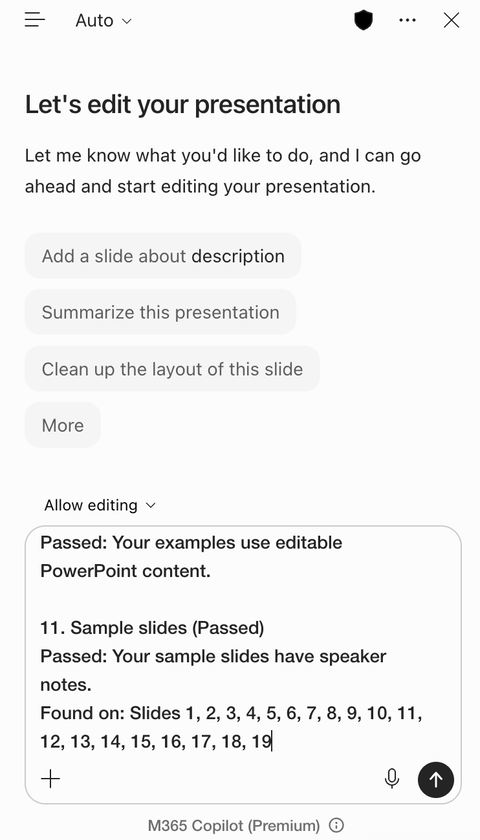
In Template assessment, select Copy results.
Open your template in PowerPoint, and then open Copilot.
Enter the following prompt, paste the results after it, and then send:
Fix the template issues from the checker report, keeping the existing design and slide count:
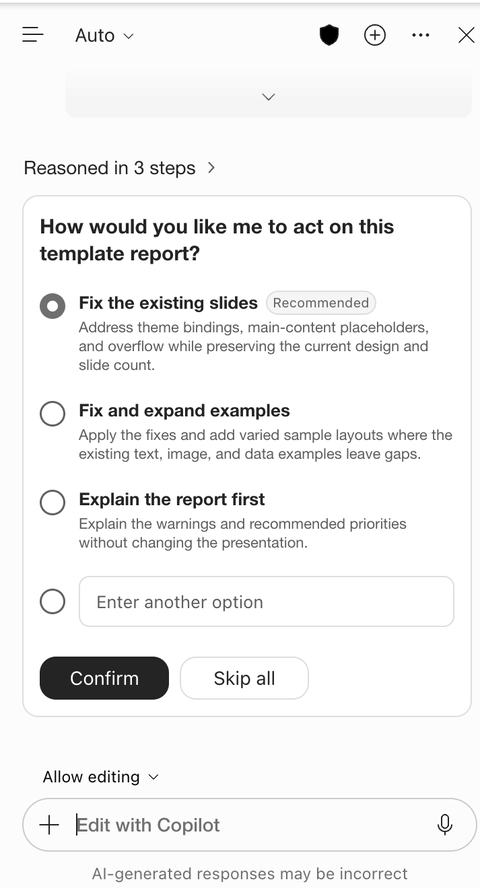
Copilot might ask how you want to act on the report. Choose an option, and then select Confirm:
- Fix the existing slides — fixes theme, placeholder, and text-fit issues and keeps your current design and slide count.
- Fix and expand examples — applies the fixes and adds sample slides where your examples have gaps.
- Explain the report first — explains the recommendations without changing your template.
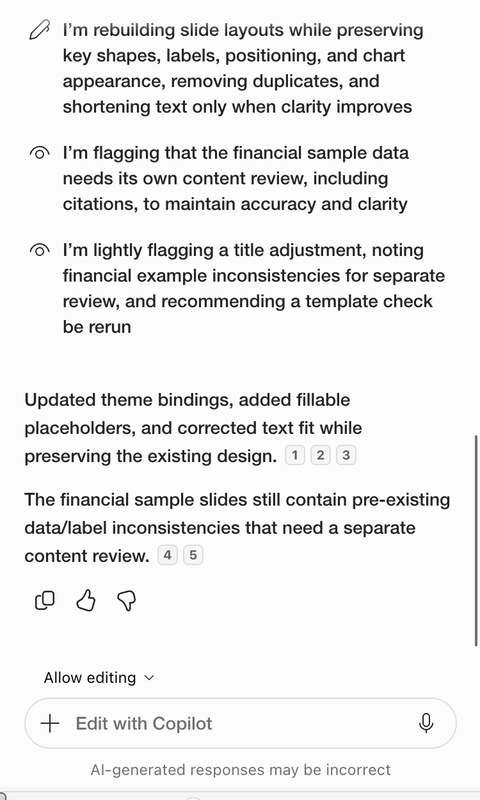
Review the changes. Copilot summarizes what it updated and flags anything that still needs your attention.
Save the template, upload it to your Brand Kit, and run the assessment again to confirm the fixes.
Tip
Copilot fixes the template structure, not your content. If it flags issues like inconsistent sample data, review those slides yourself.
Improve your template and assess again
Open the template in PowerPoint and make the changes described under How to improve.
Save the template and upload the updated version to your Brand Kit. The assessment runs automatically, so you can confirm your changes worked.
You can also run the assessment on an existing template at any time—for example, after someone else updates it, or to re-check a template you haven't looked at in a while.
Tip
Make theme and placeholder changes in the slide master and layouts rather than on individual slides. Changes at the master level apply everywhere the layout is used and won't reappear the next time your template is updated.
Tip
If you only have time for one thing, add sample slides. They're the clearest signal Copilot has about how your design is meant to be used.
Quick reference
- Upload your template to your Brand Kit, or select More options (...) > Template assessment on an existing template.
- Wait for Checking your template for compatibility... to finish.
- Select View suggestions.
- Resolve anything that must be fixed, then work through the suggestions.
- Expand a row to see Why it matters and How to improve.
- Fix the template in PowerPoint yourself, or select Copy results and ask Copilot in PowerPoint to fix it.
- Upload the updated version and assess it again to confirm your changes.