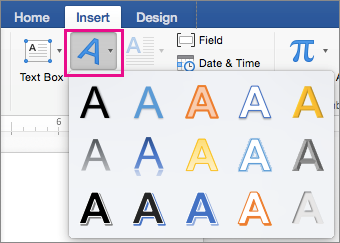
Go to Insert > WordArt
Pick the WordArt style you want.
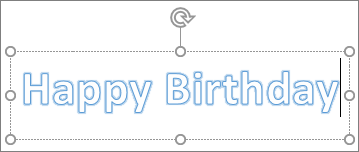
Type your text.
Note
To convert existing text to WordArt, select the text, and then select Insert > WordArt.
Change the color
Select the WordArt text to change.
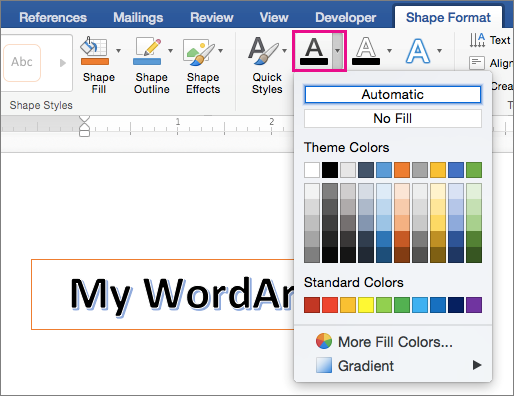
On Shape Format or Drawing Tools Format, select Text Fill or Text Outline, and pick the color you want.
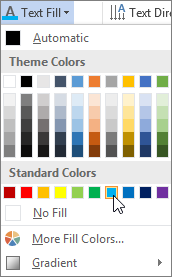
Click or tap outside of your text box to see the effect.
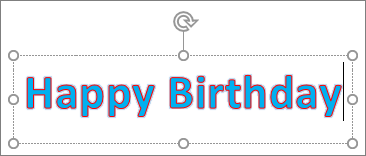
Choose a text effect
Select the WordArt text to change.
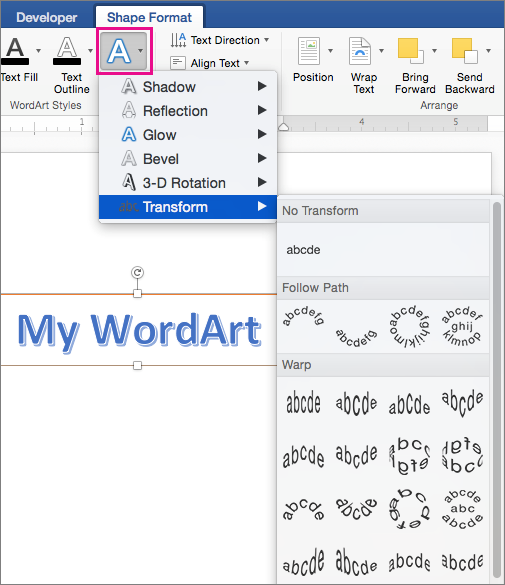
Go to Shape Format or Drawing Tools Format > Text Effects >Transform.
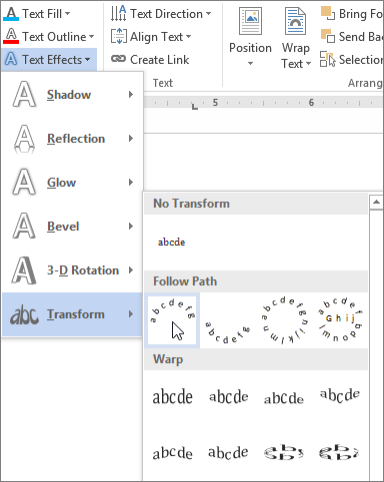
Pick the effect you want.
Click outside of your text box to see the effect.
For more on shaping WordArt, see Curve text around a circle or other shape.
Rotate it
Select the WordArt, and then drag the circular rotation handle at the top of the box.
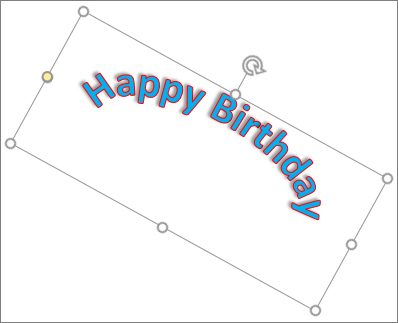
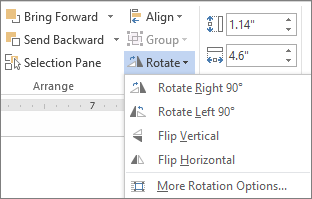
To flip WordArt or rotate it 90 degrees, go to Shape Format or Drawing Tools Format > Rotate, and then select an option.
Change the font
- Select the WordArt text to change.
- Go to Home and select options such as font style, font size, or underline.
Delete WordArt
Double-click the WordArt that you want to remove, and then press Delete.