When you share your document with others and give them permission to edit, everyone's changes are made in the same document.
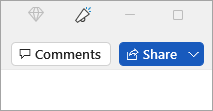
In the top right corner, above the ribbon, select Share.
Note
Save your document in OneDrive, if it's not already there.
Enter names or email addresses of the people you want to share with and adjust permission their permissions.
Add a message (optional) and select Send.
The people you're sharing with will get mail from you, with a link to your document.
In the top right corner, above the ribbon, select Share.
Note
Save your document in OneDrive, if it's not already there.
Enter names or email addresses of the people you want to share with and adjust permission their permissions.
Add a message (optional) and select Send.
The people you're sharing with will get mail from you, with a link to your document.
In the upper corner, select Share.
Select Save to save the document to the cloud to share.
Select Send a Copy.
Note
You can select to send the copy as a Word Document, PDF, or HTML.
Select Email as Attachment.
Note
You also have the option to select to share with Outlook, AirDrop, Mail, Messages, Notes, and More (any extensions you have installed on your Mac).
Choose a Mail account provider.
Complete the email with invitees, add an optional note, and send.
Note
If you aren't signed in to a Mail provider, you will need to sign in.
